

2.2.5. Accept Cash, Card and Mixed Payments#
Customers can pay for the full order with GNU Taler, cash or card, or split the amount between these methods. Record cash and card payments first, then use Taler to pay any remaining balance.
GNU Taler is always available. To enable an additional payment method, open Settings → Manage payment options. Turn on Cash to record cash payments. For a card reader, follow Accept Card Payments with SumUp.
If mixed payments are unavailable, ask your administrator to check that the merchant backend supports protocol version 42 or later.
After preparing an order, press Bill. If cash or card payments are enabled, the payment screen opens. Choose:
Cash (1) to record money received from the customer.
Card (2) to charge an amount using the card reader.
Charge with Taler (3) to show the QR code for the remaining amount.
Order total shows the full amount owed. Paid shows the payments already recorded, and Remaining shows how much is still due.
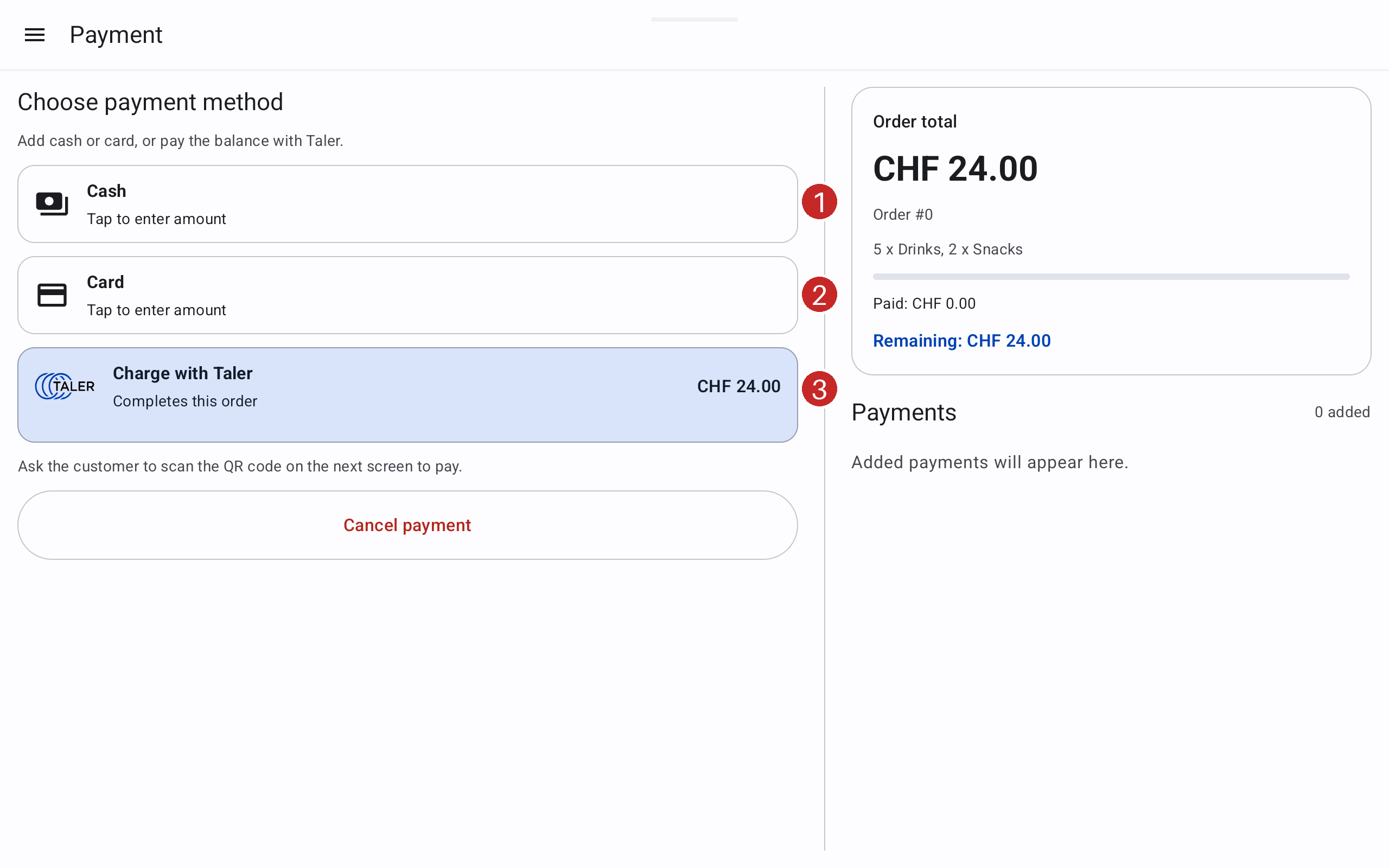
Choose the payment method.#
For a payment made entirely with Taler, follow Payment QR Code.
2.2.5.1. Recording cash and returning change#
Select Cash in checkout.
Enter the amount the customer handed you in Cash received (1). The fraction buttons can fill half, a third, a quarter or all of the remaining balance.
If the customer gave more than the outstanding amount, check Change to return and hand that change back. Only the amount owed is counted towards the order.
Press Record … cash (2). The button becomes available after you enter a valid amount.
Back in checkout, verify the recorded payment and remaining balance.
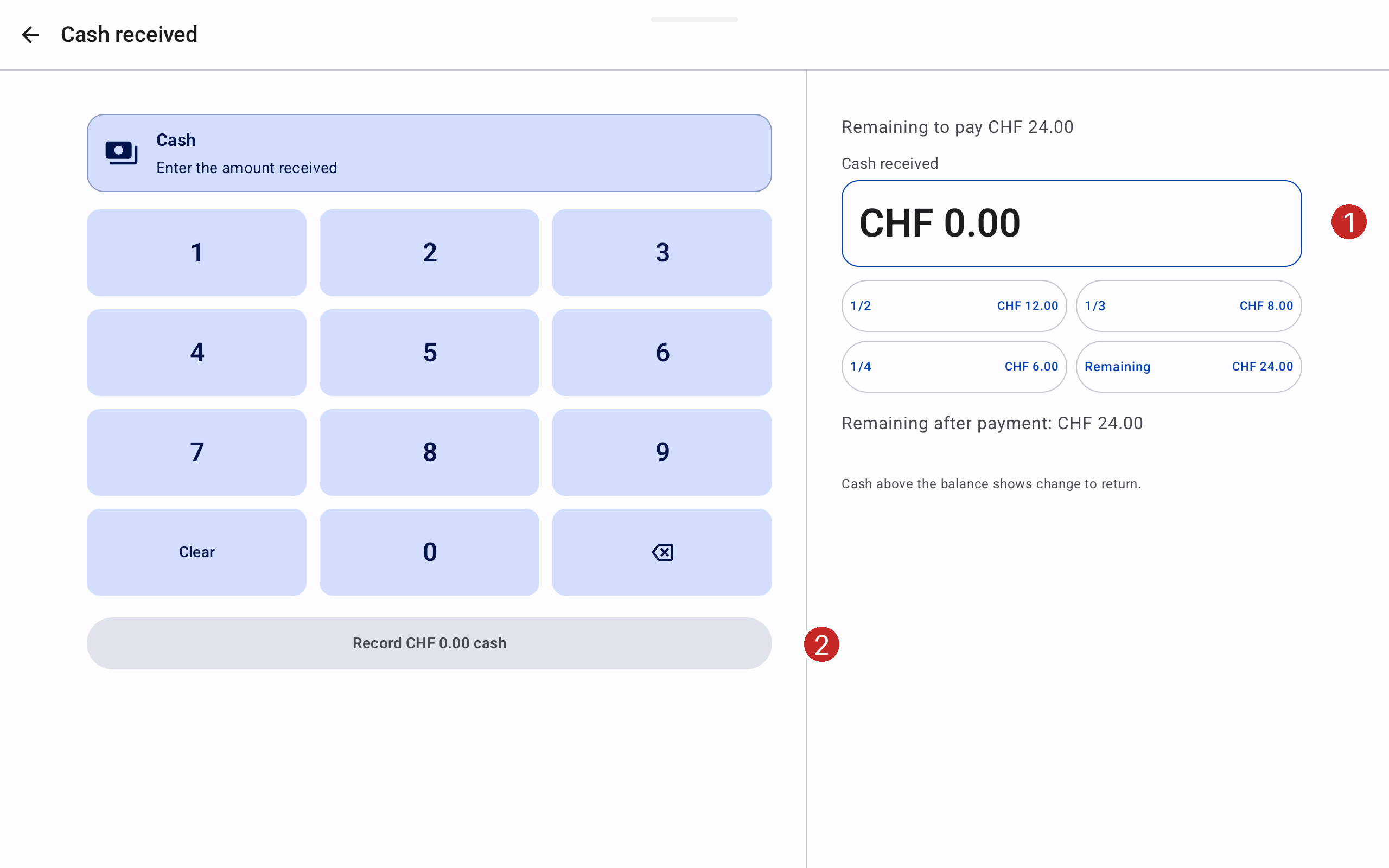
Enter the received amount before recording the cash payment.#
2.2.5.2. Splitting an order between payment methods#
Take cash and card payments first. GNU Taler pays the remaining balance last.
For example, for an order of CHF 24.00:
Receive CHF 10.00 in cash and record it as described above.
Check that Paid is CHF 10.00 and Remaining is CHF 14.00 (1).
If the customer also wants to pay part by card, select the card option, enter that amount and complete the card payment before continuing.
To pay the remaining balance with Taler, press Charge remaining with Taler (2). Show the QR code and wait for confirmation.
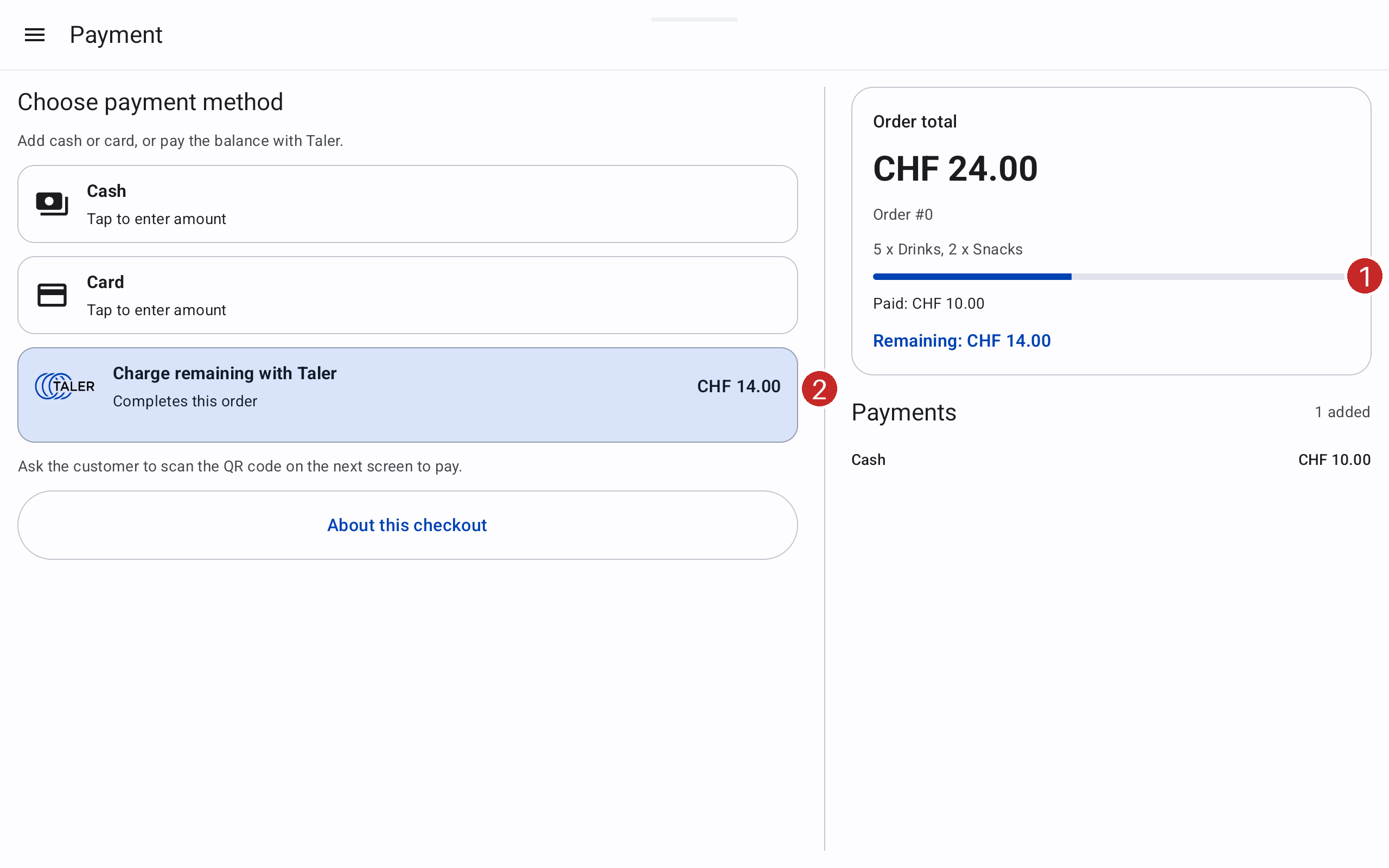
In this example, cash covers CHF 10.00 and Taler will cover CHF 14.00.#
The Payments area lists the amounts already recorded. On smartphones in landscape orientation, press Payments so far to open the list.
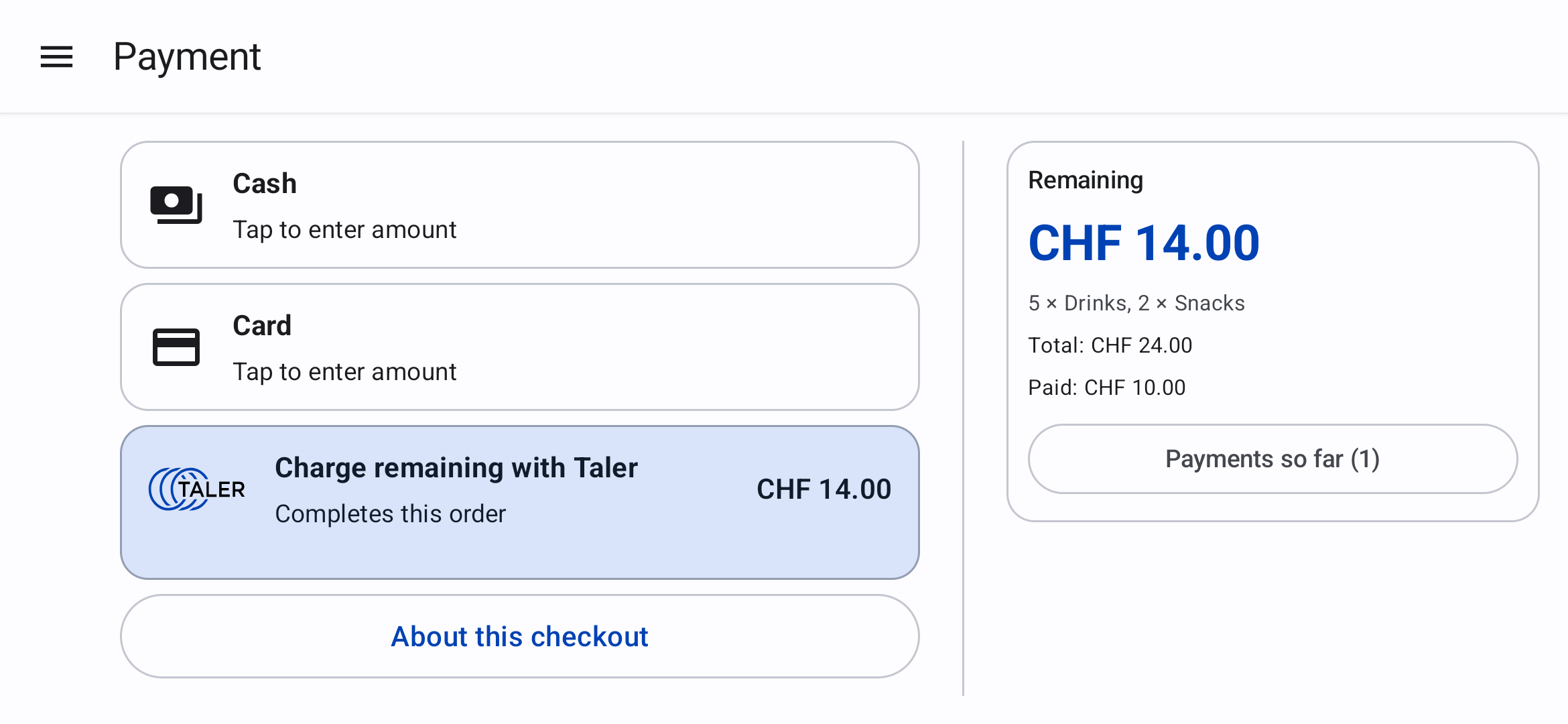
Press Payments so far. |
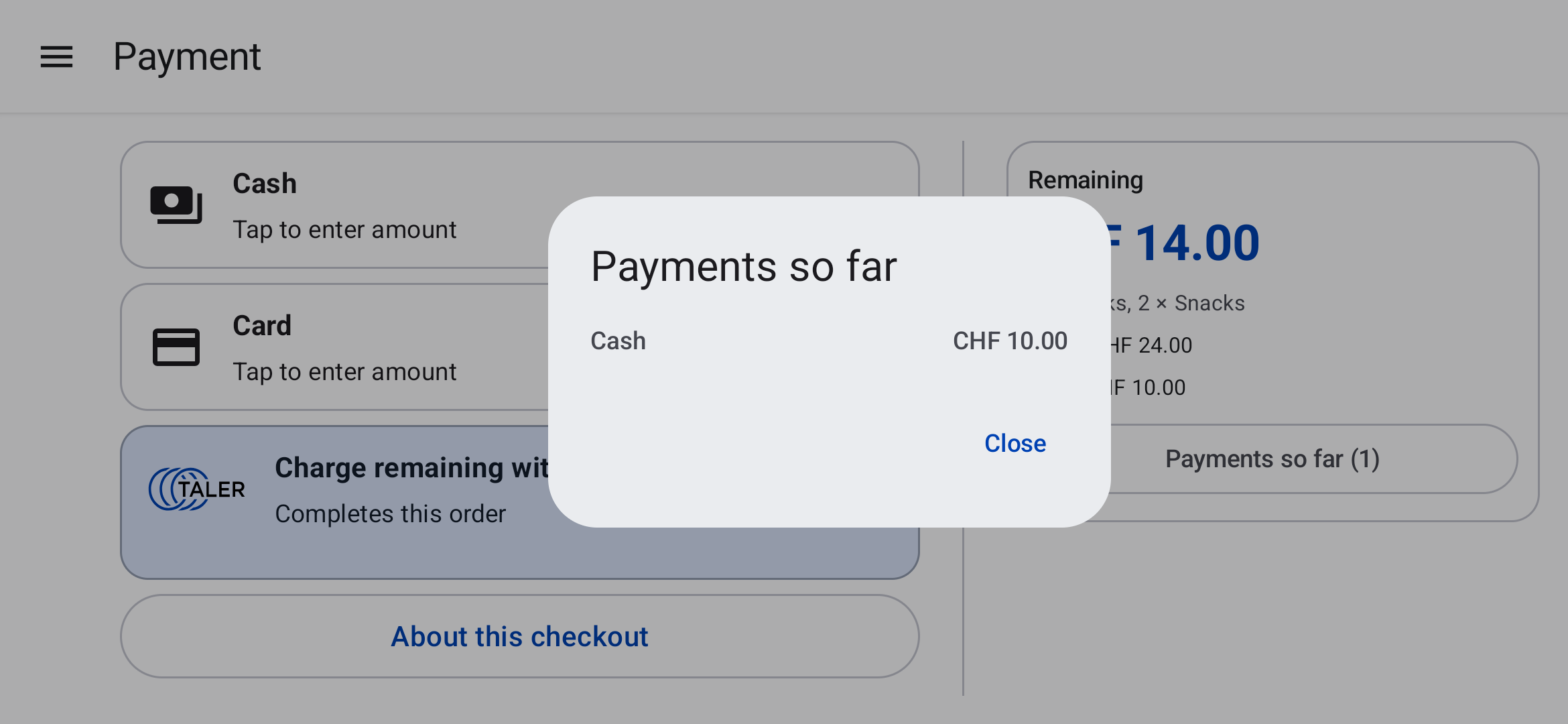
Review the payments, then press Close. |
If you need to add another cash or card payment after opening the Taler QR screen, press Back to payment options (1) and wait for checkout to reopen. If the wallet has already paid, the POS completes the order instead. If the backend cannot be reached, follow Recover an Interrupted Payment rather than starting a second charge.
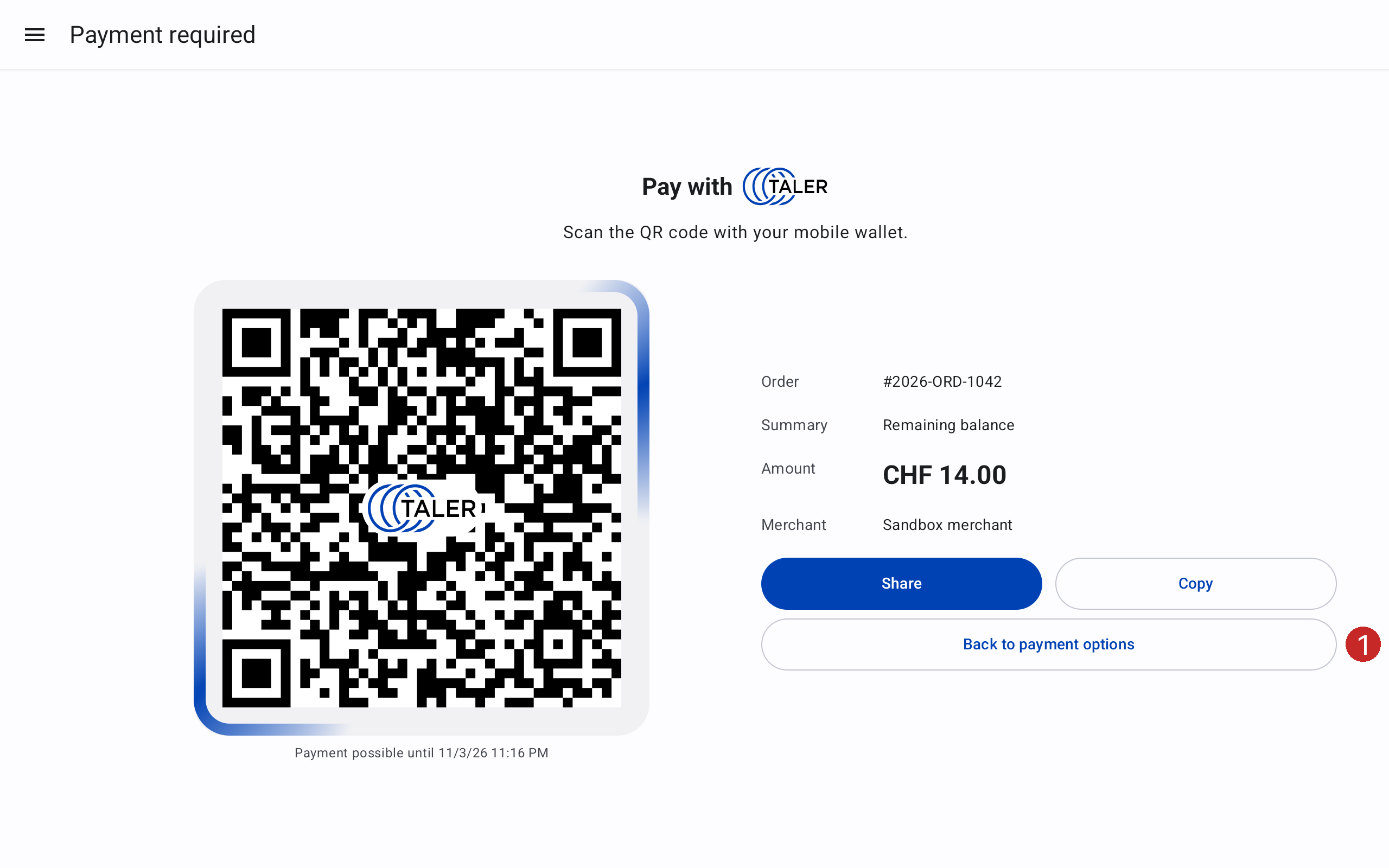
Press Back to payment options (1) to add another cash or card payment.#
2.2.5.3. Completing an order paid entirely in cash or by card#
Record payments until the remaining balance is zero.
Press Complete payment.
Offer the receipt QR code to the customer. A Taler wallet can collect this receipt without making another payment.
If the customer does not want to collect it with a wallet, press Collect receipt on this device (1).
Wait for completion before starting the next sale.
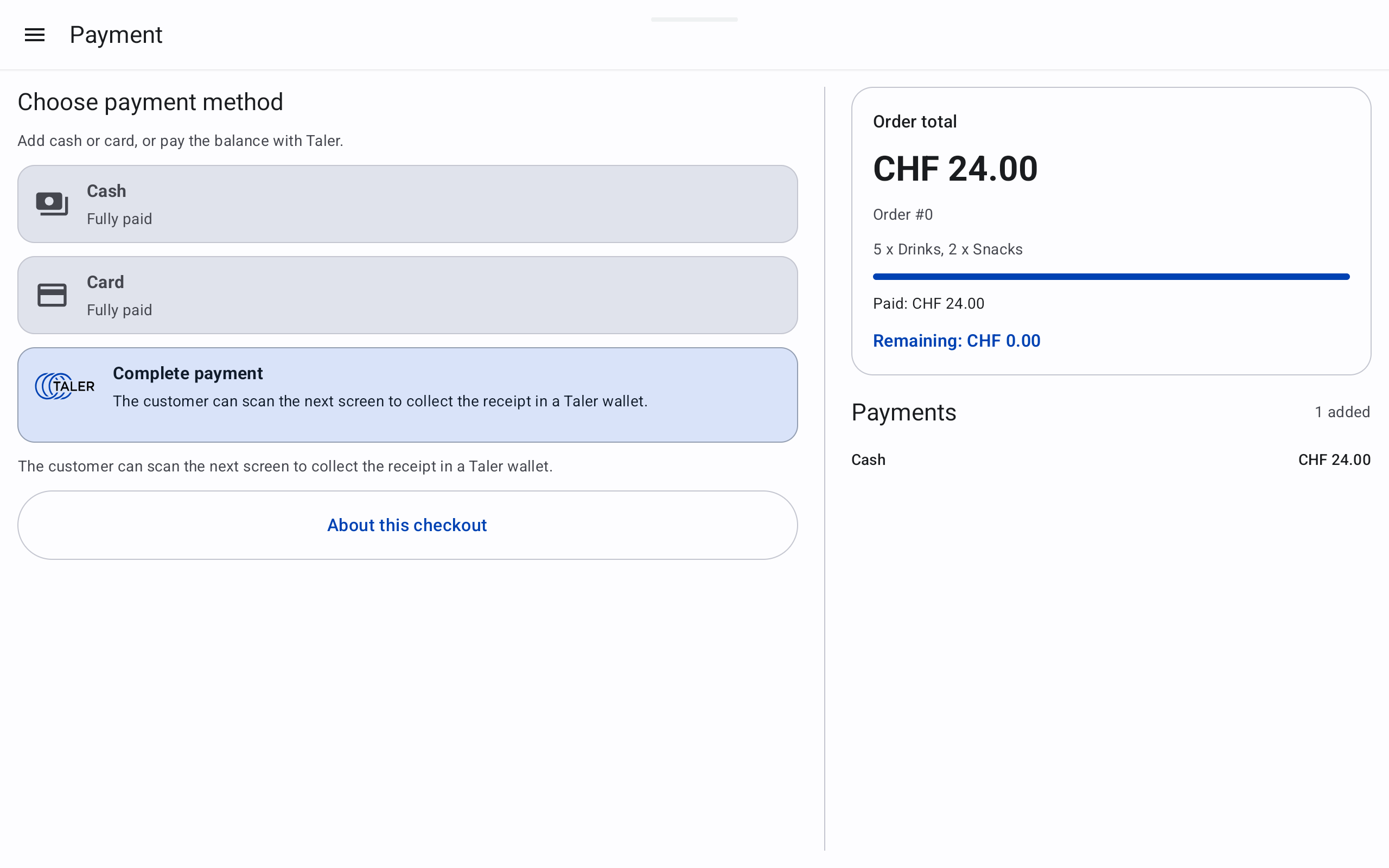
Press Complete payment once the remaining balance is zero.#
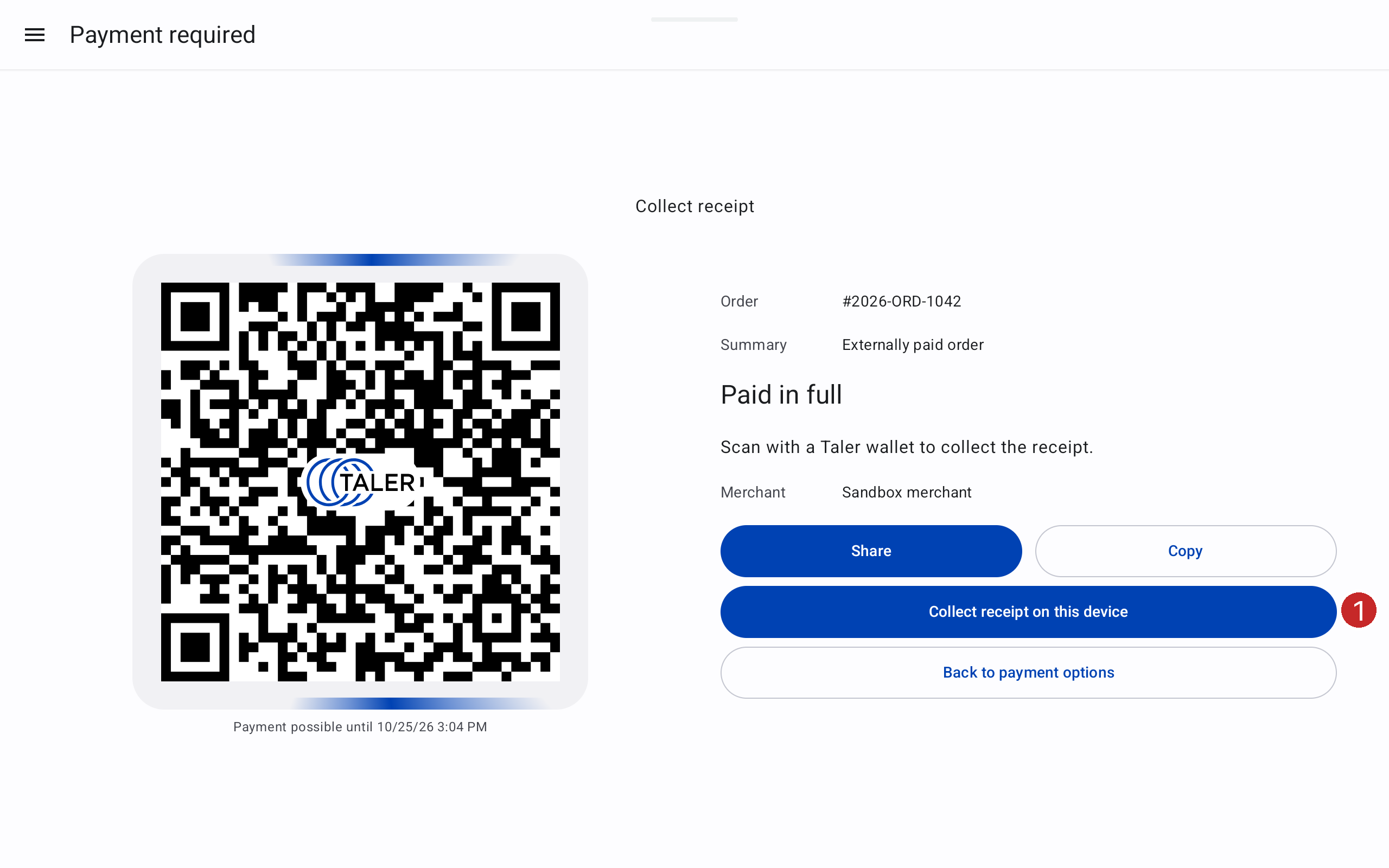
Offer the receipt QR code or collect the receipt on this device (1).#
If the customer has already claimed the order with a wallet, let them finish collection in that wallet. The POS cannot collect an order claimed by a customer’s wallet.