

2.2.9. Inspect Order History#
The order history gives the merchant a quick way to inspect recent point-of-sale activity. It shows recent orders with their total amount, elapsed time, receipt identifier, and payment state.
Open the history screen from the app navigation.

Selecting the history screen.#
Each order is shown as a separate card. A Paid badge means that the customer payment was completed. Paid orders can be refunded directly from this screen with the Refund button. Use Refresh history to update the list when a recent payment or refund is not shown yet.

Recent point-of-sale orders with payment state and refund actions.#
2.2.9.1. Inspect order details#
Tap an order to open Order details. This shows its products, quantities, prices and payment breakdown. Orders may also include delivery and merchant details.
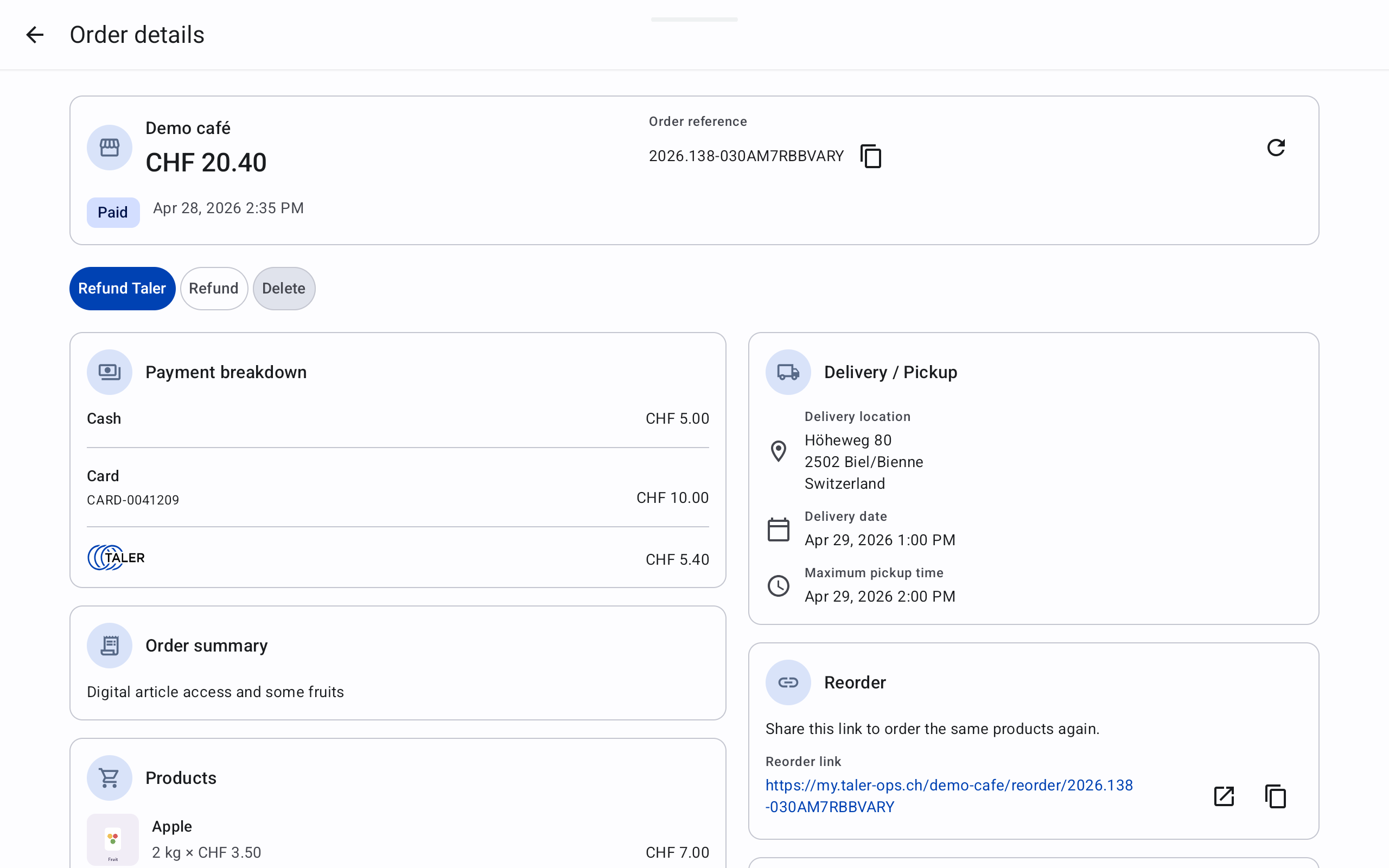
Order details and recorded payments.#
Use Show payment for an unpaid order. Unfinished checkouts are also listed in history; use Continue to resume them. See Recover an Interrupted Payment for interrupted payments and uncertain card results.
If details cannot be loaded, restore the connection and press Try again. You can also view the order in the Merchant Portal.