

2.2.4. Create and Complete Orders#
The point-of-sale app is designed for quick in-person sales. The merchant enters an amount or builds an order, shows the generated payment request to the customer, and waits until the wallet confirms the payment.
2.2.4.1. Create a simple amount-based order#
For a simple sale, open the navigation menu and select Order by amount.
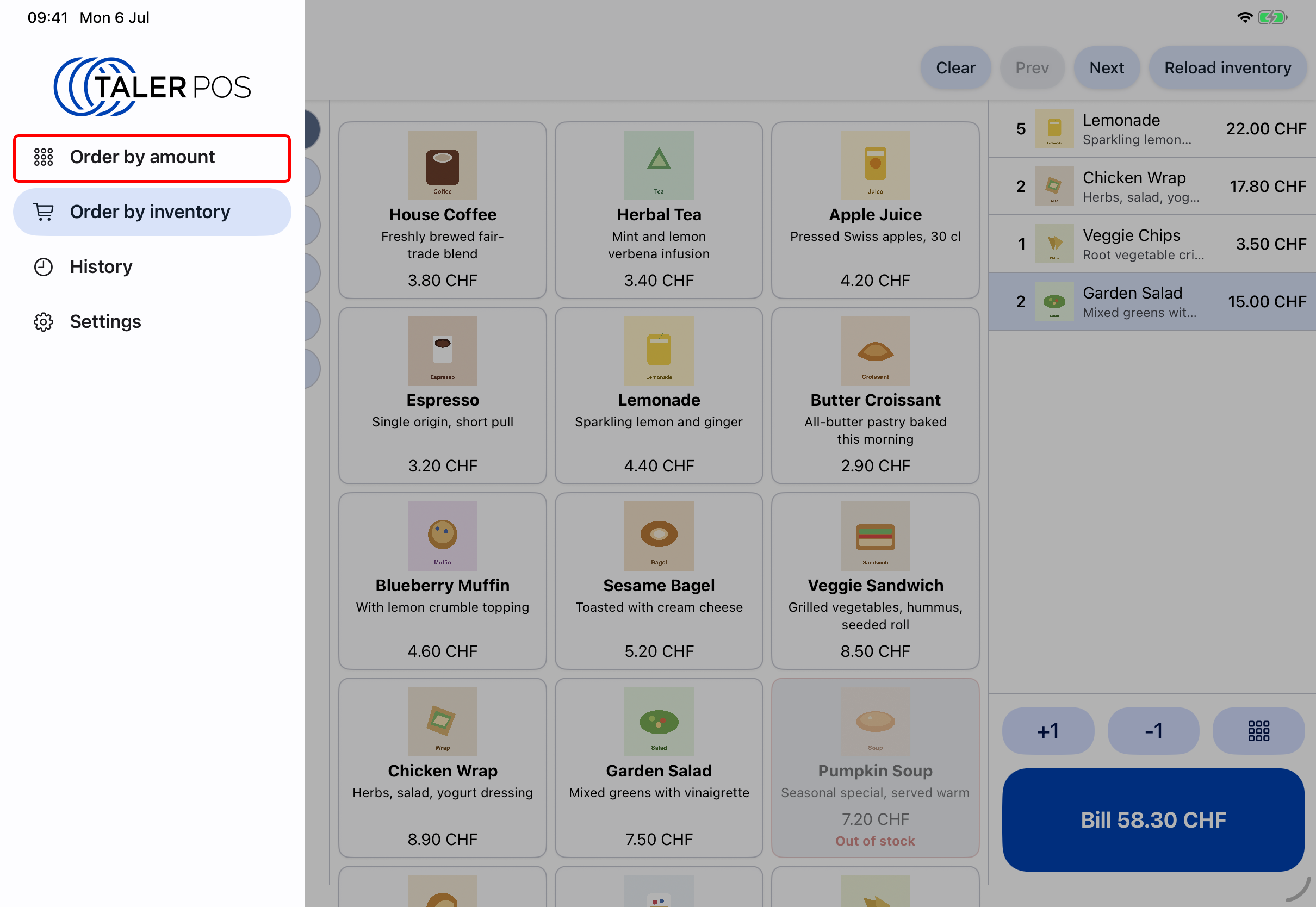
Selecting the amount-based order screen.#
Then enter the amount that the customer should pay.
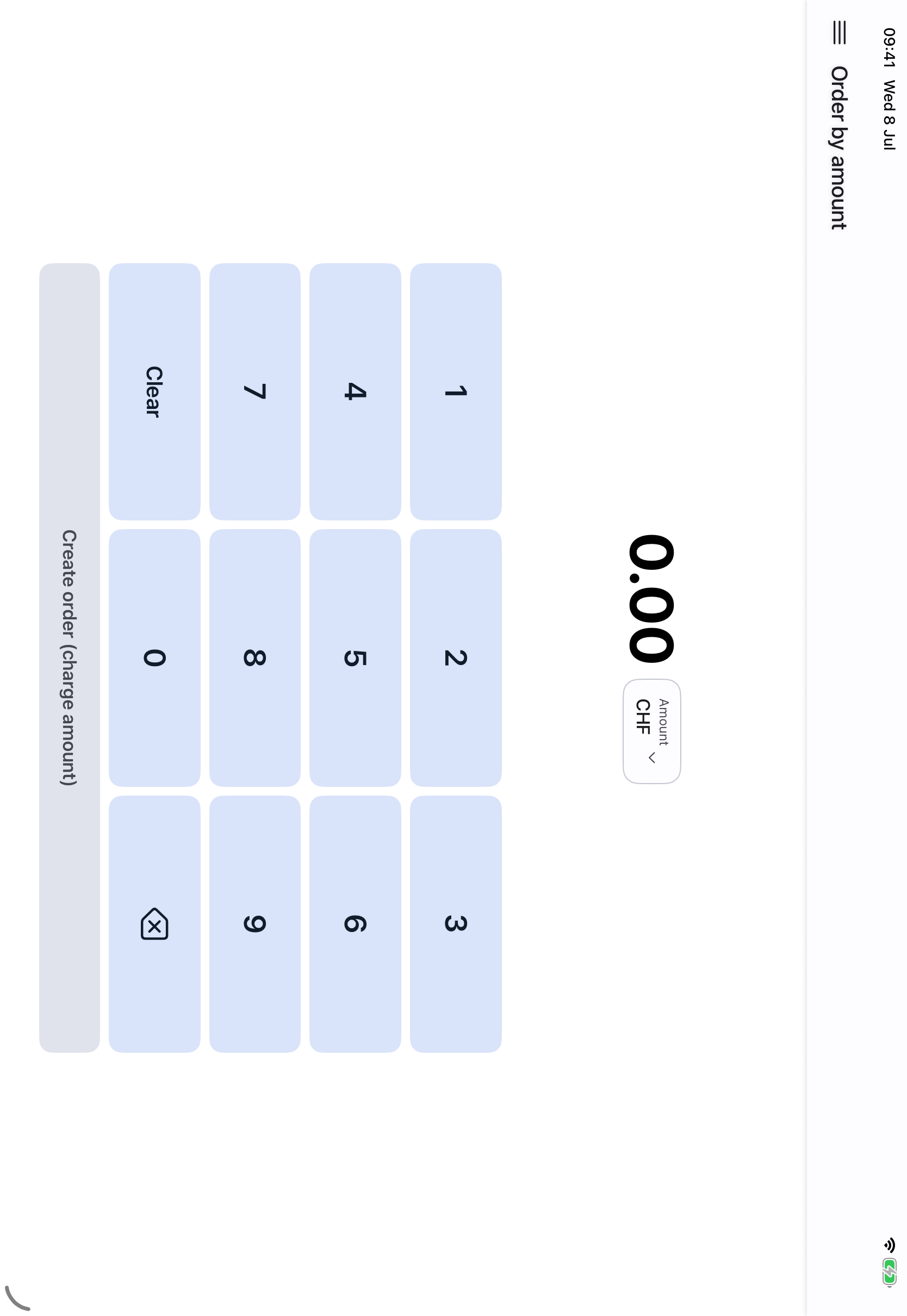
Entering the amount for a quick order.#
After confirming the amount, the app continues to the payment QR code.
2.2.4.2. Create an Order by Inventory#
Open the navigation menu and select Order by inventory.
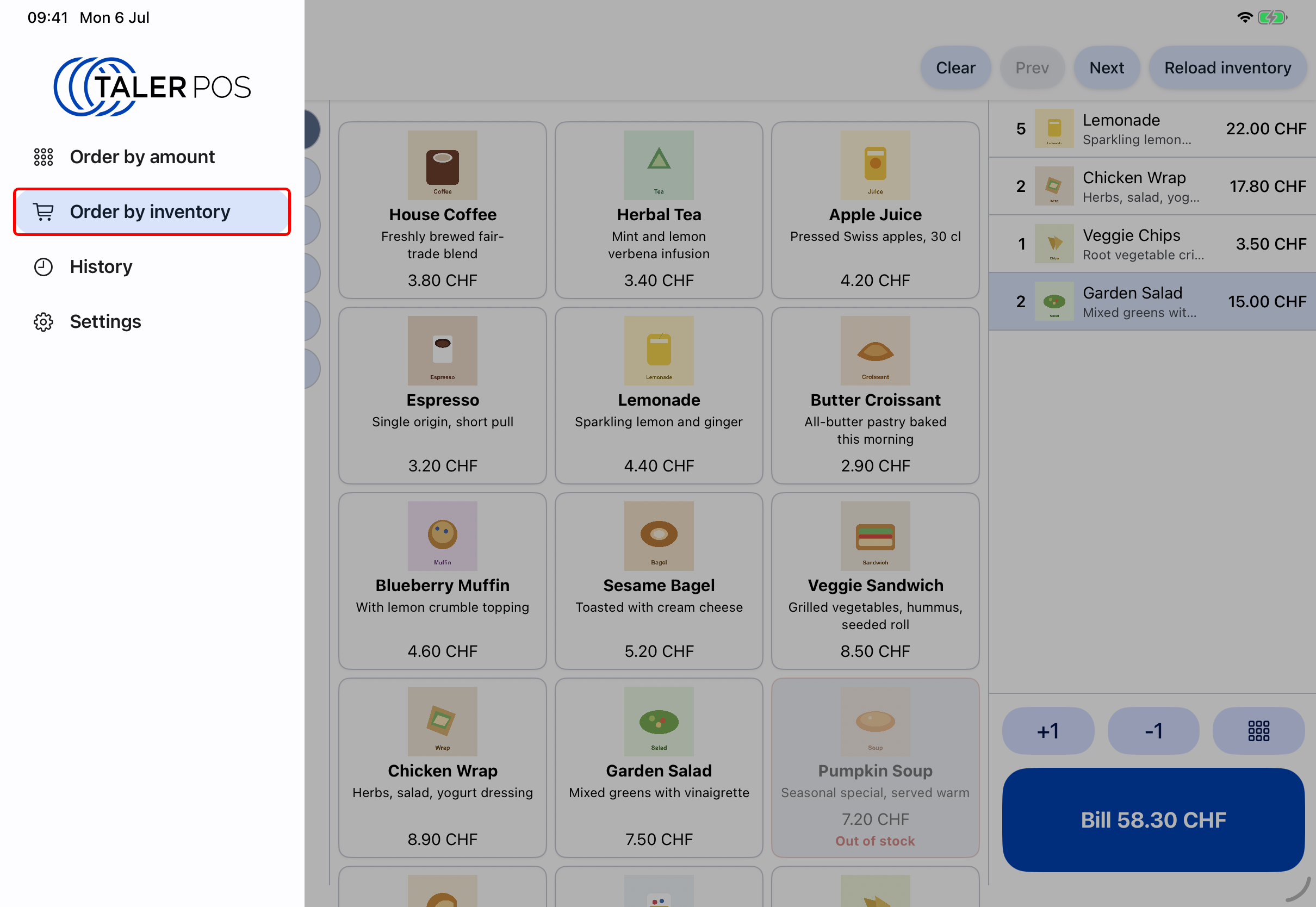
Selecting the inventory order screen.#
For a more detailed order, you can use order by inventory. This might simplify the order creation, as the merchant simply needs to select products and their quantities to create an order.
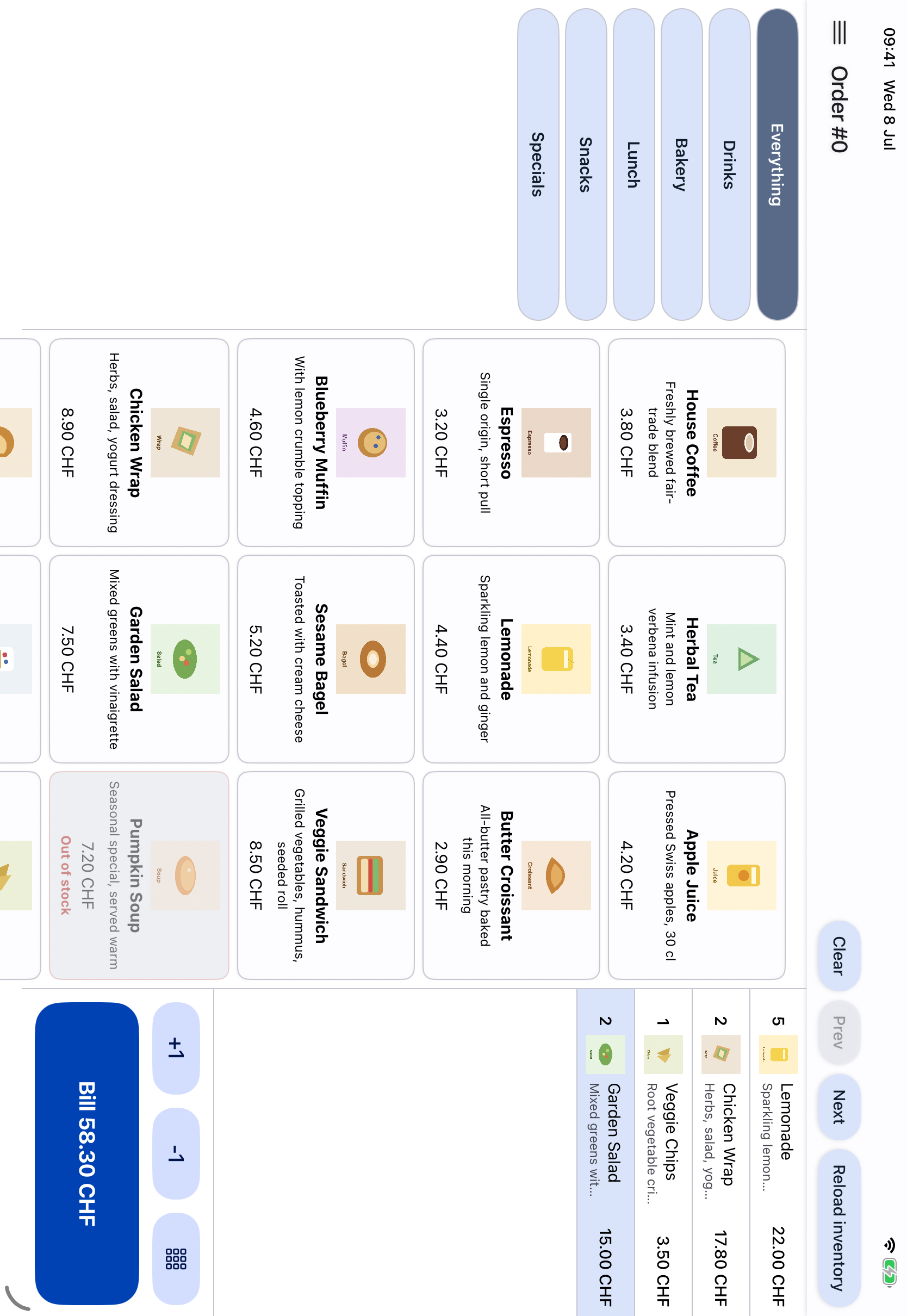
Creating an order from inventory.#
To add a tip or an item that is not available in the inventory list, open the custom product dialog from the numeric keypad. Enter the product name and price, then press Add.
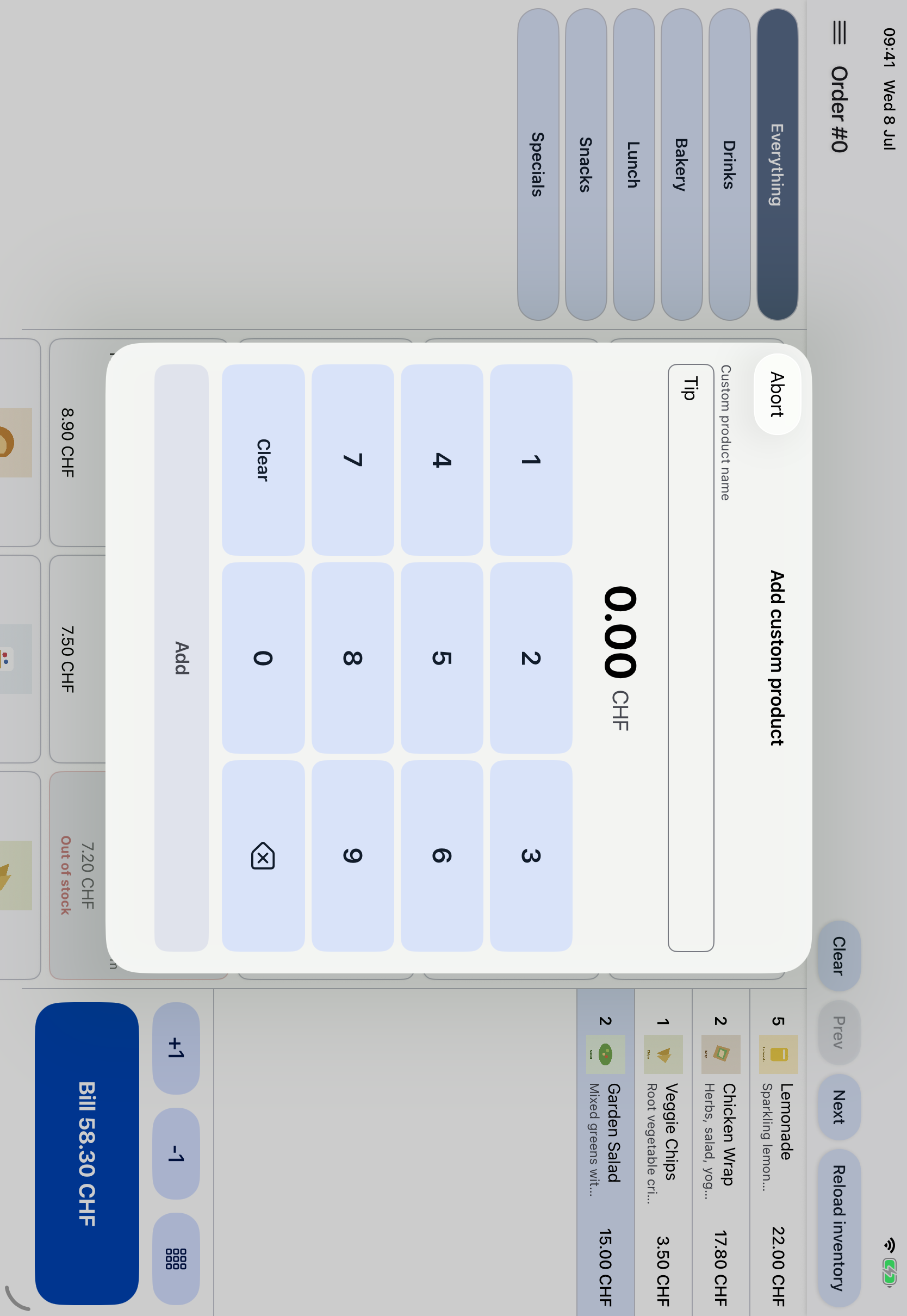
Adding a custom product to the order.#
After adding the custom item, review the order total and item list. Press Bill to continue to the payment QR code page.
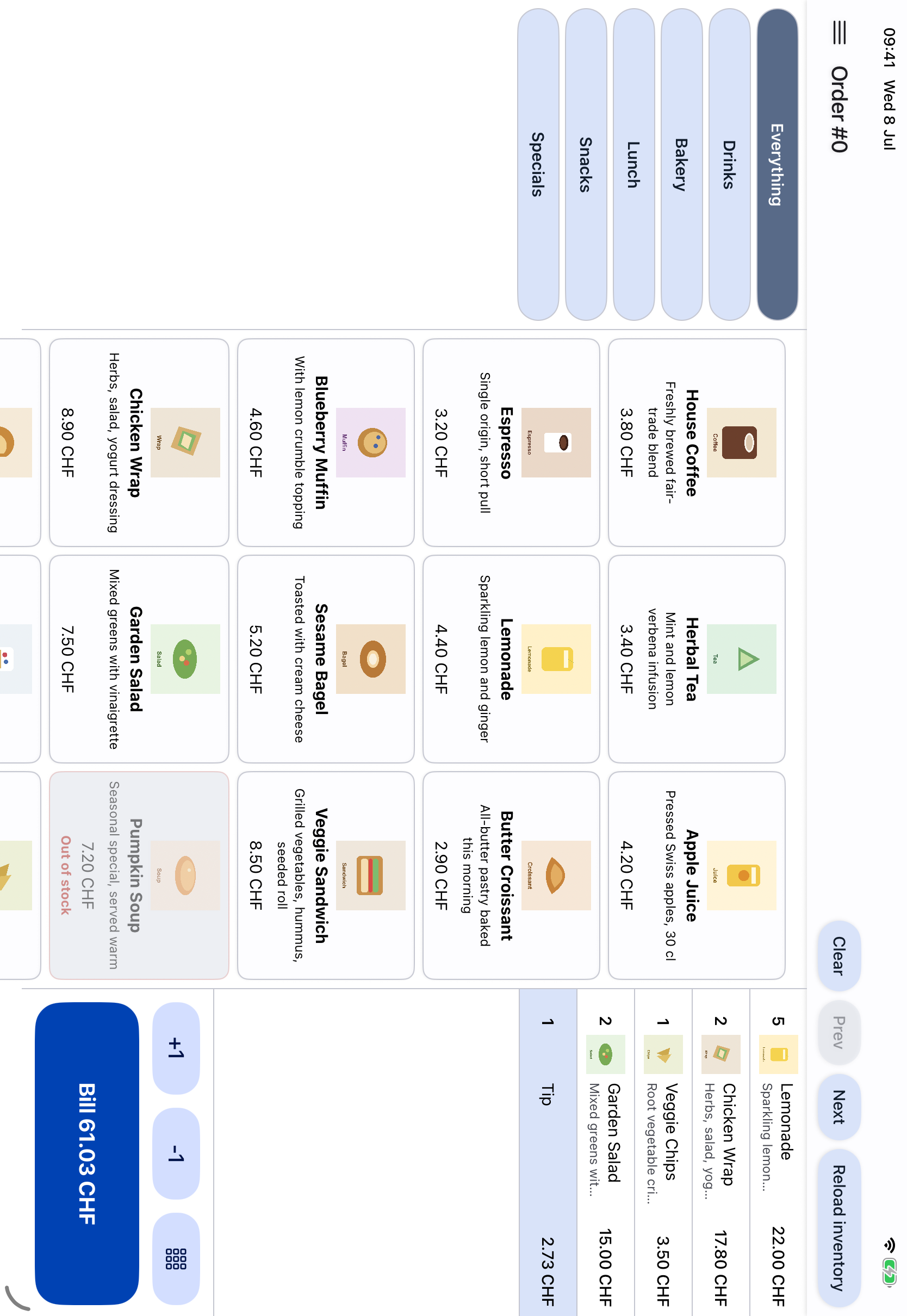
Order by inventory after adding an item.#
2.2.4.3. Payment QR Code#
When the order is successfully created, the payment processing page shows the Taler payment QR code, which must be shared with the customer.
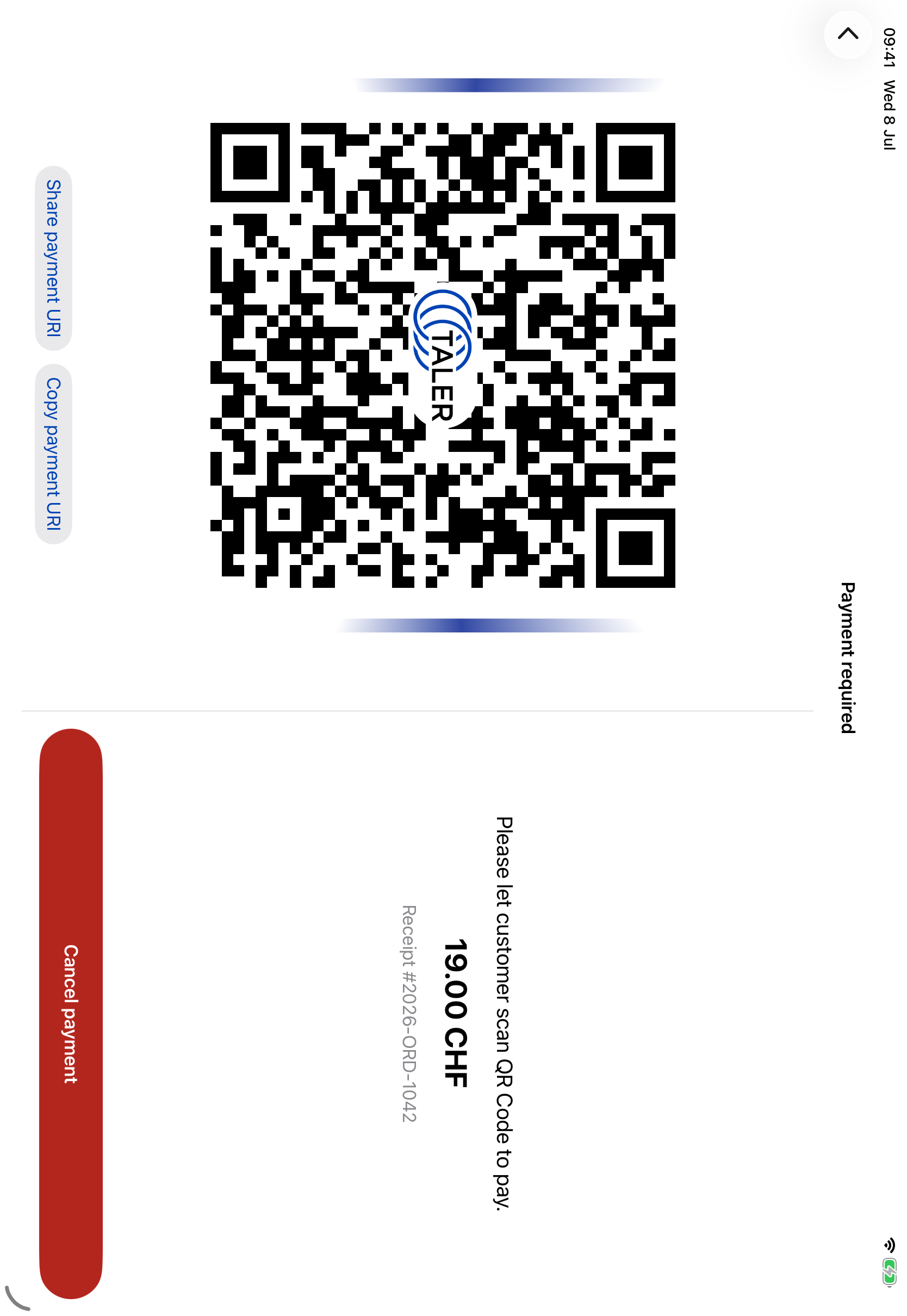
Payment request shown to the customer.#
Once the customer pays, the app shows the successful payment screen. At this point the sale is complete and the order is visible in the order history.
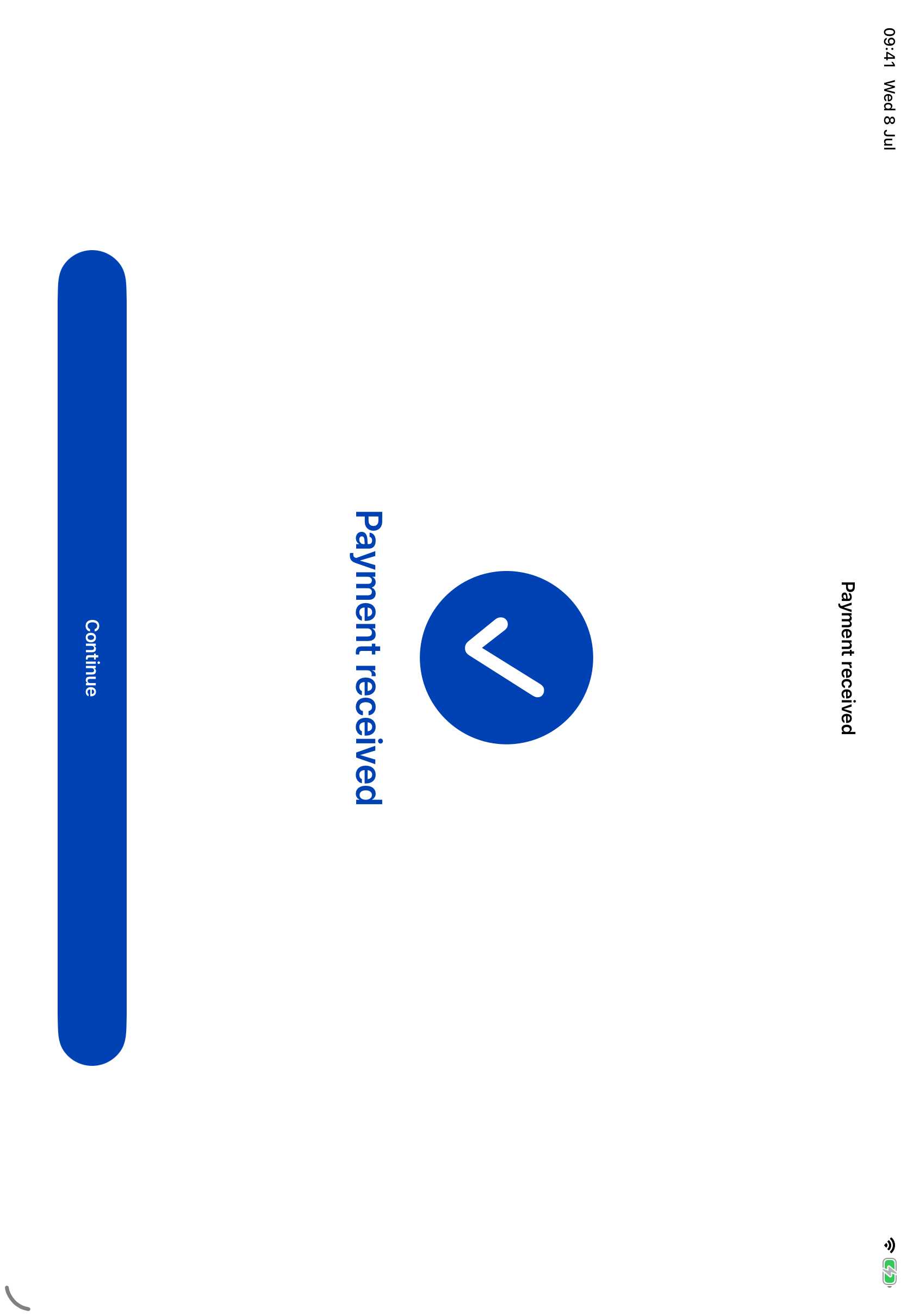
Successful payment confirmation.#
2.2.4.4. Leave or Reopen a Payment Request#
To leave the payment page and continue with the next customer, press the back button. This closes the payment page and opens the order page again.
To return to a payment request, open the history page, find the order, and use the order’s Show payment action. The payment page for that order opens again.
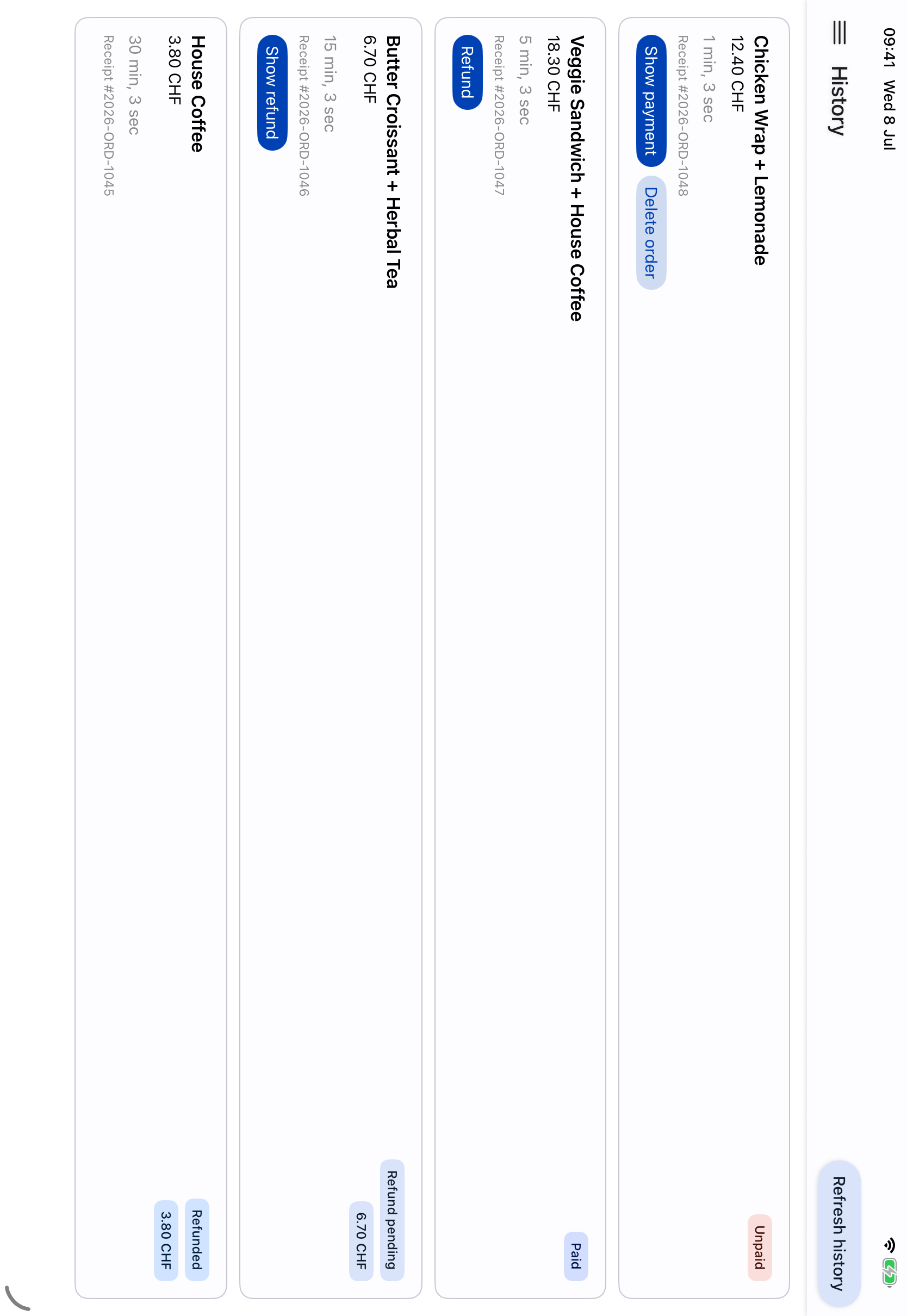
Order history used to find a previous payment request.#
2.2.4.5. Cancel a Pending Payment#
To cancel a payment that has not been completed, press Cancel payment on the payment page.
Payment page where a pending payment can be canceled.#
If the customer has already scanned or opened the payment request, the app may show the Force delete order? confirmation. This means that the customer’s wallet already knows about the order. Press Force delete only if you want to delete the order anyway. After the order is deleted, the customer can no longer complete that payment.