

2.2.6. Accept Card Payments with SumUp#
Connect a SumUp reader to accept card payments in Taler POS on Android. You need a SumUp merchant account, a compatible reader, Bluetooth and an internet connection.
2.2.6.1. Enabling SumUp and pairing a reader#
Open Settings → Manage payment options → SumUp.
Turn on the payment option. Read Before you turn this on and confirm with Turn on.
Press Sign in to SumUp and sign in to the business’s SumUp account.
Complete the reader setup opened by SumUp. If you return to the POS before setup finishes, press Pair reader. With a saved reader, the button is called Manage reader.
Grant the requested nearby-device/Bluetooth permission and choose the intended reader. Follow any further prompts on the reader and in SumUp’s setup screen.
Return to the POS and check that it reports Reader connected. Check the account and reader details before accepting a payment.
If the POS shows Reader disconnected, turn the reader on, keep it nearby and use Manage reader to restore the connection.
If setup is unavailable, ask your app administrator to check the SumUp configuration.
2.2.6.2. Charging a card#
Create an order and press Bill, or create an order by amount.
Select SumUp in checkout.
Enter the amount to charge. It can be all or part of the remaining balance, but cannot exceed it.
Press Charge … on card and let the customer complete the payment on the SumUp reader.
Wait for the POS to receive the result. Check that the payment appears in the checkout and the remaining balance has decreased.
Take any remaining cash or card payments, then finish with Taler or complete the fully paid order.
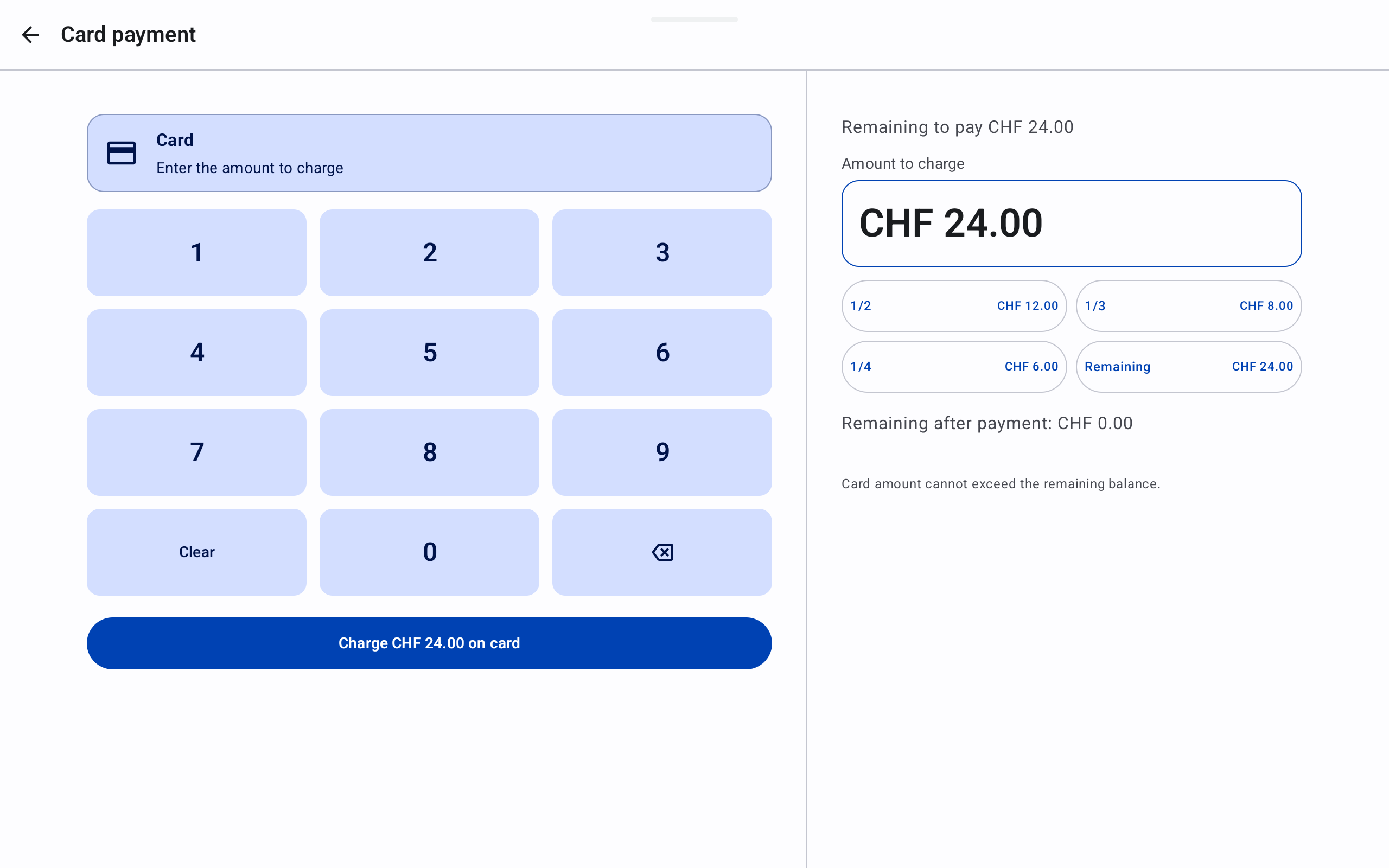
Entering the amount to charge on the card.#
If the app closes, the reader disconnects or no definite result arrives, check the payment before charging again. Follow Resolving an uncertain card payment.
2.2.6.3. Videó oktatóvideók#
The video shows a CHF 1.00 card payment followed by receipt collection in the customer’s Taler wallet.
2.2.6.4. Keeping the account signed in#
If the app requests another SumUp sign-in, use Sign in to SumUp again. Use Sign out of SumUp to sign out of the account.
Figyelem
Leave Advanced settings unchanged unless you know how to configure the SumUp integration and have the required credentials and permissions from SumUp. These settings are not needed for normal reader setup or payments.
2.2.6.5. Returning a card payment#
Process the refund through SumUp’s own tools first. Then use the POS refund screen to record the returned amount; see Recording returned cash or card payments. The POS cannot send a refund to the card.