2.3.5. Manage Orders#

Of course one of the main goals of this module, is to actually allow payments in Dolibarr using the Taler. To do this normally in all ERP, some kind of the invoice/orders have to be created, depends on the ERP and it's internal logic, but in the end it is all about this logic.

As always, remark is such that all screenshots in here are presented, just to showcase how the orders/payments synchronisation works in Talerbarr module, yet we still showcase some screen from Dolibarr and Taler, for the precise guides please consult their original tutorials, such as the Dolibarr Sales Orders documentation and the Taler order tutorial.

2.3.5.1. Order lifecycle overview#

For the full Taler-side order lifecycle, you can consult the Taler order tutorial.

For the purposes of this module tutorial, the simplified lifecycle is:

Created (Unpaid) -> Paid -|- Settled -> Done
                          |
                          |- Refunded -> Done

This tutorial focuses on the Created -> Paid part of the flow. Refunds and wire settlement are covered in Manage Refunds and Manage Wire Transfers.

An order can of course remain unpaid. In that case, the exact behaviour depends on the selected synchronisation mode:

  • If the order comes from Dolibarr, the merchant can recreate the Taler payment flow after the payment timeout if needed.

  • If the order comes from Taler and the mode is sync on order created, the unpaid order will be visible in Dolibarr because it was already imported at creation time.

  • If the order comes from Taler and the mode is sync on order paid, it will not appear in Dolibarr until the payment is completed.

For refunds, the merchant that work with sync from Dolibarr may need to use other refund handling paths if the refund deadline on the Taler side has already passed.

In all cases, the core idea is simple: the merchant creates the order on the chosen system, and the payment information is then transmitted into the Dolibarr ERP flow.

2.3.5.2. Create orders on the Taler side#

When Taler is the order entry point, two synchronisation timings are available:

  • Sync when order is created The order appears in Dolibarr immediately after it is created on the Taler side.

  • Sync when order is paid The order appears in Dolibarr only after the customer has paid.

The second mode is useful when only completed purchases should create ERP records. This keeps the document flow minimal and avoids filling the ERP with temporary or abandoned customer sessions/orders. If an order was successfully paid in Taler, it is then a good candidate to appear in the financial and order flows of Dolibarr.

2.3.5.3. Orders from Dolibarr#

When Dolibarr is the source of truth, the workflow stays close to the standard Dolibarr order process. The main difference is that the payment method should be Taler, so that TalerBarr can create the corresponding order on the Taler side and track its payment lifecycle.

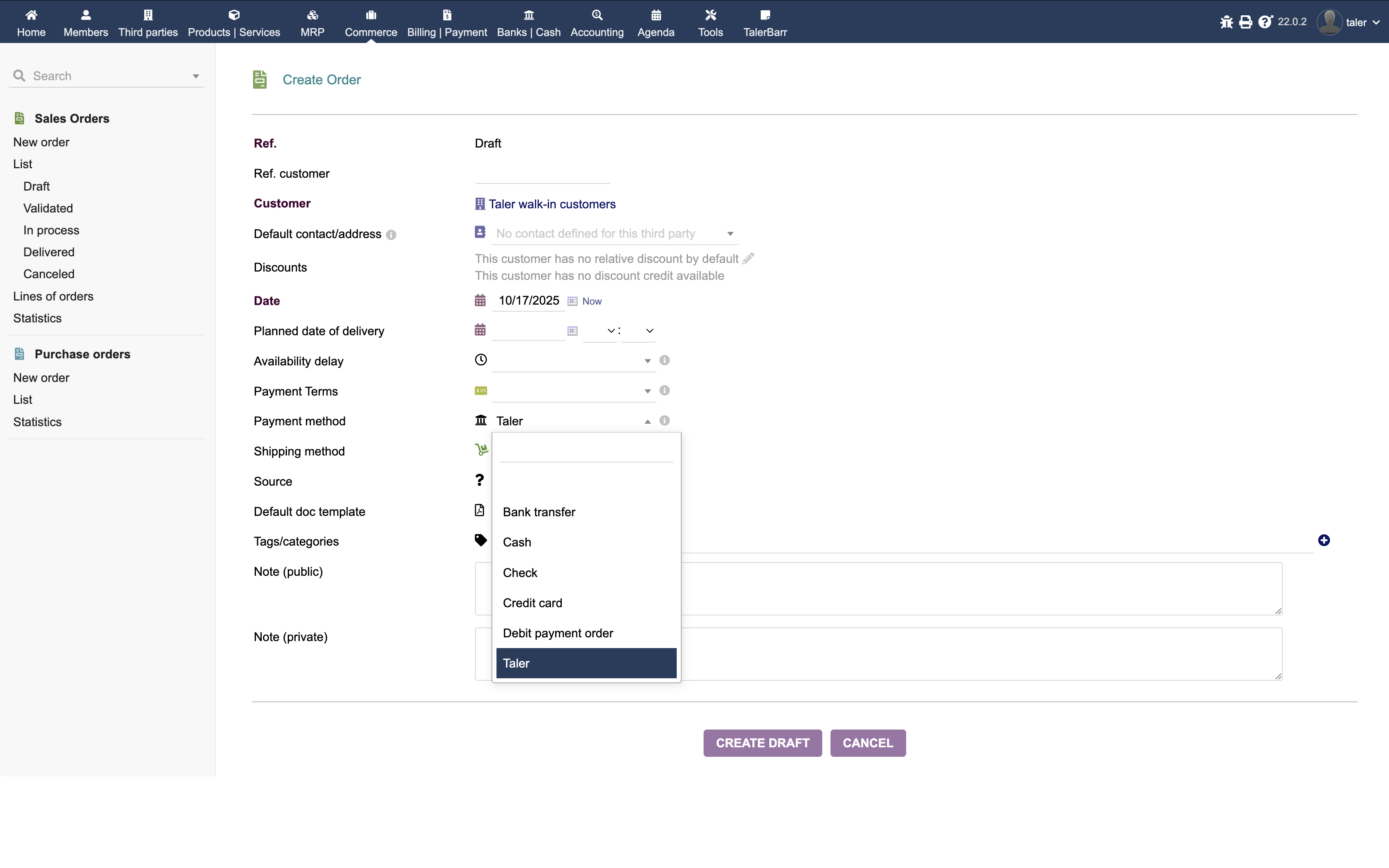
In the standard Dolibarr order creation flow, create the order and make sure that the selected payment method is Taler.

Creating an order in Dolibarr with Taler as payment method

Creating an order in Dolibarr with Taler selected as the payment method.#

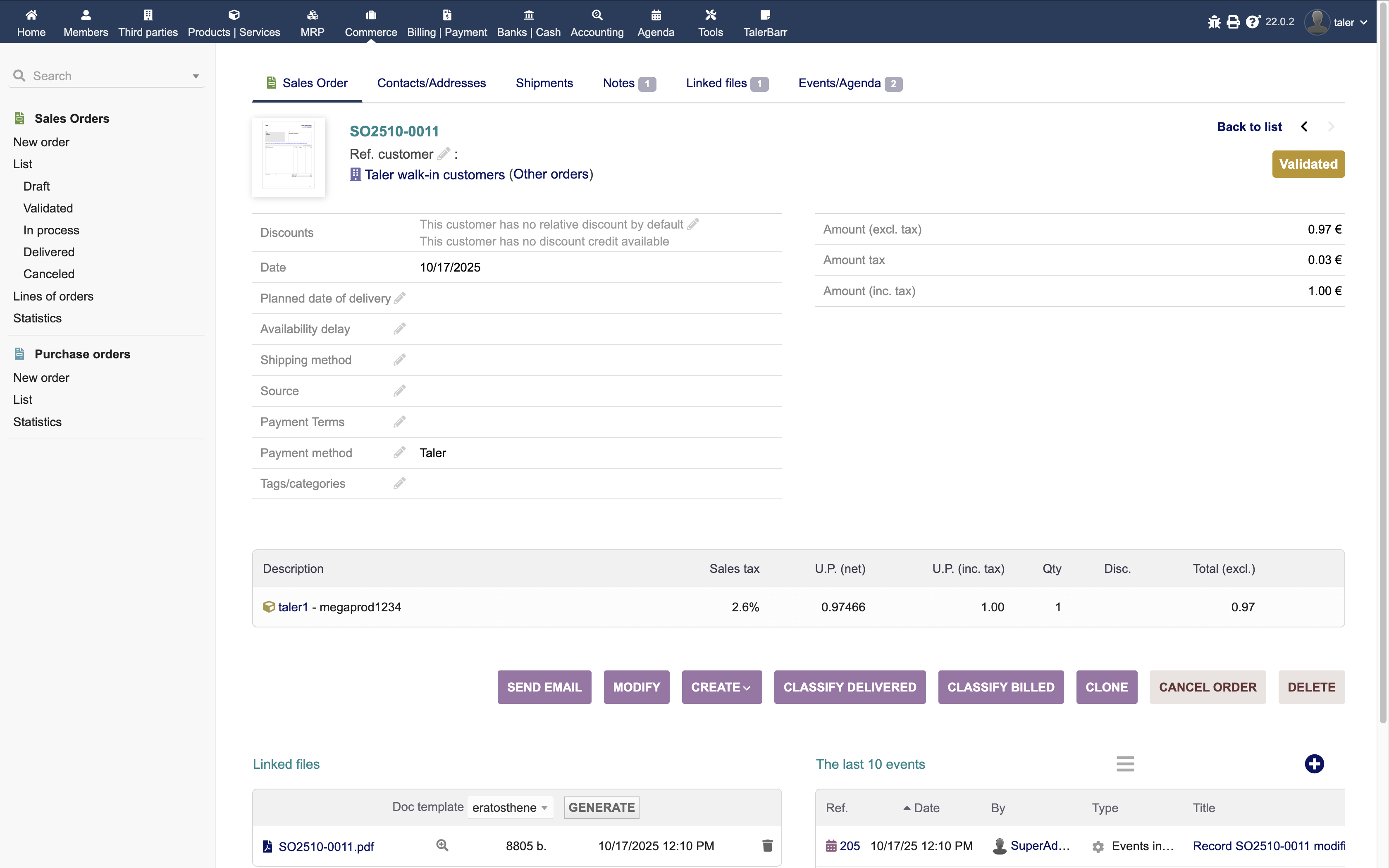
After the order is created, filled with products, and validated, TalerBarr sends the request to the Taler backend and creates the corresponding Taler order there with the same details.

Dolibarr order after creation and validation

Dolibarr order after creation and validation.#

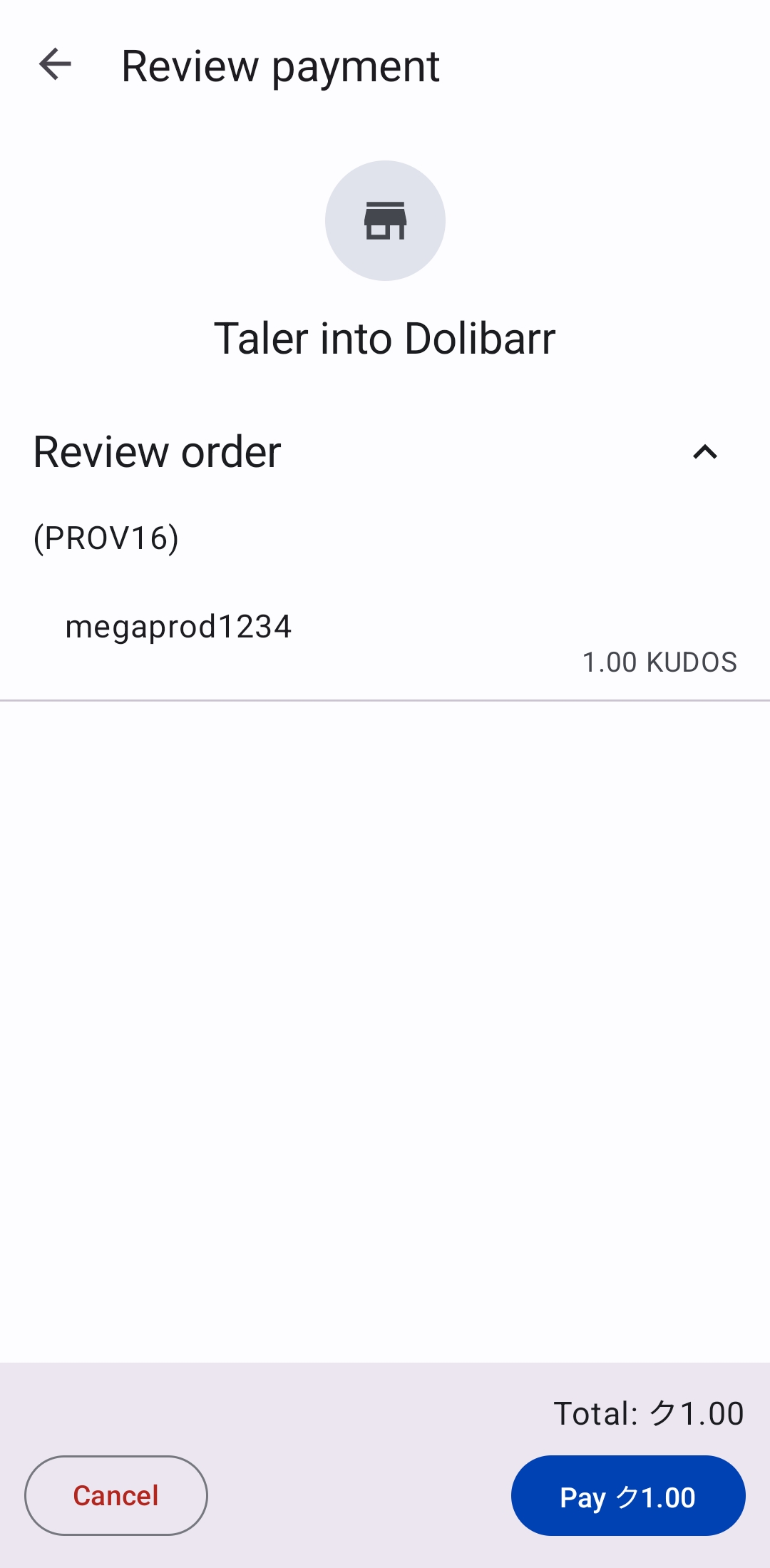
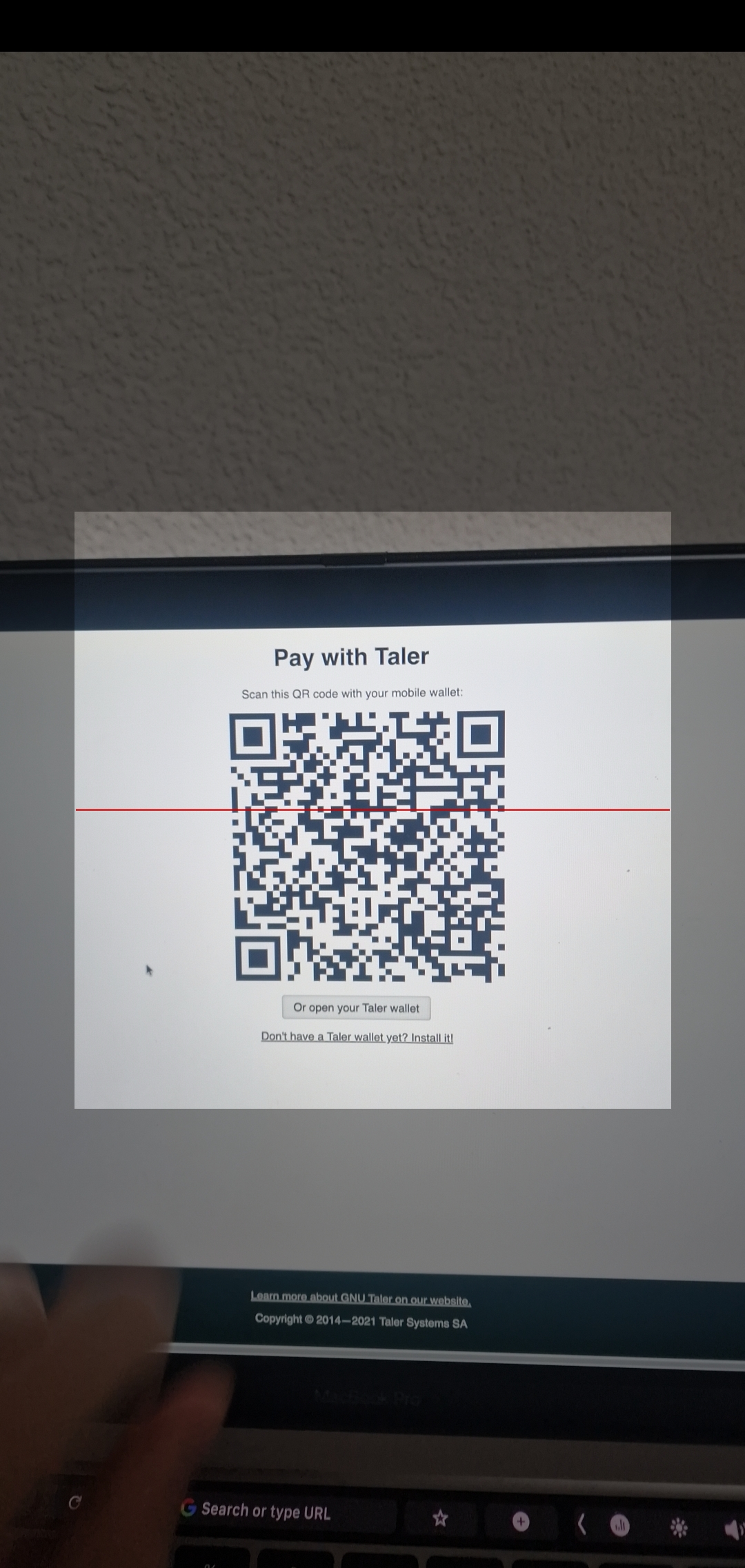
The next operational step is to share the payment link with the customer. You can find the Taler status URL in the order notes. That URL contains the QR code and payment page that the customer can use to complete the payment with a Taler wallet.

Taler wallet payment screen

Taler wallet payment screen.#

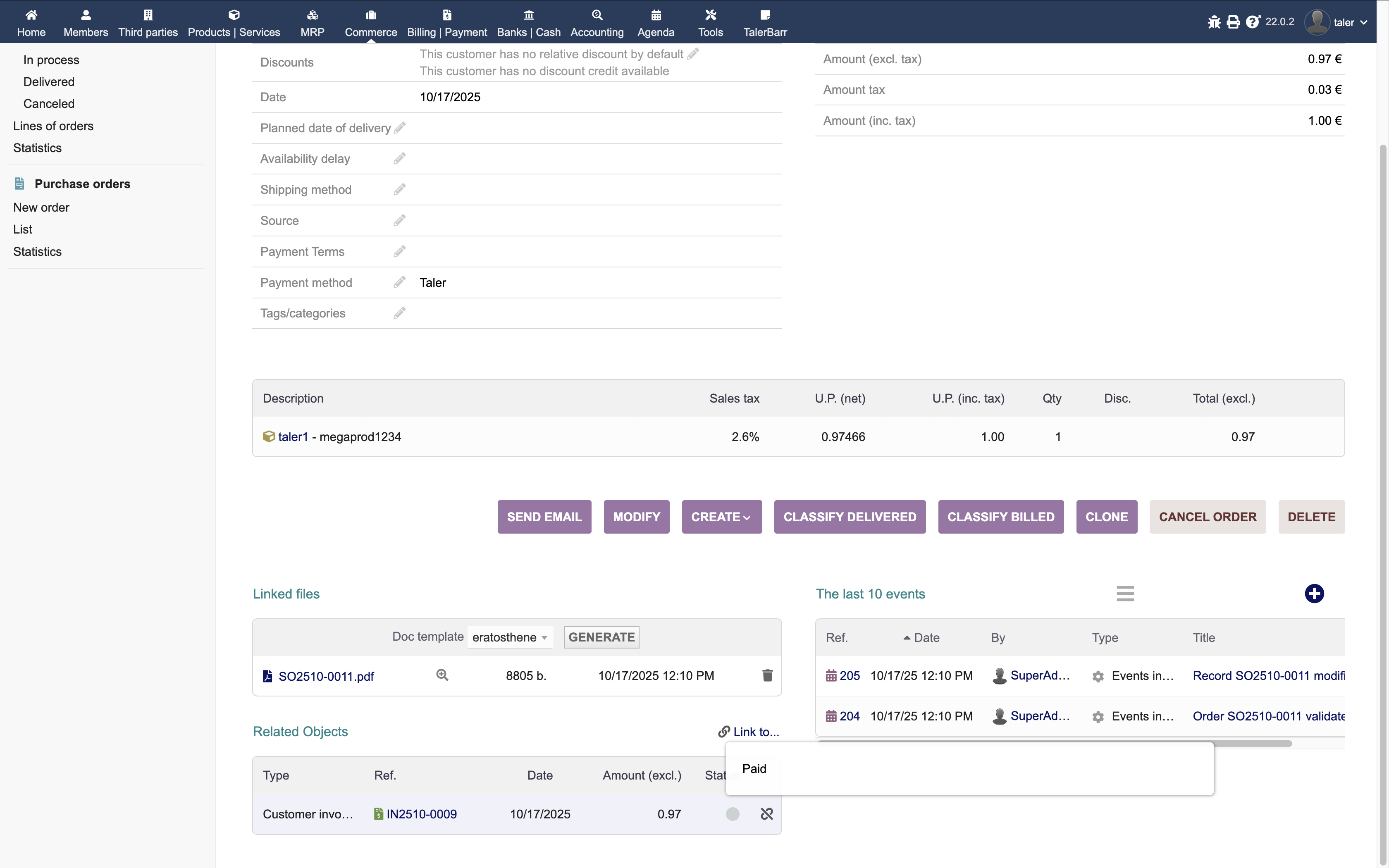
Once the customer has paid, you can return to the Dolibarr order and check the related objects. At this point, the invoice is already marked as paid.

Dolibarr order with the paid invoice visible in related objects

Dolibarr order with the paid invoice visible in the related objects.#

If you open the invoice, you can verify that the payment was correctly registered and cleared on the expected account.

Paid Dolibarr invoice created from a Taler order flow

Paid Dolibarr invoice created from the Taler payment flow.#

In practice, this means that sharing the payment link is the only new operator task in this mode. The remaining accounting and document-linking work is handled automatically by TalerBarr.

2.3.5.4. Orders from Taler on order created#

This mode is useful when you want Dolibarr to see Taler-originated orders as soon as they are created, even before they are paid. It is the opposite of the more selective Sync when order is paid mode described in the next section.

We start by creating the order on the Taler Merchant side.

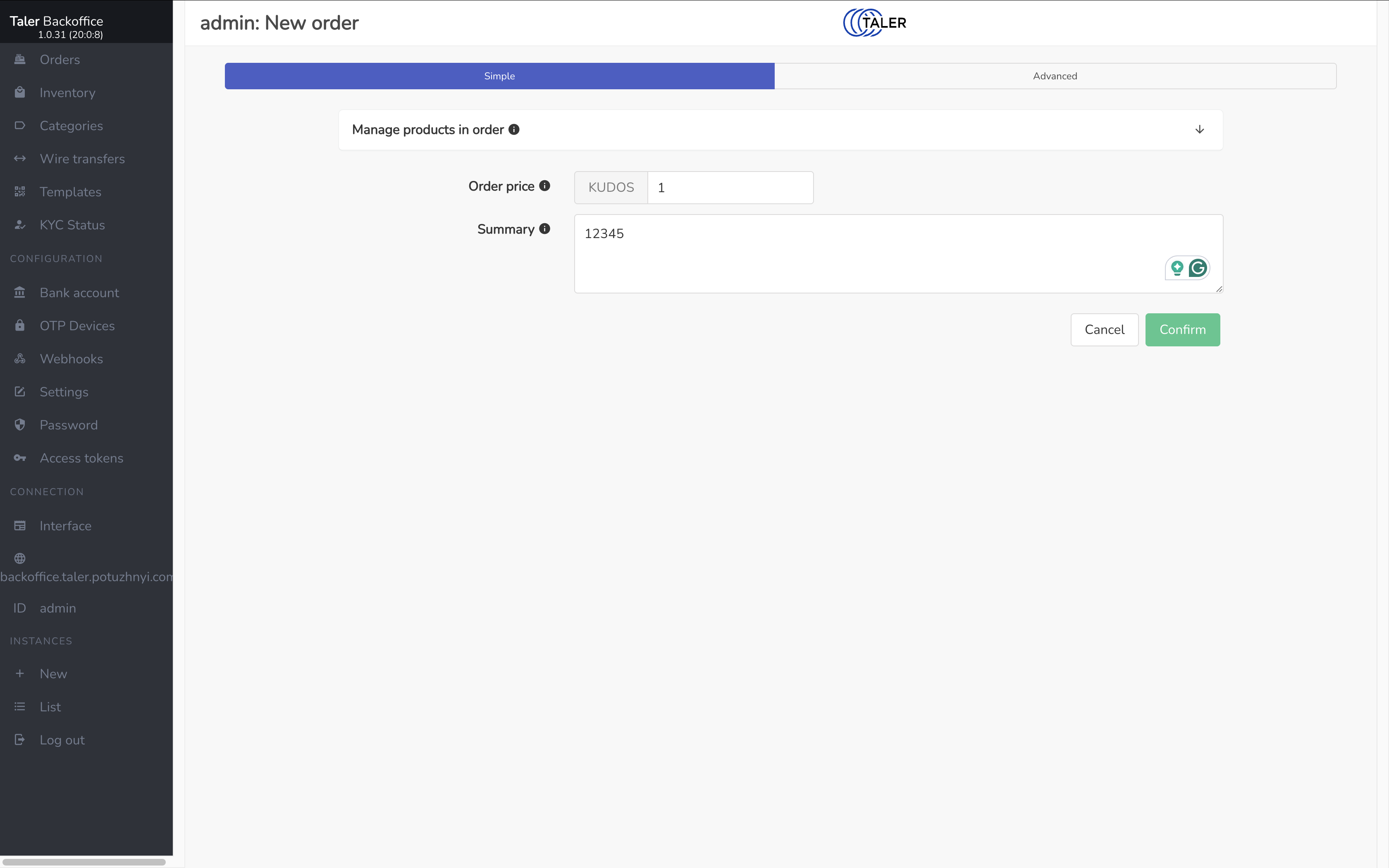
Creating an order in Taler SPAA

Creating an order in Taler SPAA.#

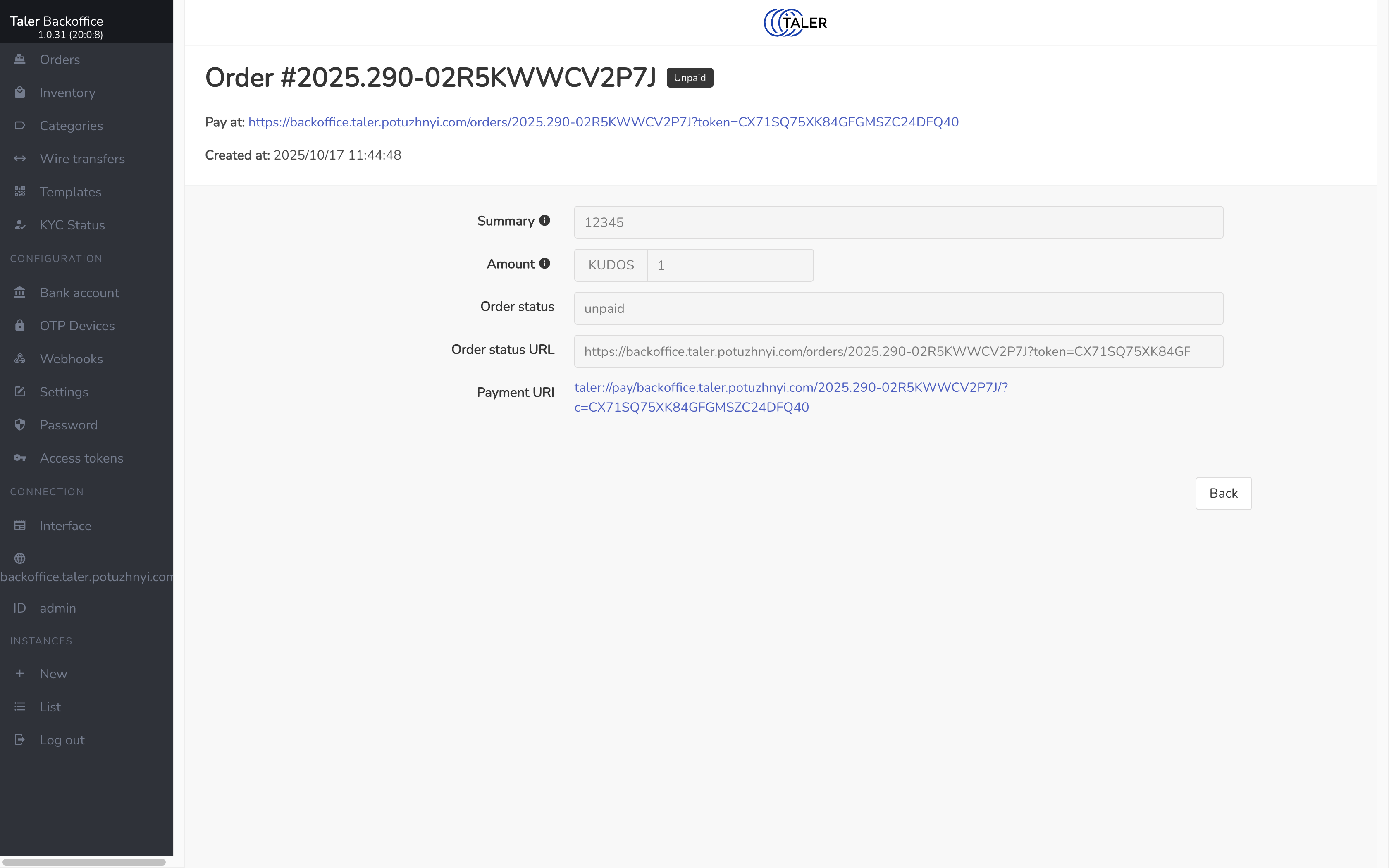
After saving it, the order details become available on the Taler side.

Newly created order in Taler SPAA

Newly created order in Taler SPAA.#

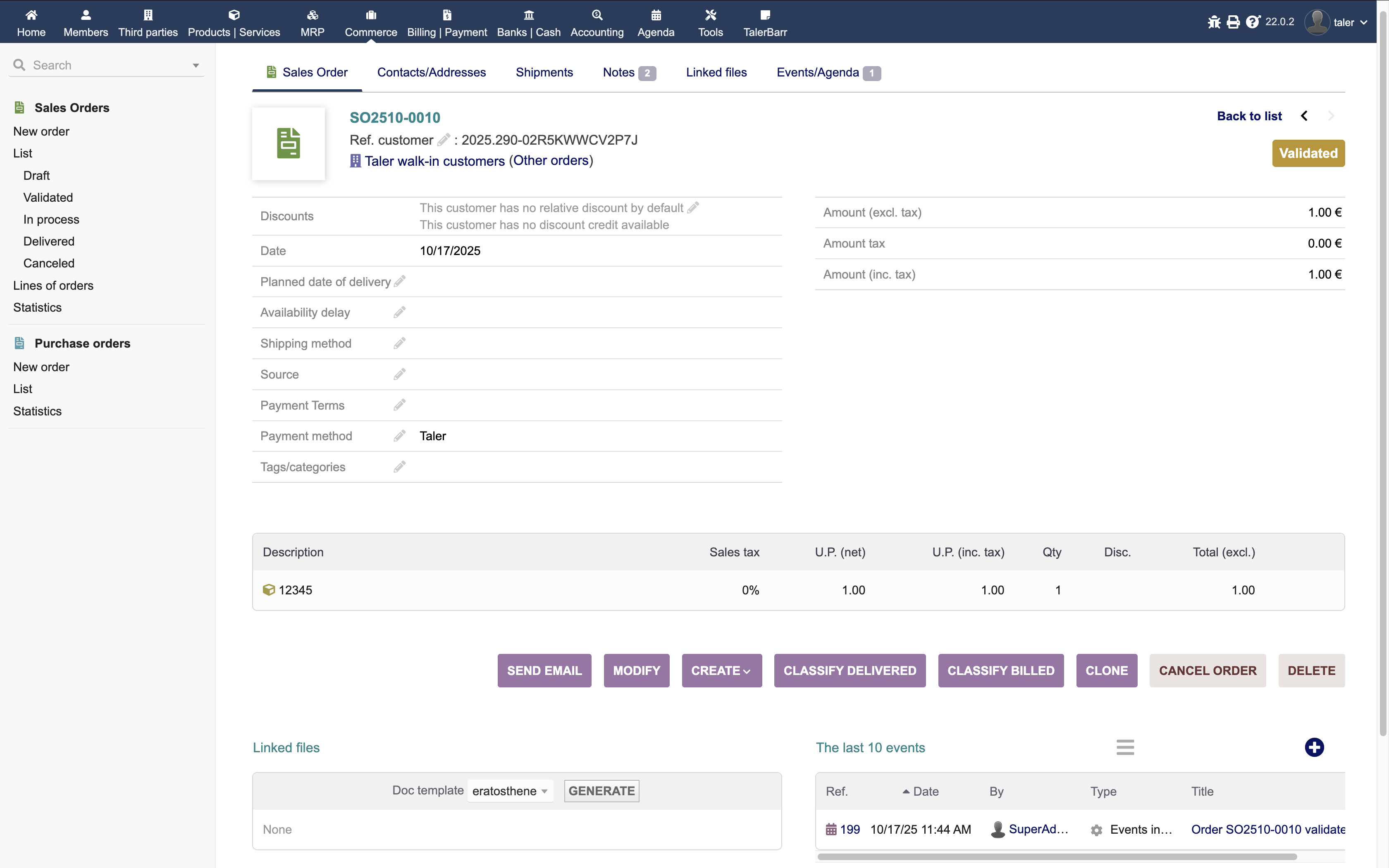
Because the synchronisation mode is when order is created, the order now appears immediately in Dolibarr.

Dolibarr orders list with the newly imported Taler order

Dolibarr orders list with the newly imported Taler order.#

From there, the merchant can share the QR code or Taler Payment link with the customer and let the customer pay with a Taler wallet.

Taler Payment QR code openned with Taler wallet app.

Taler Payment QR code openned with Taler wallet app.#

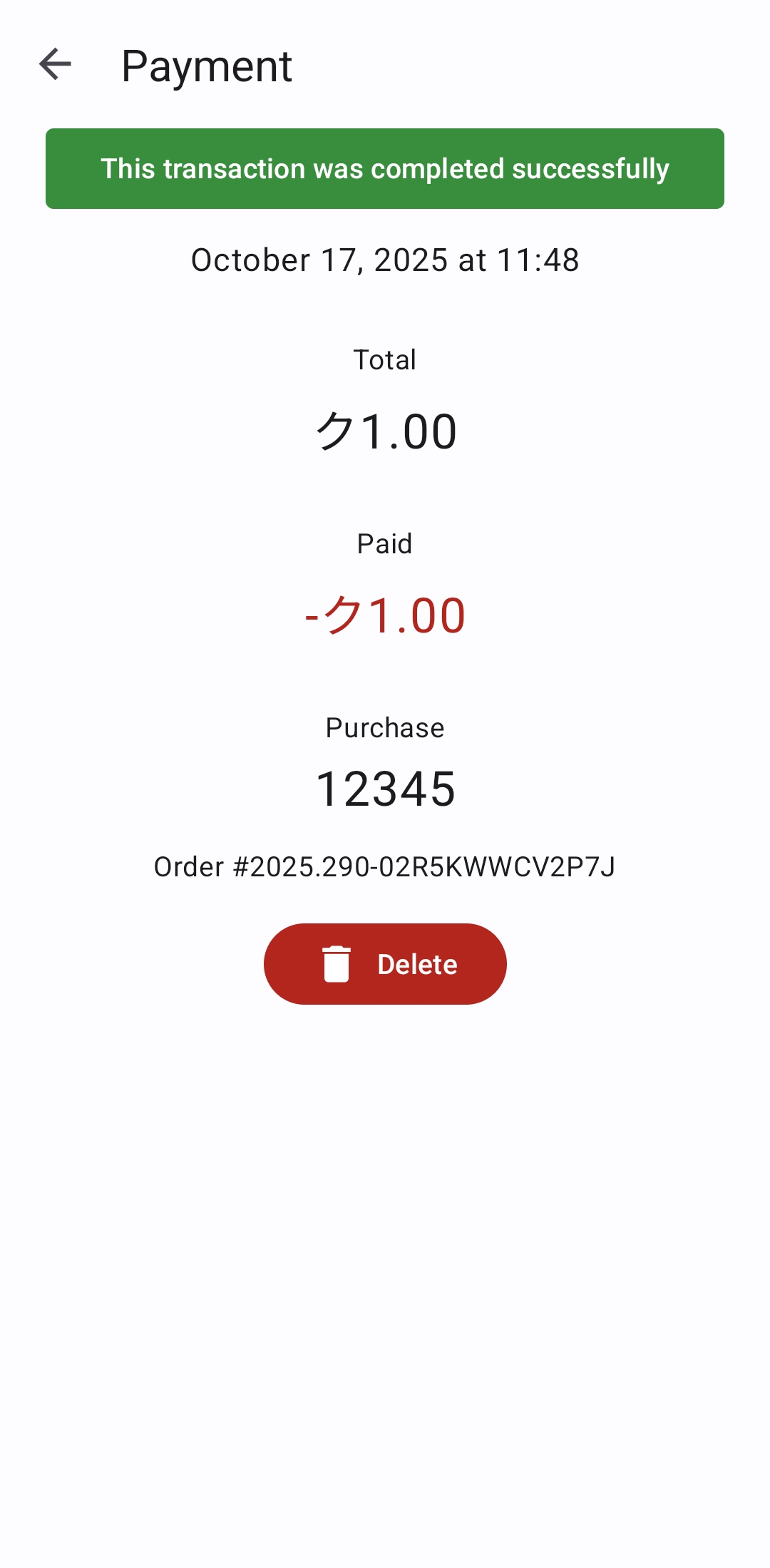
Taler wallet app shows confirmation of payment.

Taler wallet app shows confirmation of payment to user.#

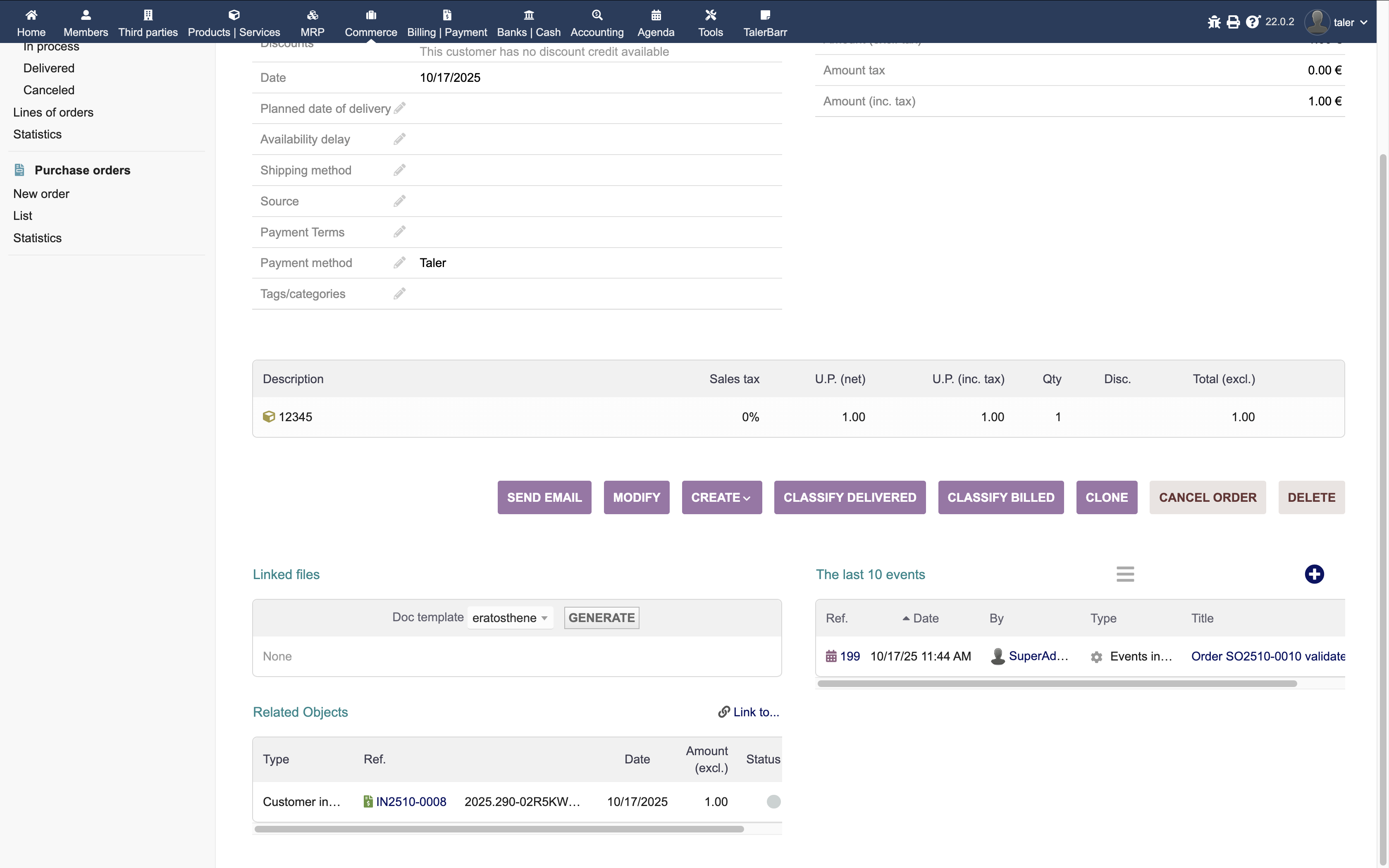
After payment is done by customer, you can check payment status through Taler, or return to Dolibarr and verify that the payment-related objects have appeared.

Dolibarr order showing linked payment-related objects

Dolibarr order showing the linked payment-related objects.#

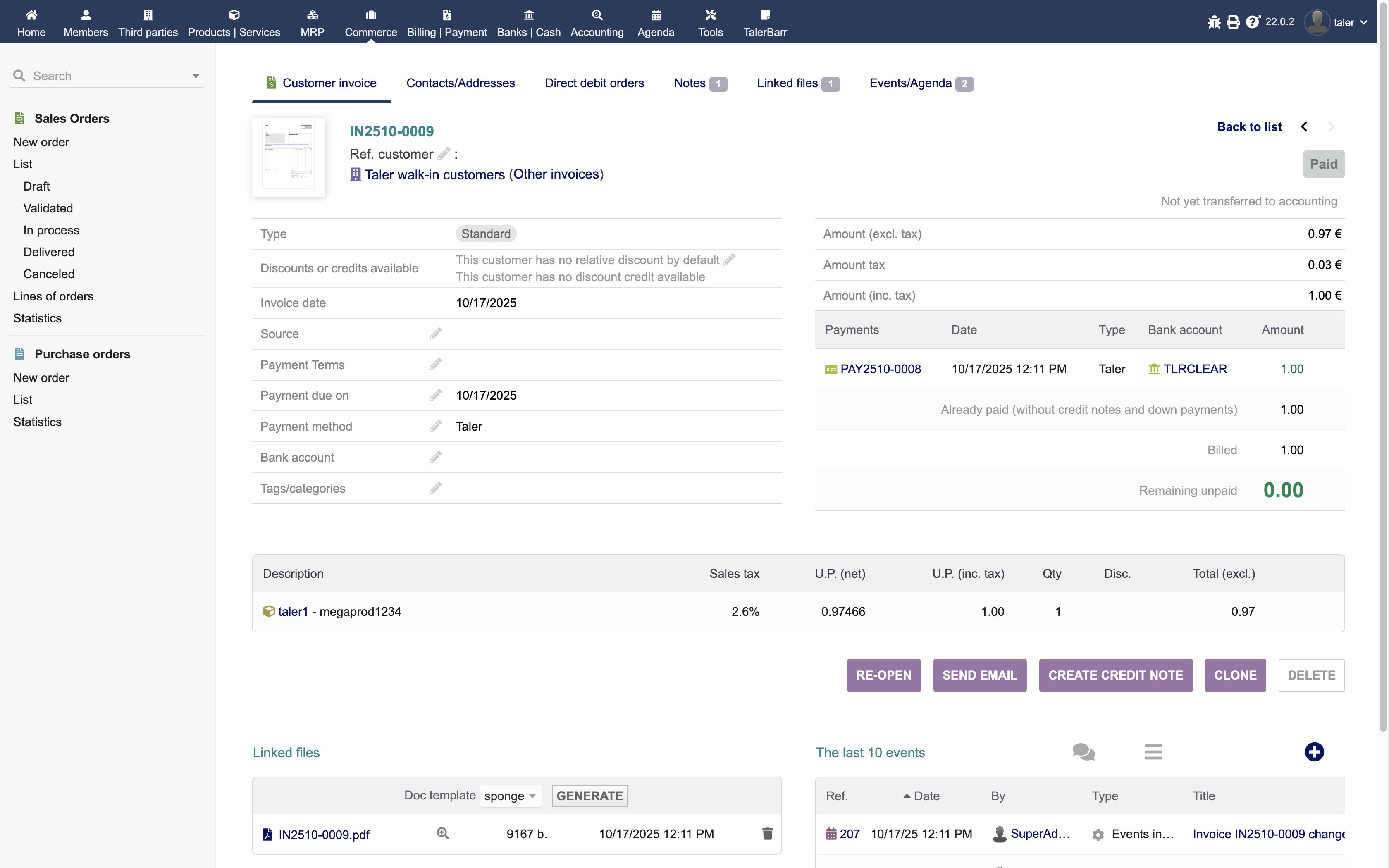
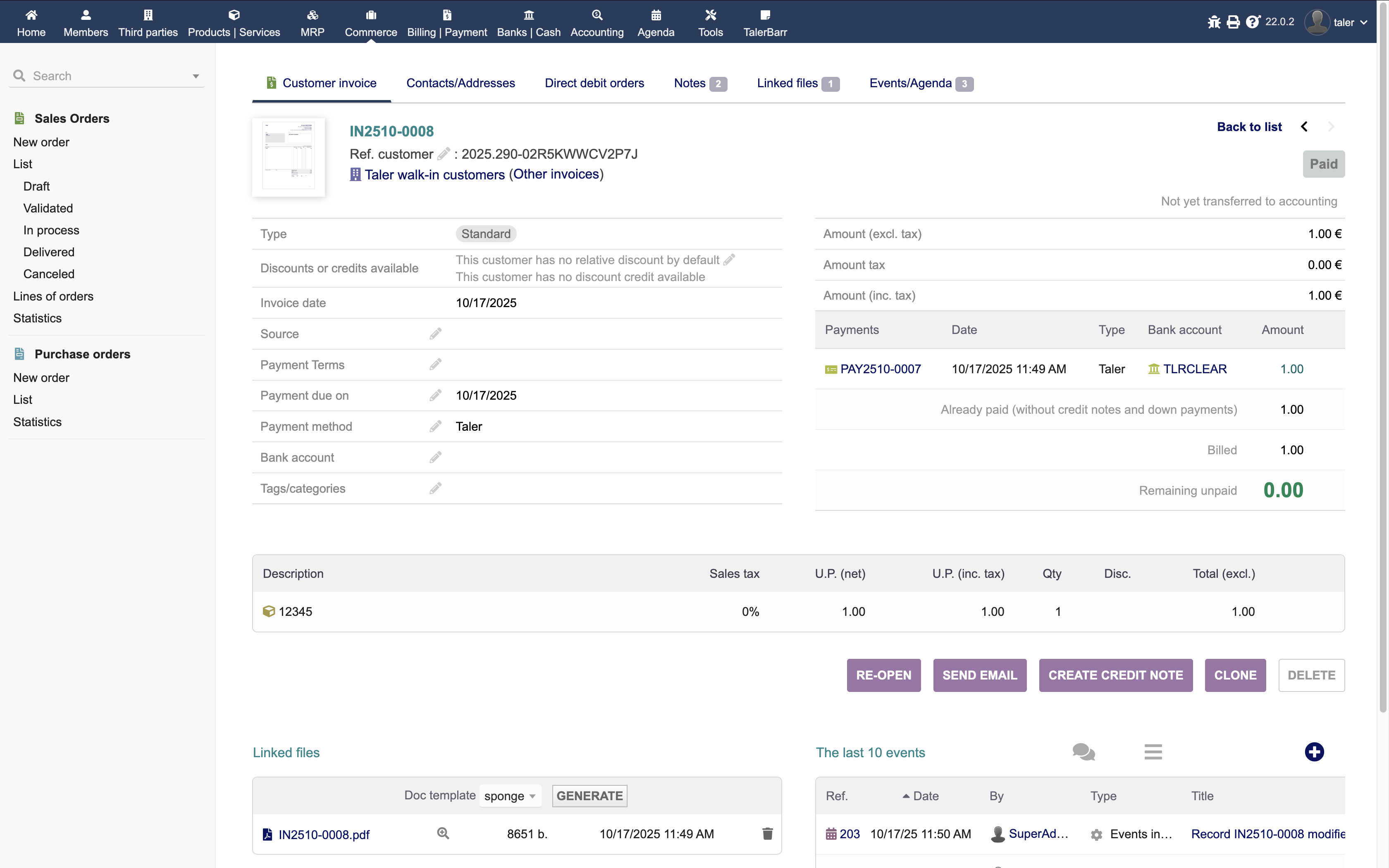
If you open the linked invoice, you can confirm that the transaction was fully registered and cleared using the expected account flow.

Invoice details after payment of the Taler-created order

Invoice details after payment of the Taler-created order.#

This mode is therefore useful when the ERP should reflect new Taler orders immediately, even before the customer has completed the payment.

2.3.5.5. Orders from Taler on order paid#

This is the most interesting mode when the merchant wants orders to appear in the ERP only after they have actually been paid. It is especially useful for vending, kiosk, coffee-machine, or similar setups where many customer sessions may start, but only completed purchases should become ERP objects.

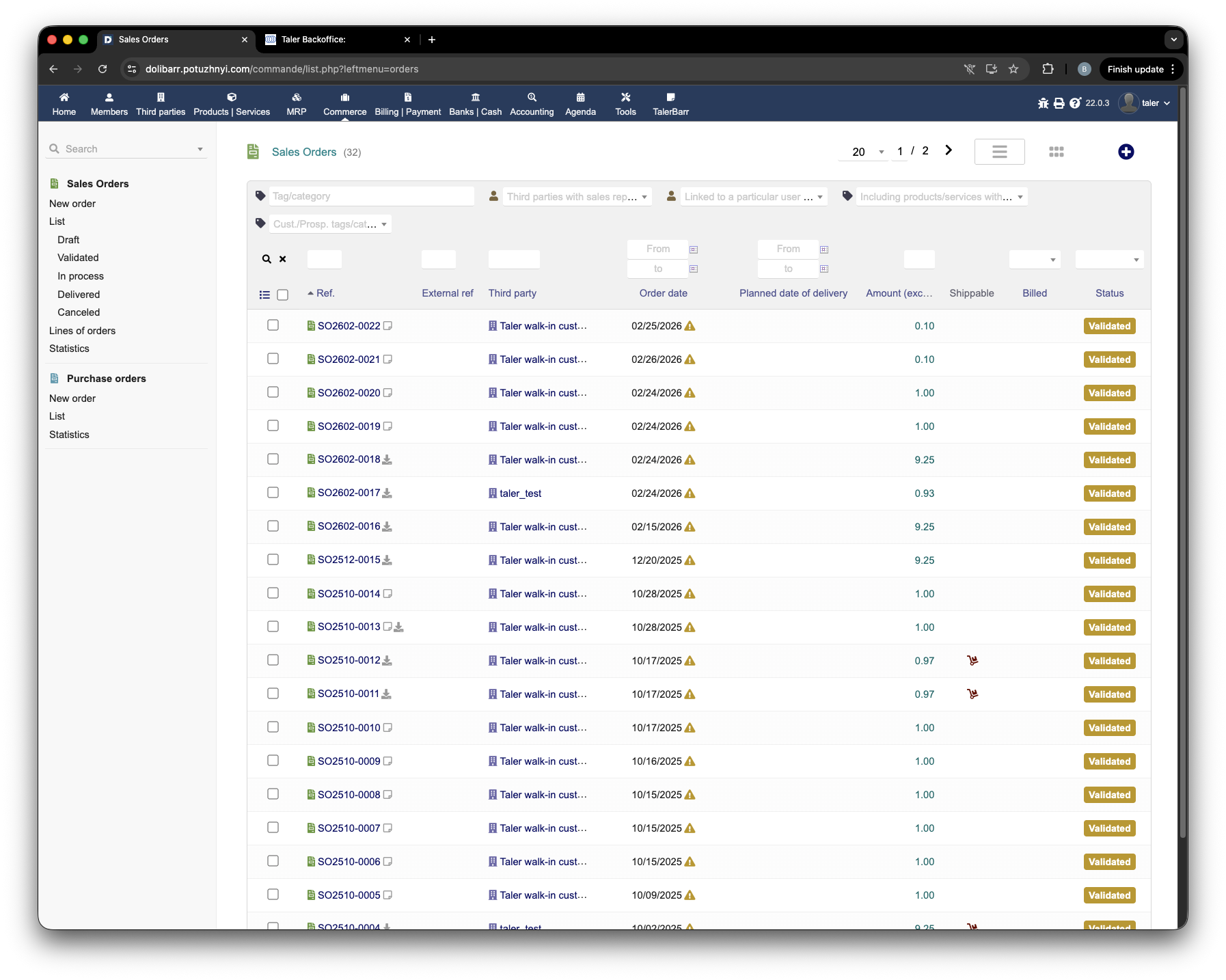
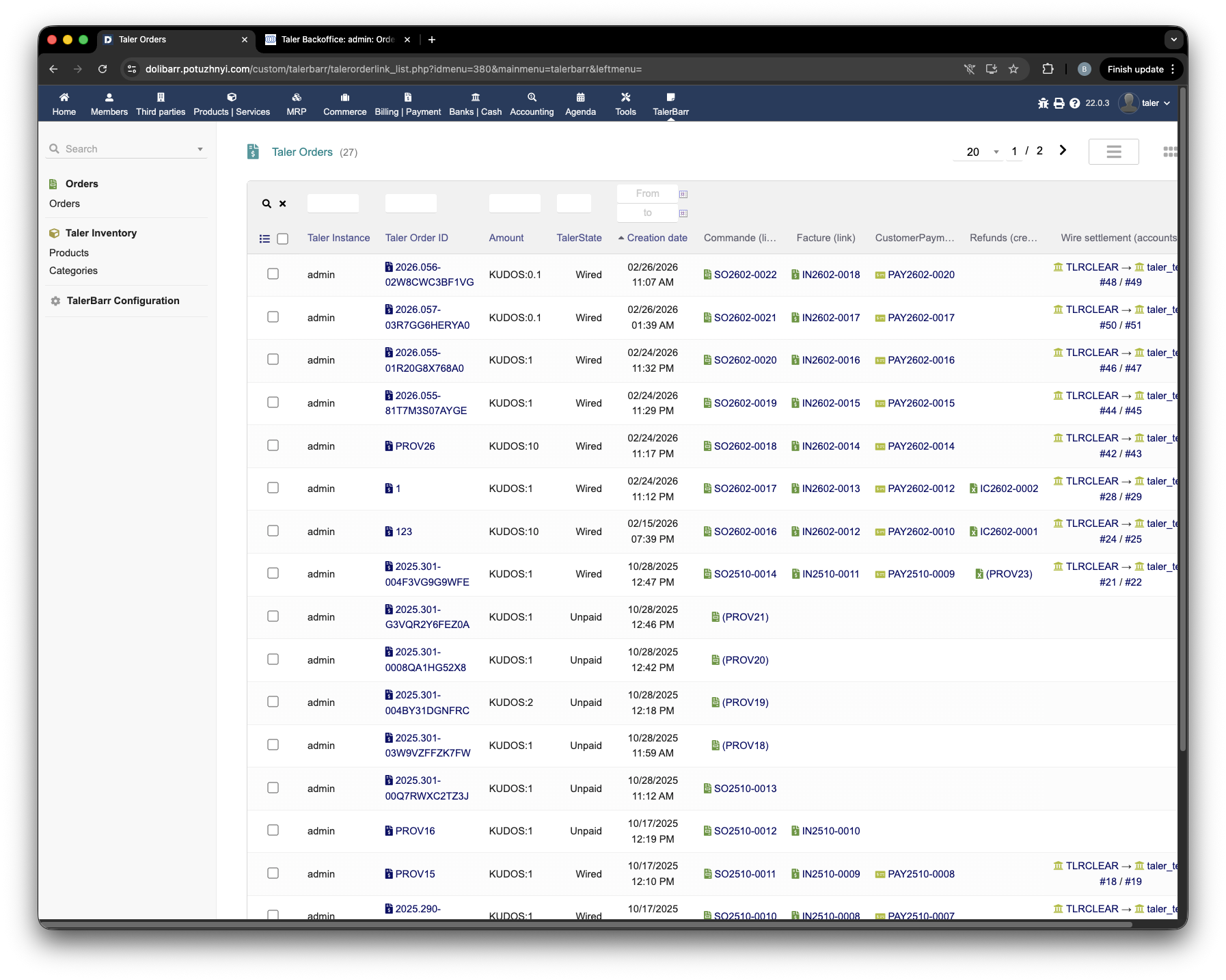
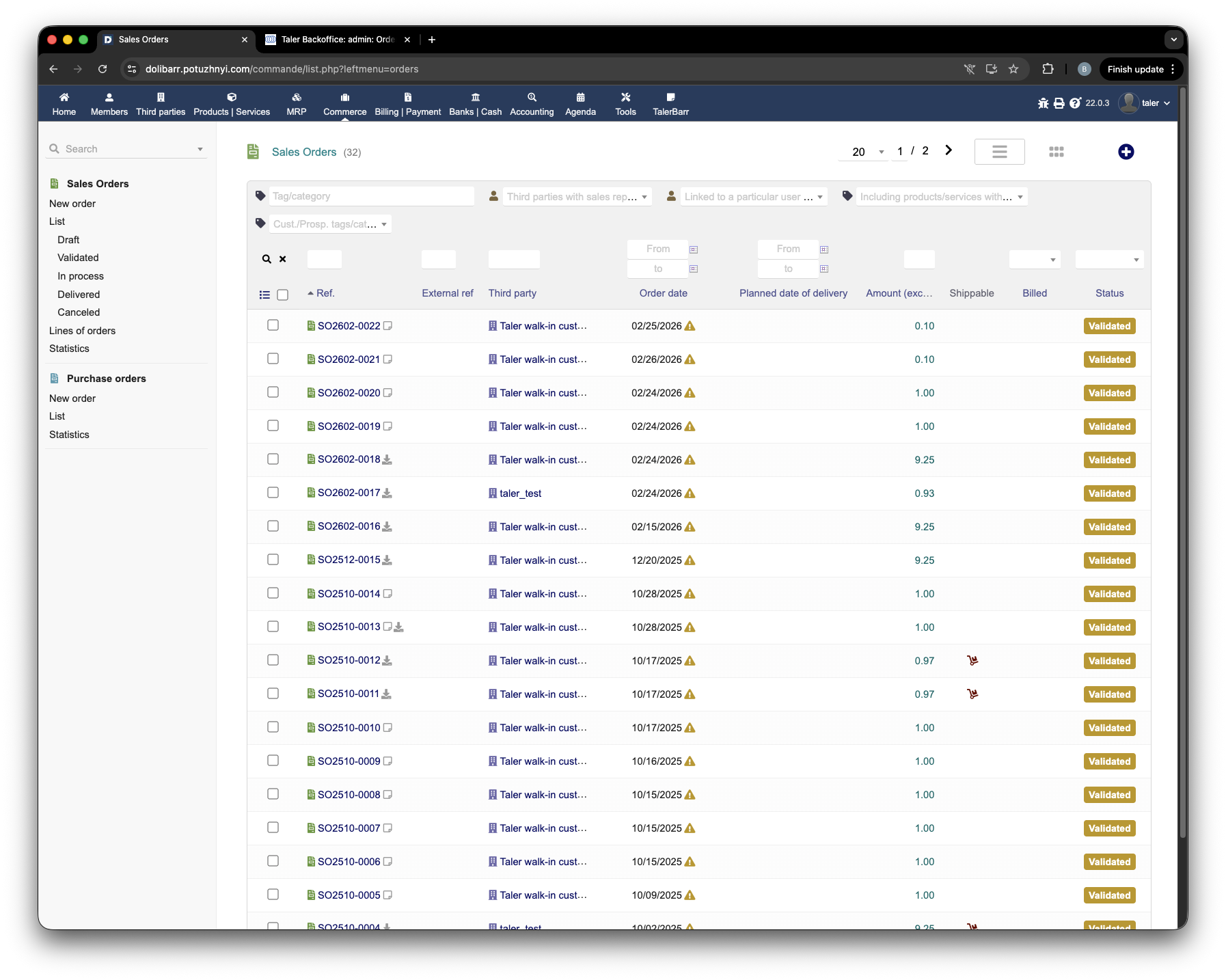
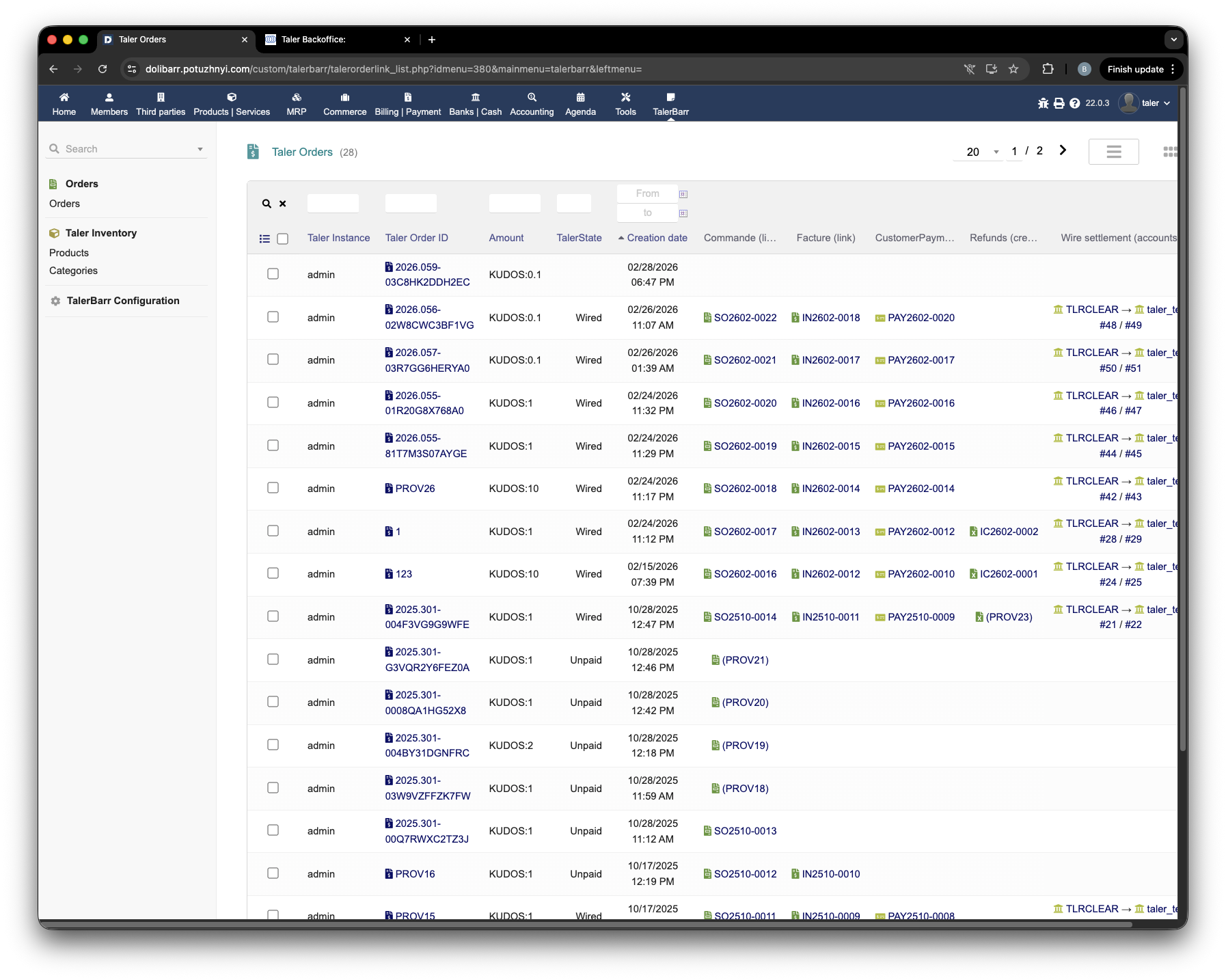
Before creating a new order, it is useful to look at the current state in both Dolibarr and TalerBarr. In the following example, the Dolibarr orders list and the TalerBarr orders list already contain a number of previously synchronised objects.

Dolibarr orders list before creating a new Taler order

Dolibarr orders list before the new Taler order is created.#

TalerBarr orders list before payment of the new Taler order

TalerBarr orders list before payment of the new Taler order.#

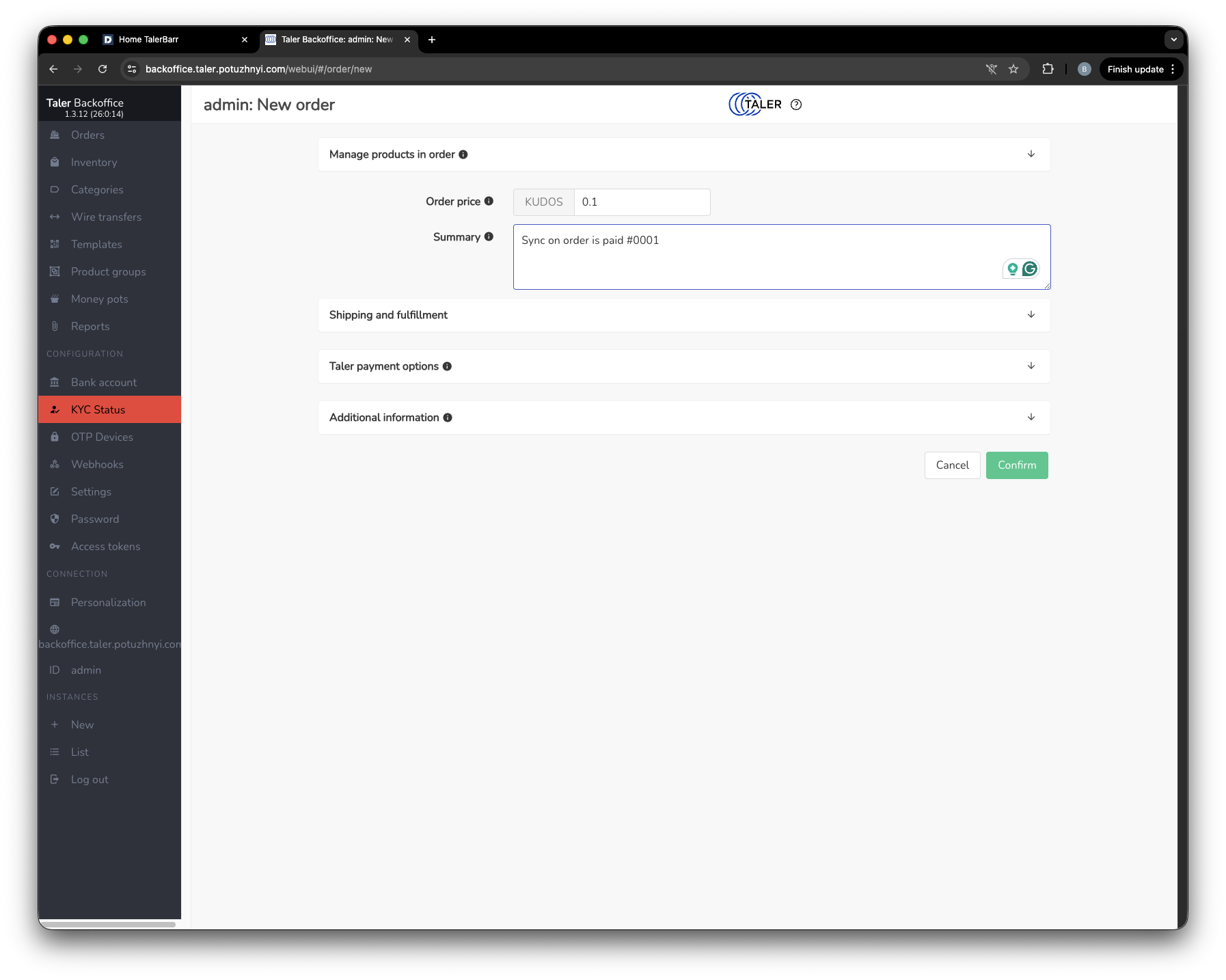
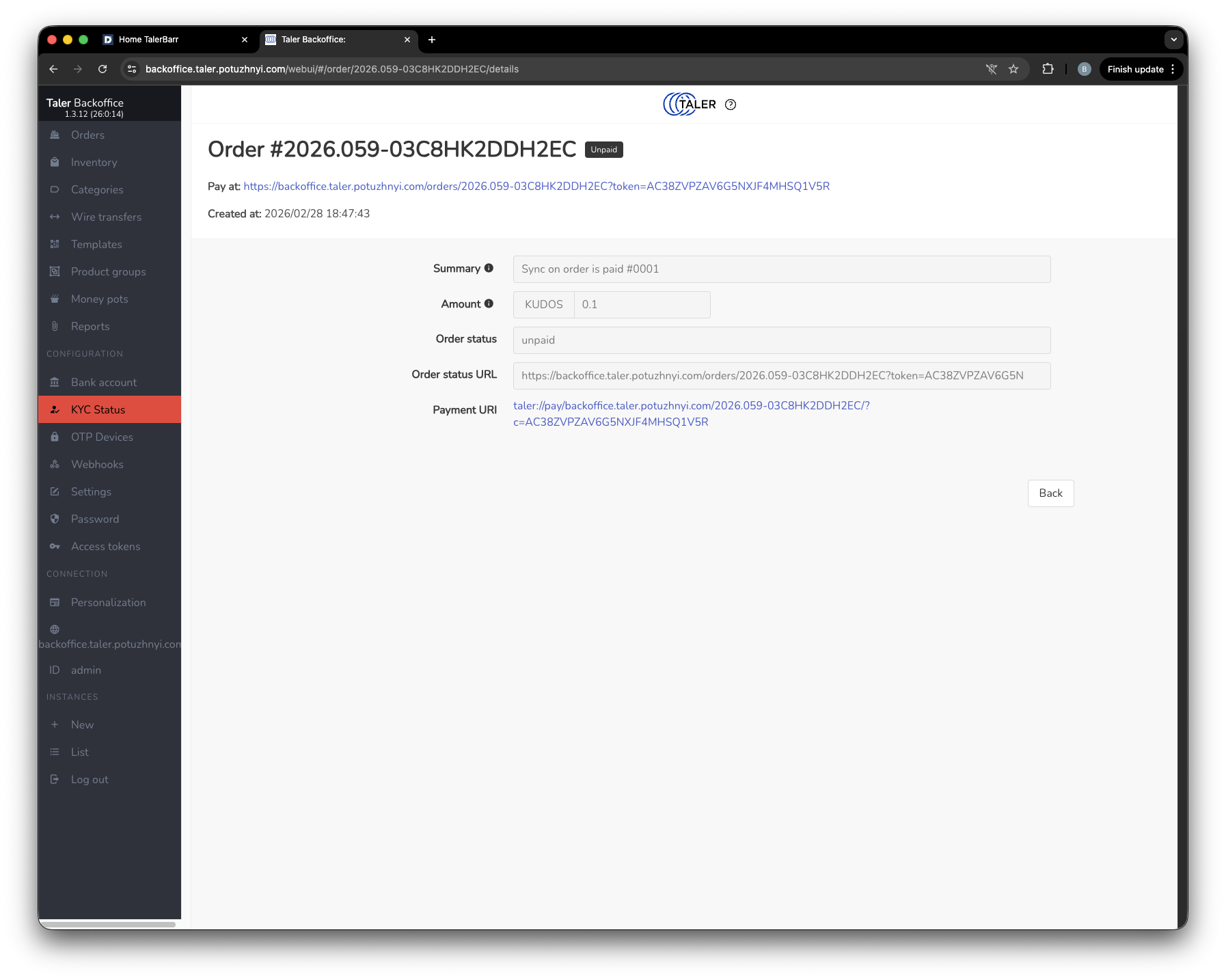
Now the order is created on the Taler side. The next two pictures show the creation flow in Taler SPAA.

Creating an order in Taler SPAA

Creating the order in Taler SPAA.#

Confirmation of the newly created Taler order

Newly created order on the Taler side.#

At this point, the order has been created but not yet paid. Because the configuration is Sync when order is paid, the order does not appear yet in the Dolibarr orders list.

Dolibarr orders list showing that the unpaid Taler order is not yet imported

Dolibarr orders list showing that the unpaid Taler order is not yet imported.#

However, TalerBarr already detects that a new Taler-side order exists and keeps track of it in its own module tables. At this stage there are still no linked Dolibarr objects such as order, invoice, payment, refund, or wire transfer.

TalerBarr orders list with the detected but unpaid order

TalerBarr orders list with the detected but unpaid order.#

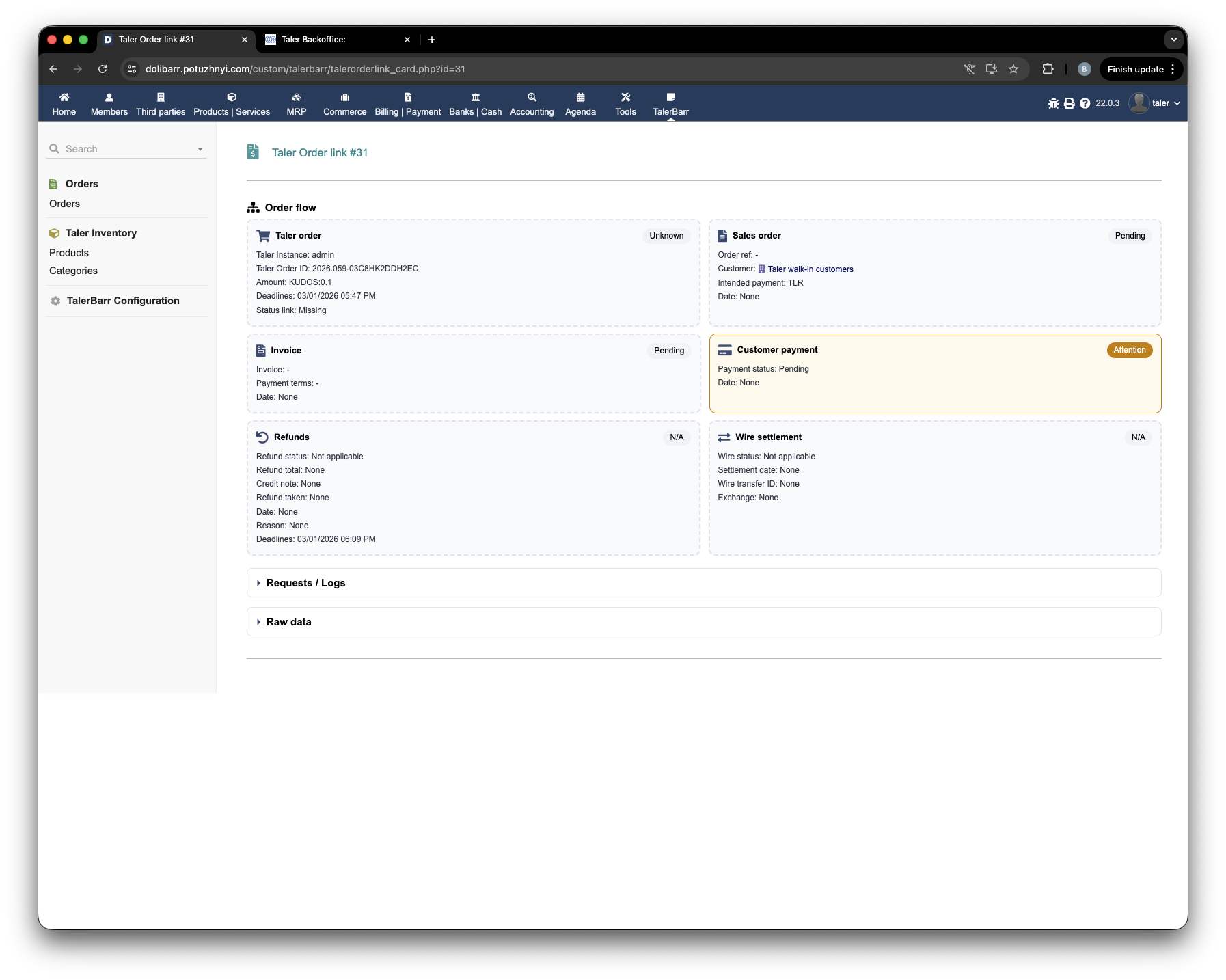
If you open the corresponding TalerBarr order card, you can see that only the general order information is available so far.

TalerBarr order card before payment

TalerBarr order card before payment, with only the general information recorded.#

The next step is to pay the order with a Taler wallet.

Paying the Taler order with a wallet

Paying the order with a Taler wallet.#

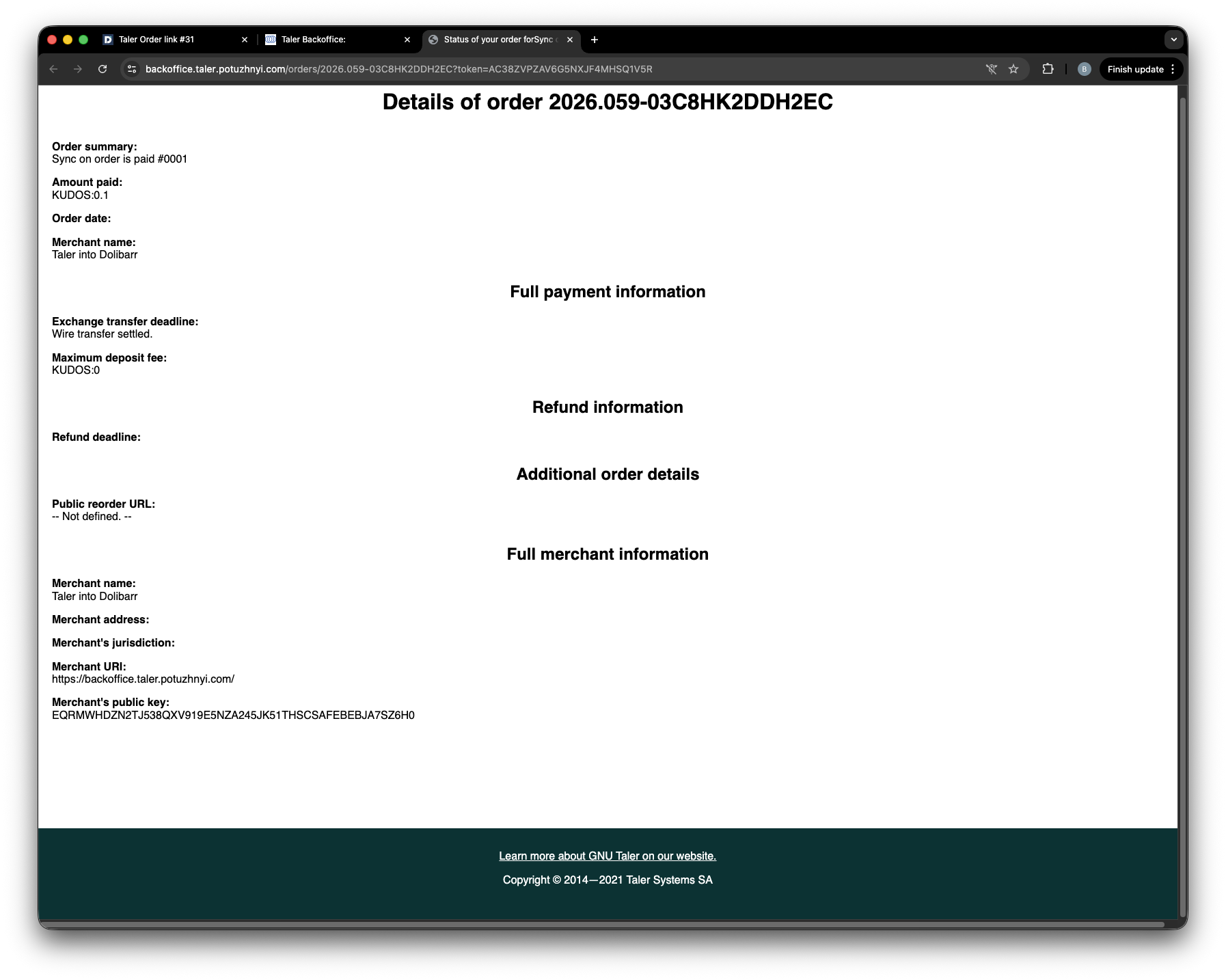
After payment, Taler SPAA also shows that the order has been paid.

Taler SPAA showing the order as paid

Taler SPAA showing the order as paid.#

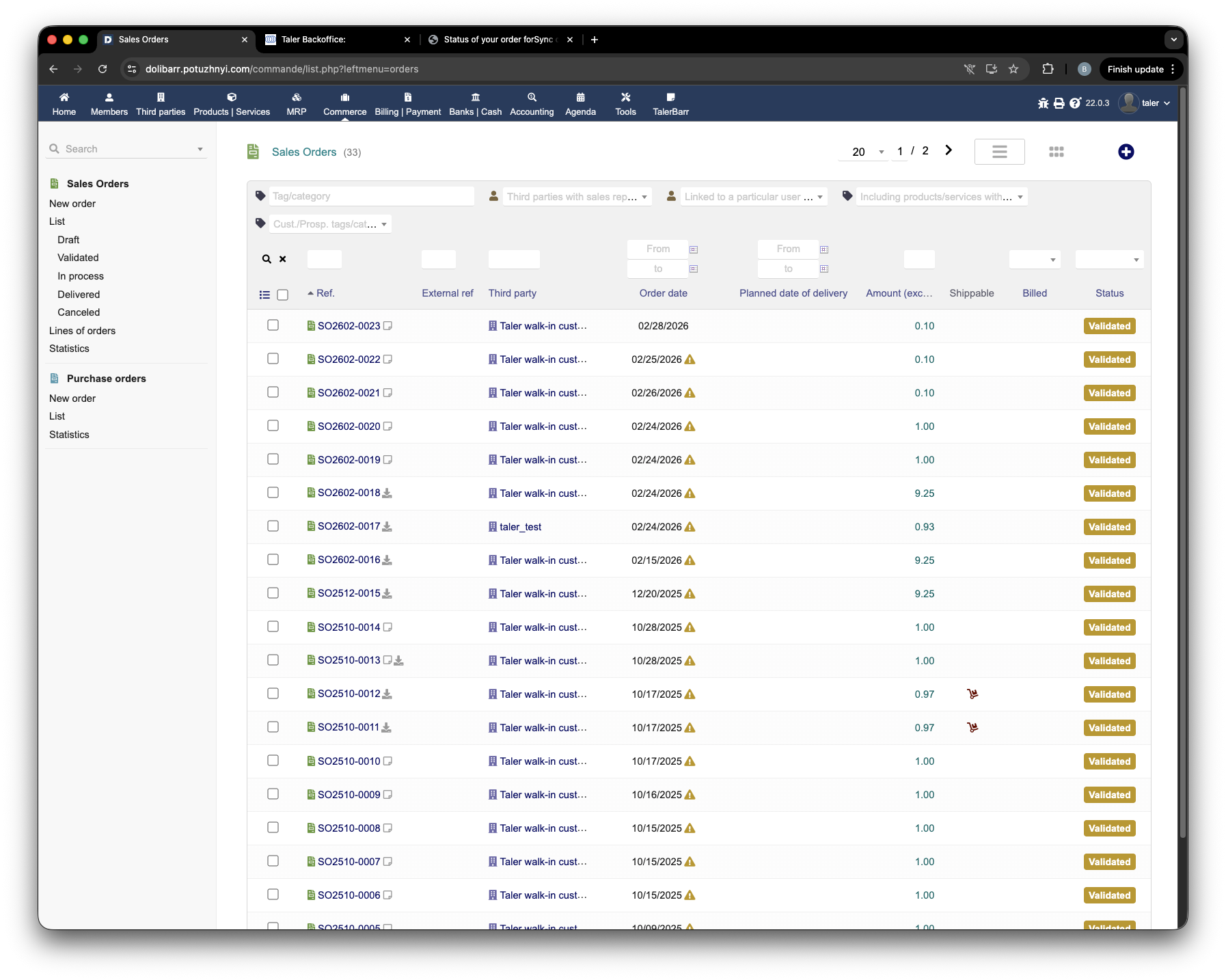
Now, if you return to Dolibarr, the new order appears in the Dolibarr orders list.

Dolibarr orders list after the Taler order was paid

Dolibarr orders list after the Taler order was paid.#

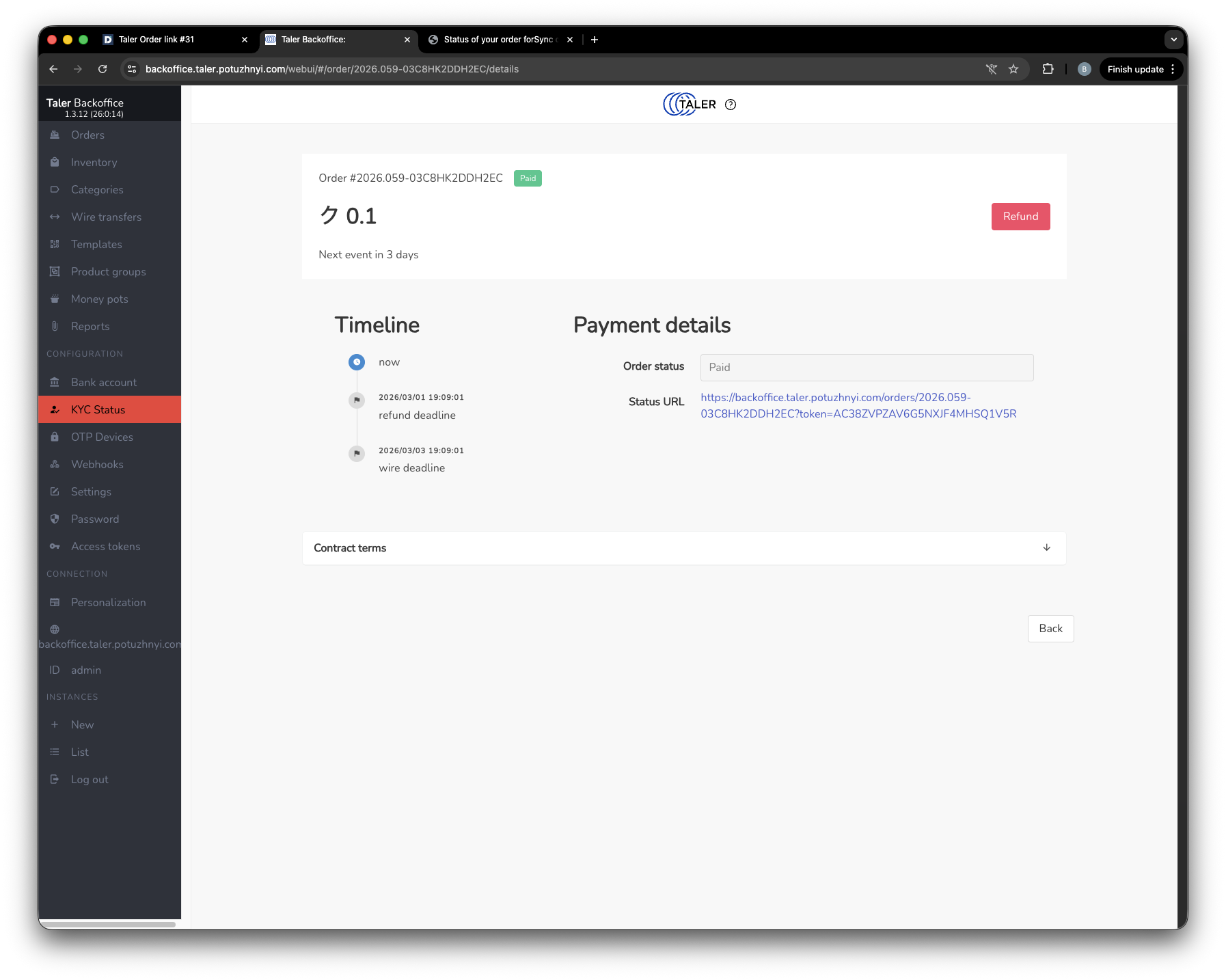
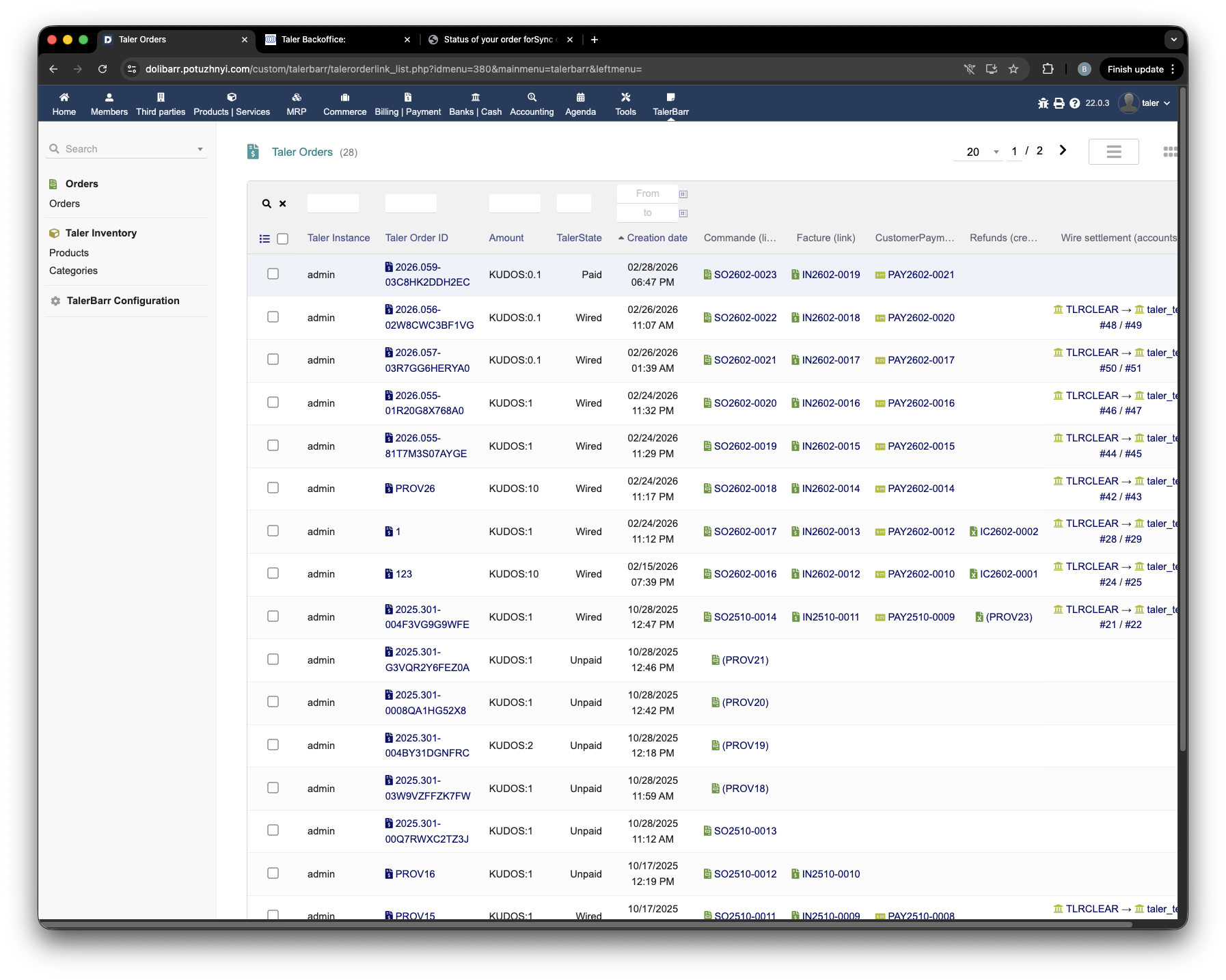
The TalerBarr orders table is also updated. In contrast to the unpaid state, the module can now show linked business objects created on the Dolibarr side.

TalerBarr orders list after payment with linked objects

TalerBarr orders list after payment, now showing linked objects.#

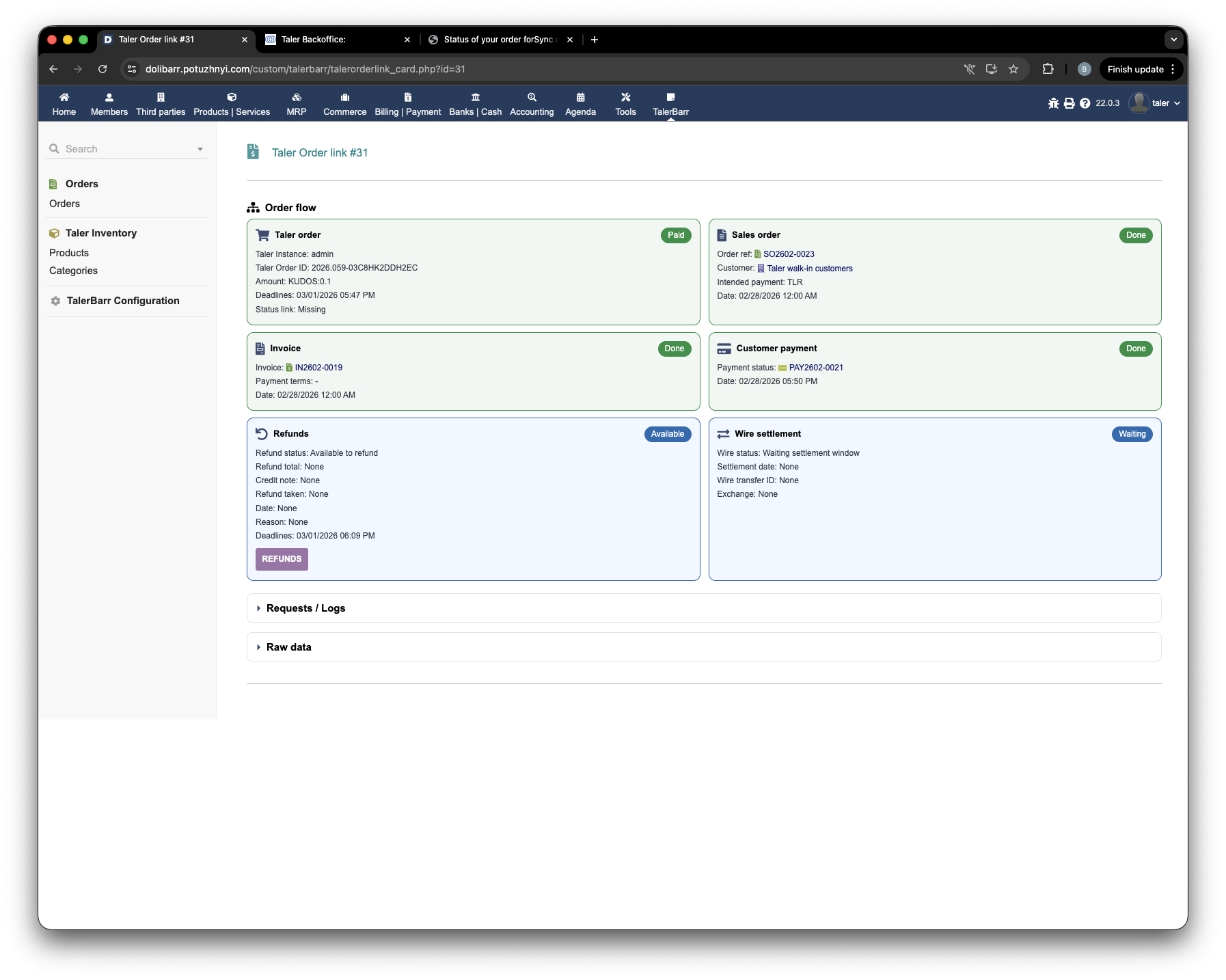
If you open the TalerBarr order card again, you can see the updated state of the object and the linked elements.

TalerBarr order card after payment

TalerBarr order card after payment with the linked Dolibarr objects.#

At this stage, the module links the Taler-side order with the corresponding Dolibarr business objects, such as the sales order, invoice, and payment. This is the main benefit of the Sync when order is paid mode: only completed purchases become part of the ERP order flow.

2.3.5.6. Next step#

Once a paid order works end to end, continue with Manage Refunds to test reversal handling and with Manage Wire Transfers to review the settlement flow.