

2.2.10. Create Refunds#
Refunds are tied to paid orders. Start from the order history and press Refund on the order card.

Starting a refund from a paid order.#
Choose the Taler payment when several refund methods are offered. A Taler refund must be issued before the refund deadline and cannot exceed the remaining refundable amount. For cash and card, see Recording returned cash or card payments below.
Enter the refund amount and the refund reason. The amount can be the full order amount or a smaller partial amount, depending on the merchant’s policy and the remaining refundable amount.
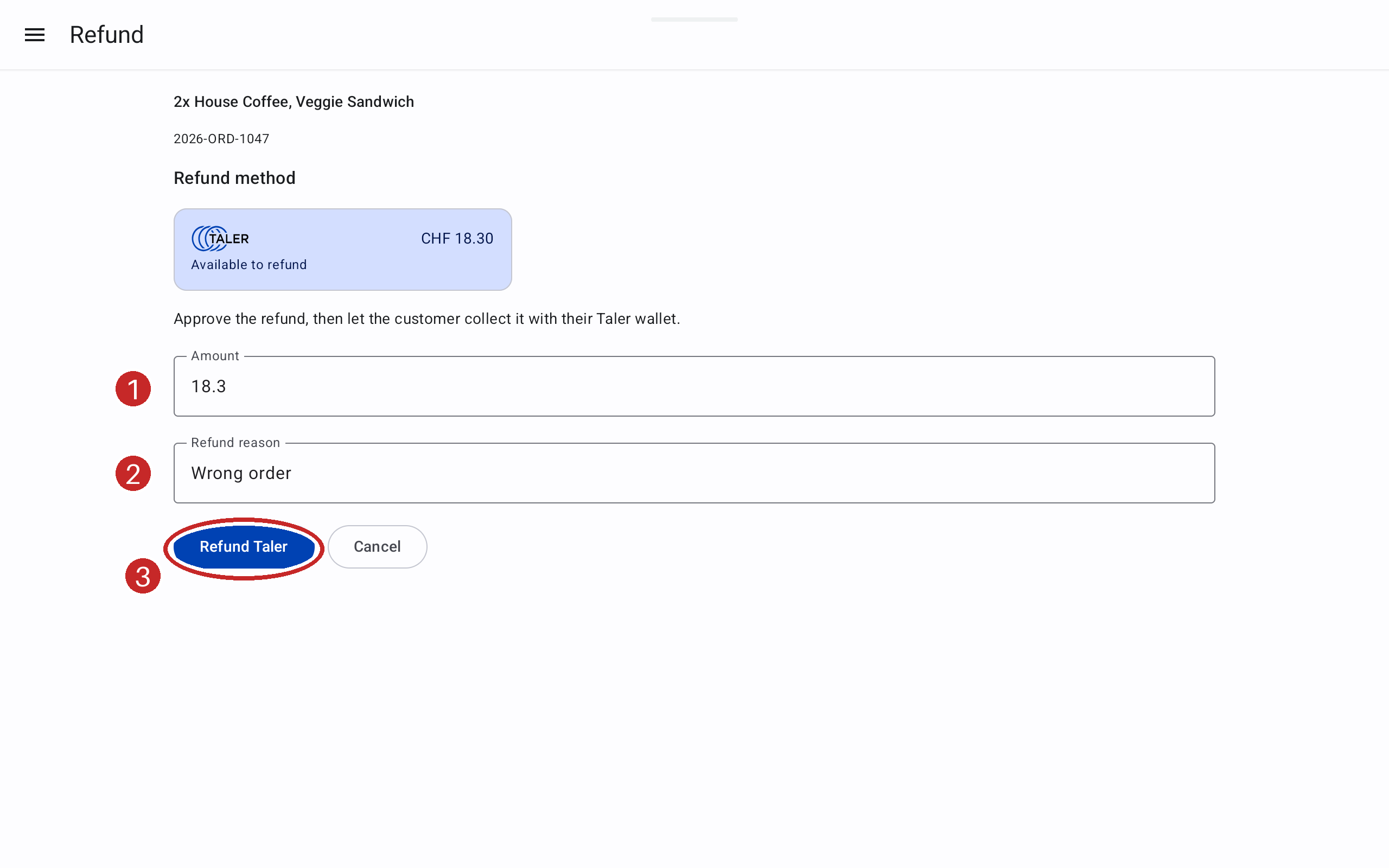
Creating a refund for a paid point-of-sale order.#
Press Refund Taler, review the amount and reason, then press Approve refund.
After the refund is created, the app shows the refund QR code page. The customer collects the refund with a Taler Wallet by scanning the QR code or opening the refund URI.

Refund QR code page.#
2.2.10.1. Leave, Reopen, or Cancel a Refund#
To leave the refund QR code page and continue with another task, press the back button. This closes the refund QR code page and opens the order history again.
To return to the refund QR code page, open the history page, find the order, and use the order’s Show refund action. The refund QR code page for that order opens again.
To cancel a refund that has not been collected yet, press Cancel refund on the refund QR code page. After the refund is canceled, the customer can no longer collect that refund.
After the wallet collects the refund, the screen closes automatically and the order card is updated with refund information. The updated refund state can also be checked in the Merchant Portal order details.
2.2.10.2. Recording returned cash or card payments#
Return cash to the customer or refund the card through your card provider, then record the returned amount in the POS. For mixed payments, repeat this for each payment method.
Open the order’s refund screen.
Select Cash or the card payment (1). Check the available amount.
For cash, hand the money back to the customer. For a card payment, complete the refund in the card provider’s own tools first.
Enter the returned amount (2) and the reason, then press Record refund (3).
Read the confirmation, confirm that the money has been returned and press Money returned - record refund.
Check the resulting order status and refunded amount.
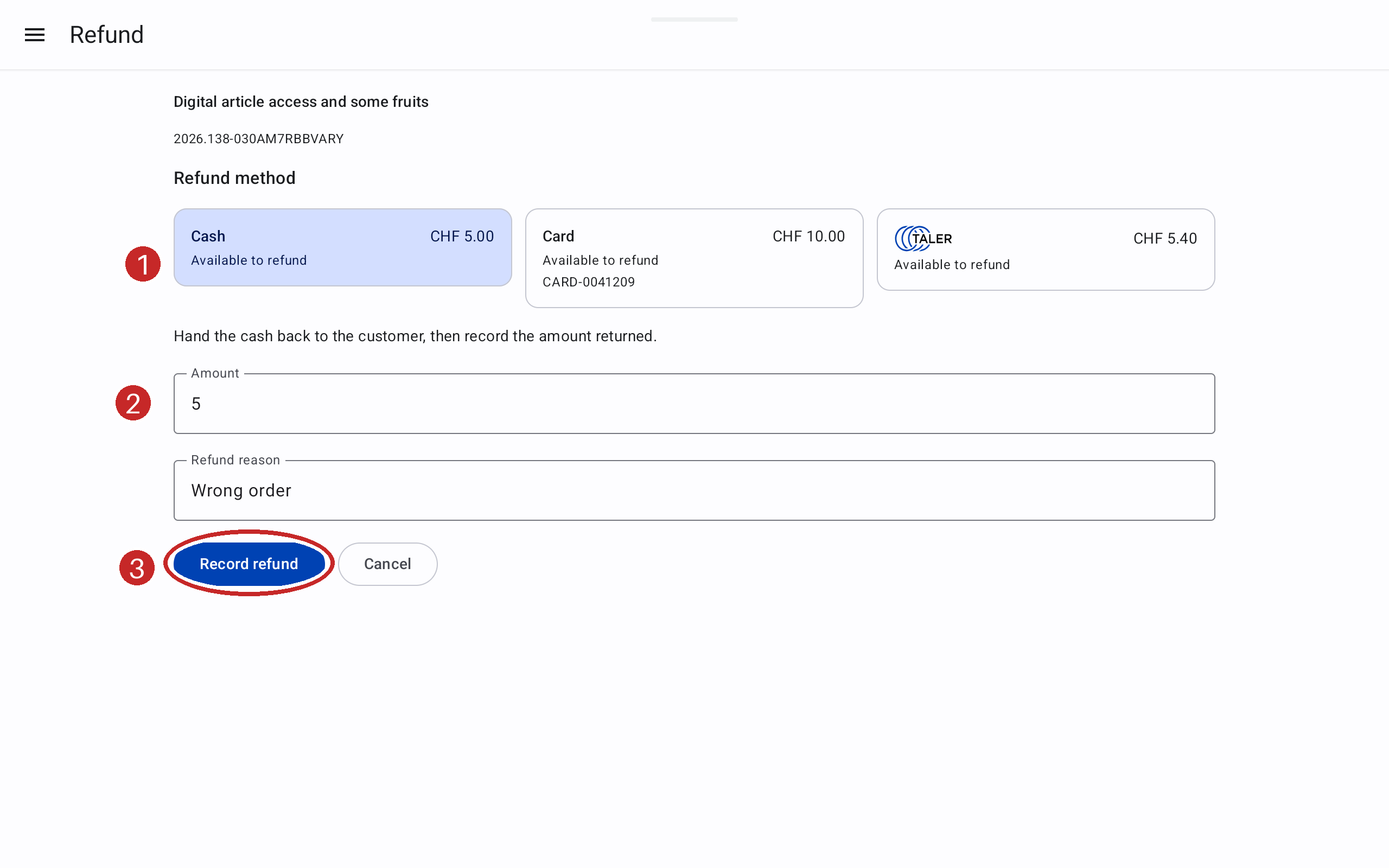
The cash example records money already handed back to the customer.#
Avertissement
Record refund does not send money to a card or hand cash to the customer. If the POS says the refund was saved locally but could not update the order, do not return the money again. Keep the record and resolve the backend connection problem.
Record cash and card refunds on the device that took the payment. If a method is Unavailable, check the original payment and its refundable amount.