

2.2.6. Create Refunds#
Refunds are tied to paid orders. Start from the order history and press Refund on the order card.
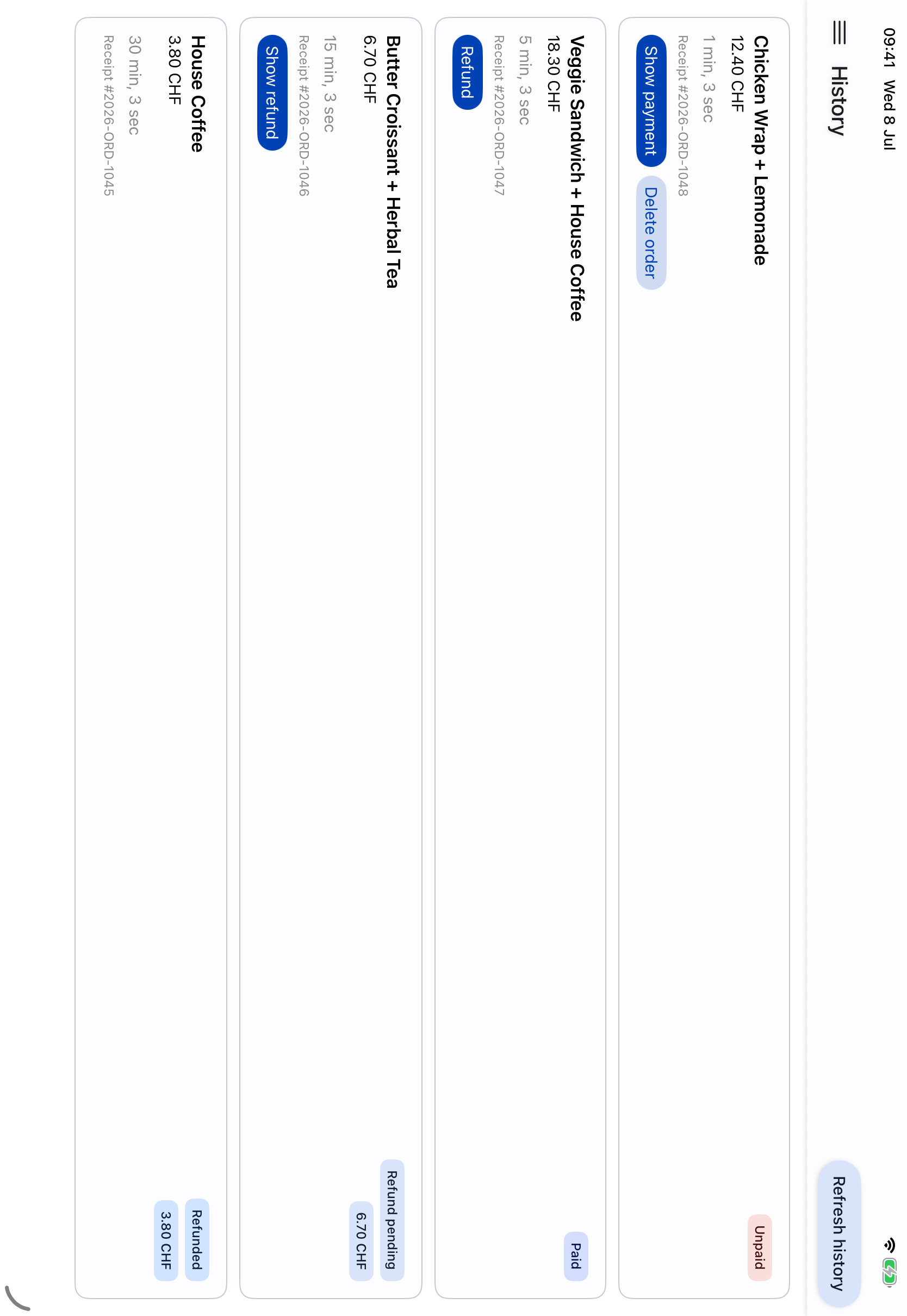
Starting a refund from a paid order.#
Informacja
If the button is not shown, the order has either already been fully refunded through Taler, or the refund deadline has expired. In that case, the order can no longer be refunded through Taler and must be handled through another payment method.
Enter the refund amount and the refund reason. The amount can be the full order amount or a smaller partial amount, depending on the merchant’s policy and the remaining refundable amount.
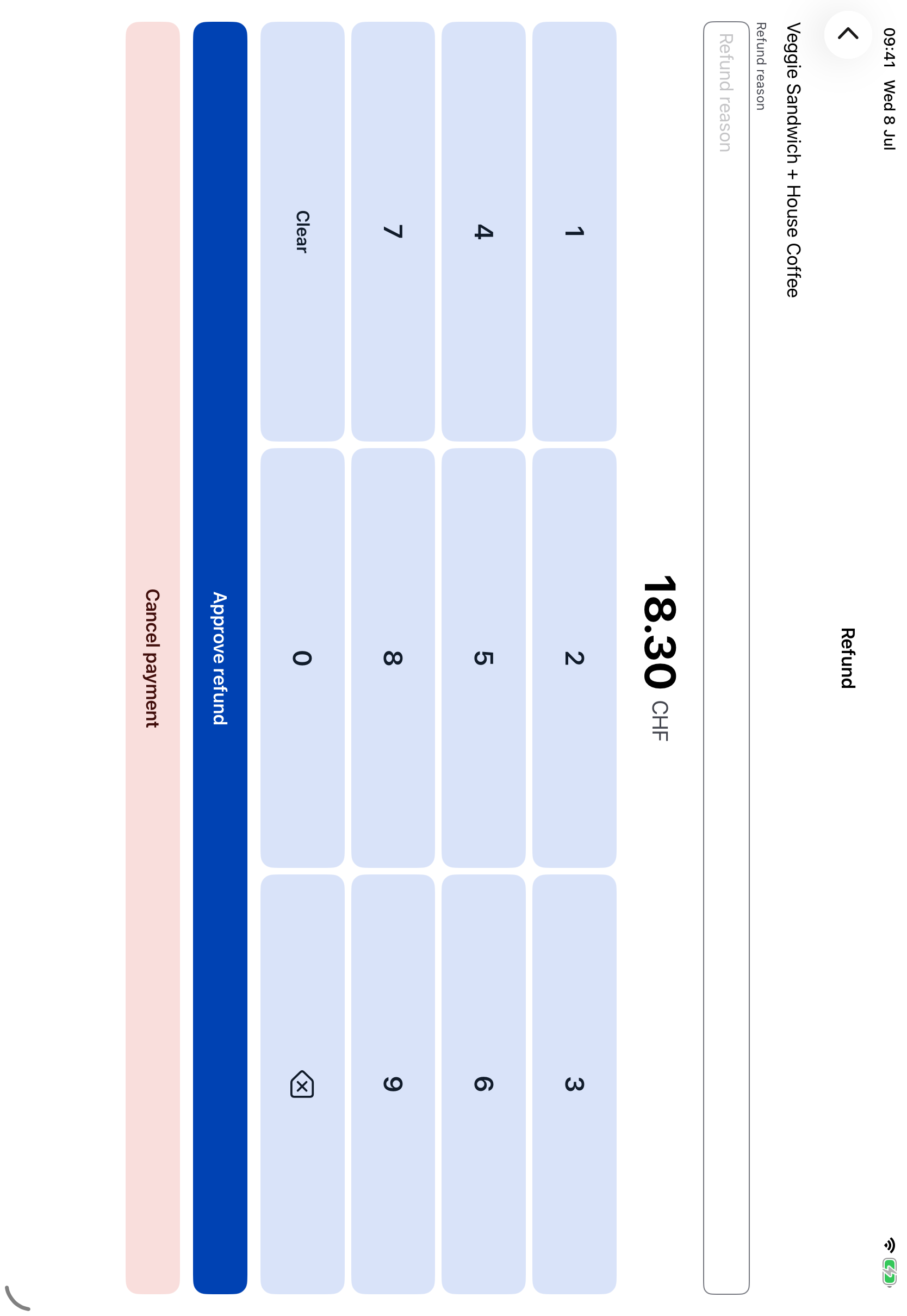
Creating a refund for a paid point-of-sale order.#
After the refund is created, the app shows the refund QR code page. The customer collects the refund with a Taler Wallet by scanning the QR code or opening the refund URI.
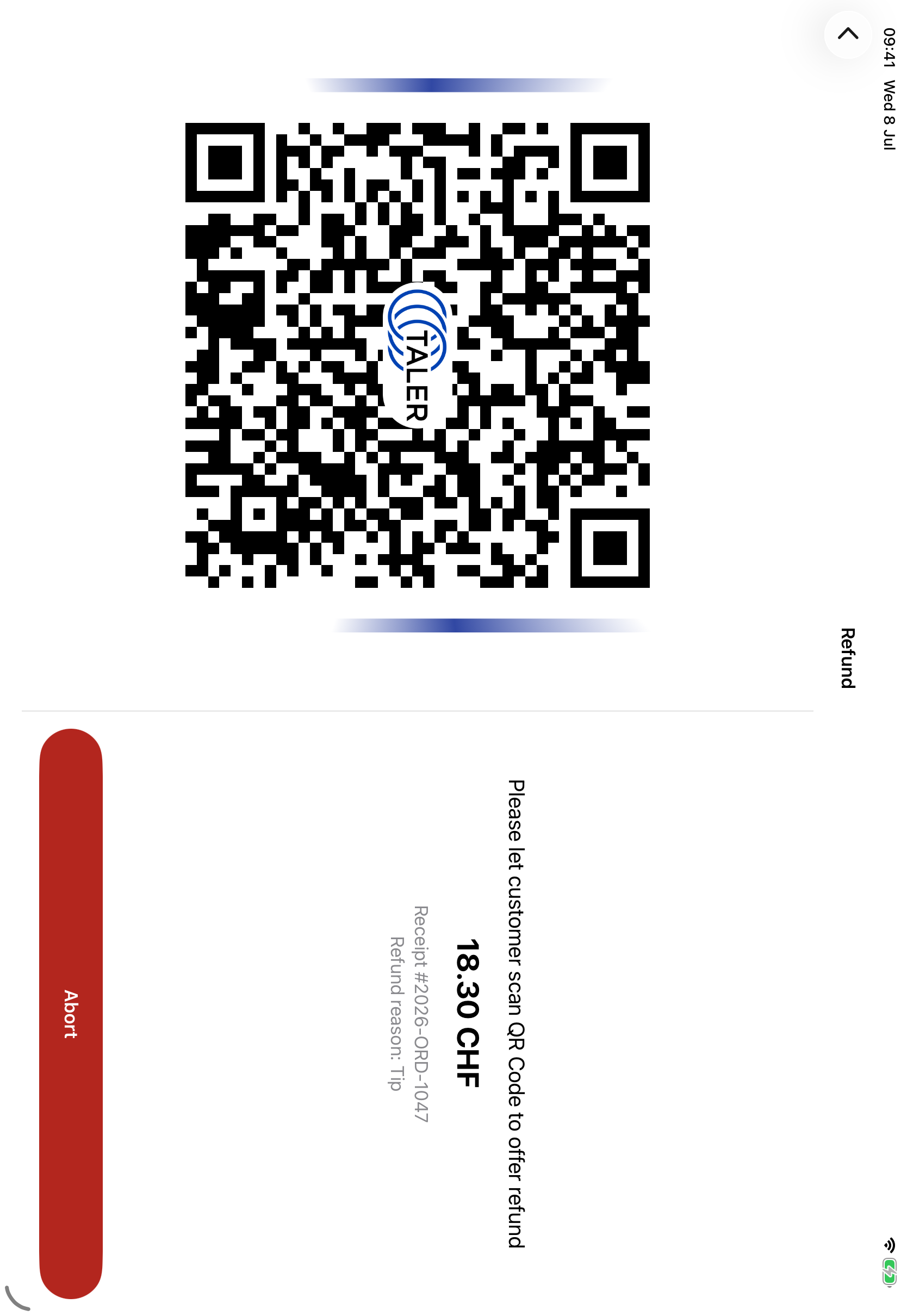
Refund QR code page.#
2.2.6.1. Leave, Reopen, or Cancel a Refund#
To leave the refund QR code page and continue with another task, press the back button. This closes the refund QR code page and opens the order history again.
To return to the refund QR code page, open the history page, find the order, and use the order’s Show refund action. The refund QR code page for that order opens again.
To cancel a refund that has not been collected yet, press Cancel refund on the refund QR code page. After the refund is canceled, the customer can no longer collect that refund.
After the wallet collects the refund, the screen closes automatically and the order card is updated with refund information. The updated refund state can also be checked in the Merchant Portal order details.