

2.4.3. Příchozí transakce#
Tento modul podporuje následující příchozí platby:
Platby zákaznických objednávek
Dobropisy dodavatelských objednávek
Modul se za normálních okolností snaží transakci automaticky propojit s fakturou tím, že automaticky vytvoří platbu a bankovní řádek. V případě potřeby jsou k dispozici i některé možnosti ručního zásahu. Další příklady jsou uvedeny níže.
2.4.3.1. Platby zákaznických objednávek#
Nejprve potřebujete mít zákaznickou objednávku. Ukázka je zobrazena na dalším obrázku.
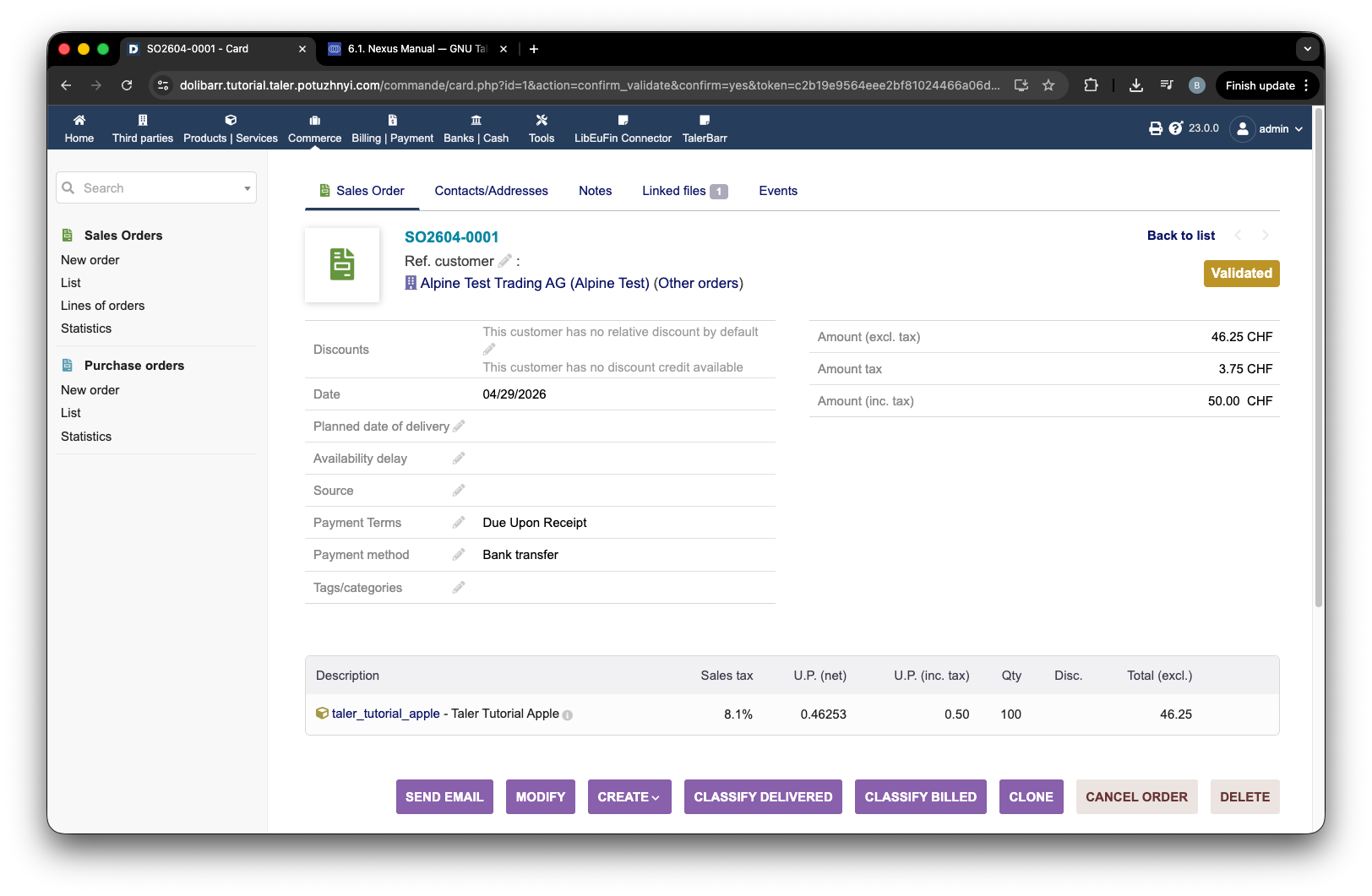
Příklad zákaznické objednávky v Dolibarr.#
Poté samozřejmě musíte také vytvořit fakturu. Způsob platby musí být Bank transfer (bankovní převod) a musí odpovídat bankovnímu účtu, který jste zvolili při konfiguraci.
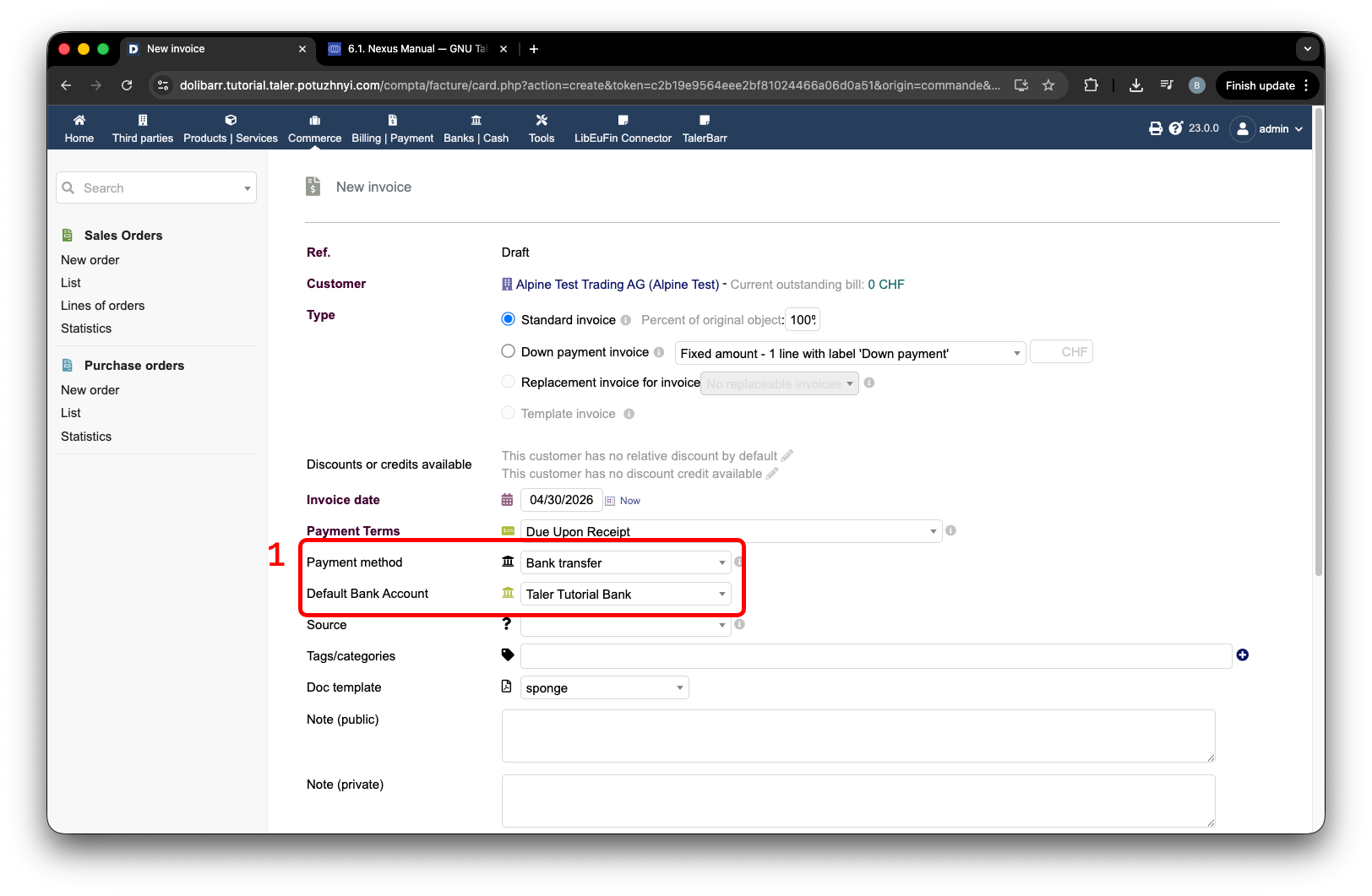
Zákaznická faktura nastavená pro bankovní převod.#
Jakmile fakturu vytvoříte a ověříte, zobrazí se referenční číslo faktury, označené číslem 1 na dalším obrázku. Poté můžete zákazníka požádat o její úhradu.
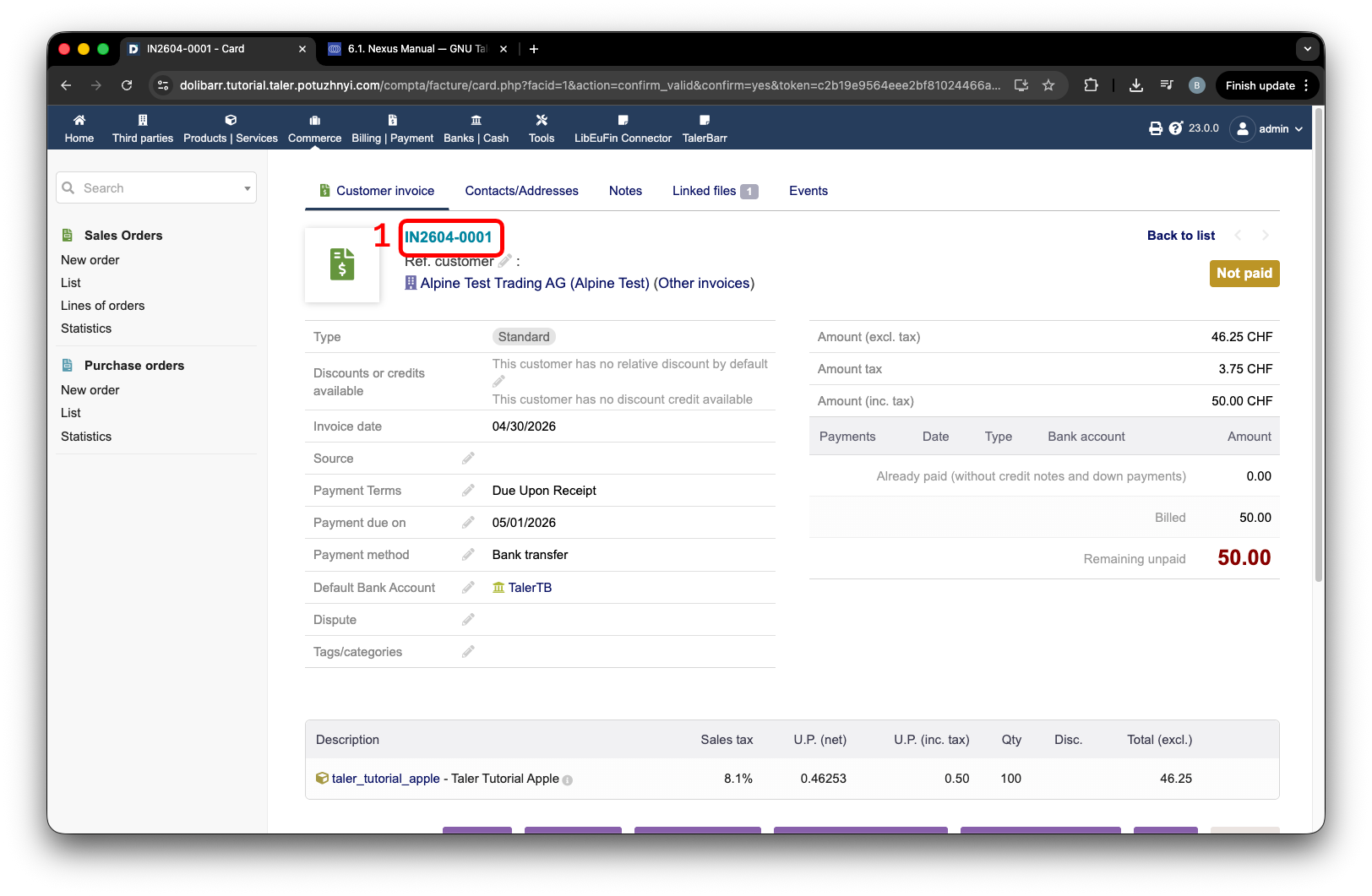
Ověřená zákaznická faktura s referenčním číslem.#
V rámci tohoto návodu budeme vystupovat jako zákazník. K tomu použijeme speciální výukovou/demo obrazovku. Stiskněte tlačítko LibEuFin Connector v horní navigační liště, označené číslem 1, poté stiskněte tlačítko Tutorial, označené číslem 2. Poté nezapomeňte vyplnit všechna pole správnými údaji, označenými číslem 3, a stiskněte Create fake incoming, označené číslem 4.
V rámci tohoto návodu předvedu dvě možnosti:
Reference obsahuje správné číslo pro spárování.
Reference obsahuje nesprávné číslo a systém ji nemůže spárovat automaticky.
Začněme správným číslem a automatickým spárováním: toho lze dosáhnout v podstatě jednoduše použitím řetězce IN2604-0001 v bloku Ref.. Pro účely testování zároveň přidávám platbu #2, což je druhá dílčí platba.
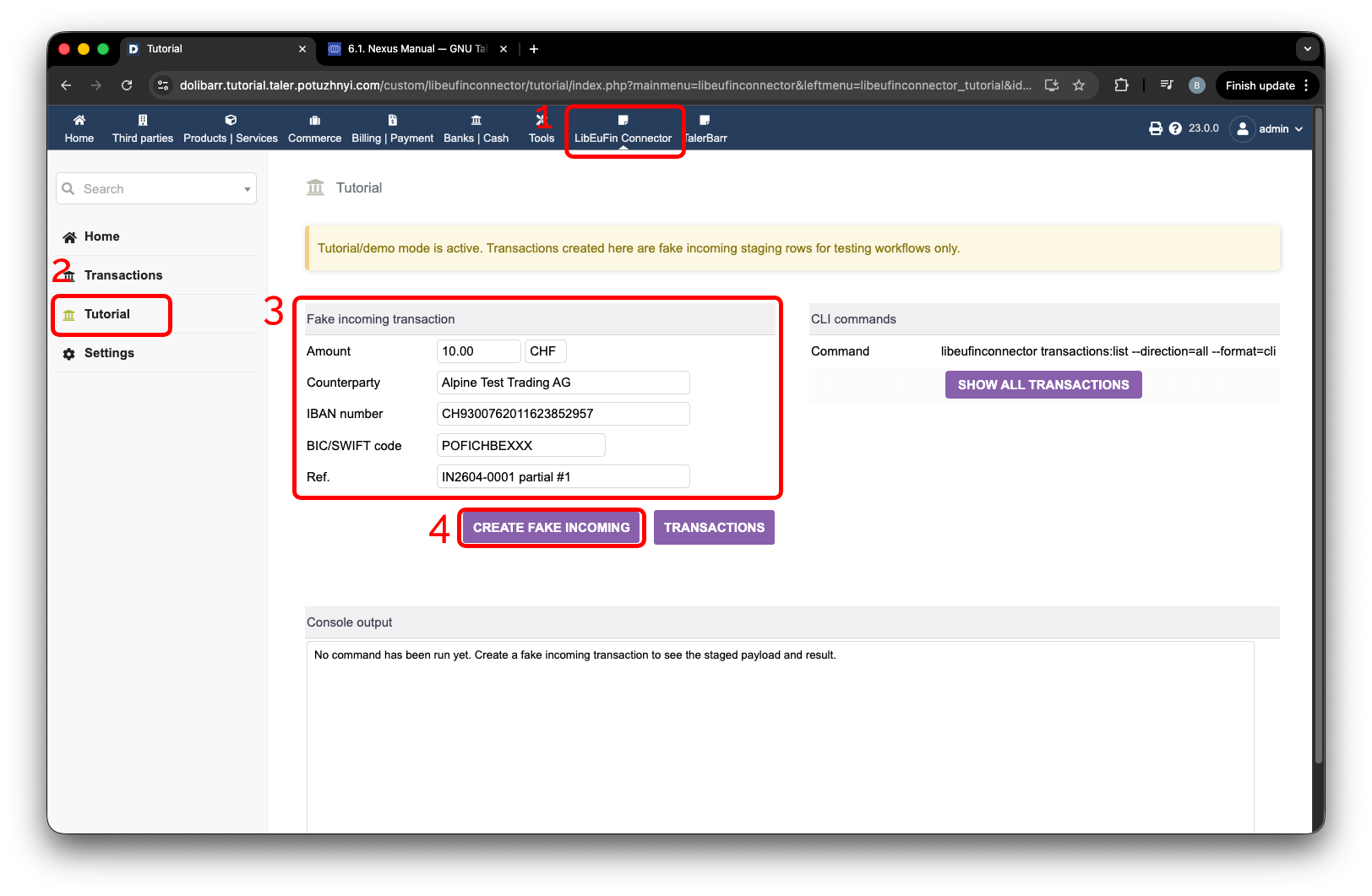
Vytváření falešných příchozích plateb se shodnou referencí faktury.#
Nyní, když jsou obě platby vytvořeny, můžeme přejít na stránku Transactions, označenou číslem 1, a stisknout Stage incoming fetch, označené číslem 2. Jakmile tlačítko stisknete, stránka se znovu načte. Po dokončení se zobrazí oznámení, označená číslem 3, informující vás, kolik objektů se tam nachází. Podívejte se na další obrázek.
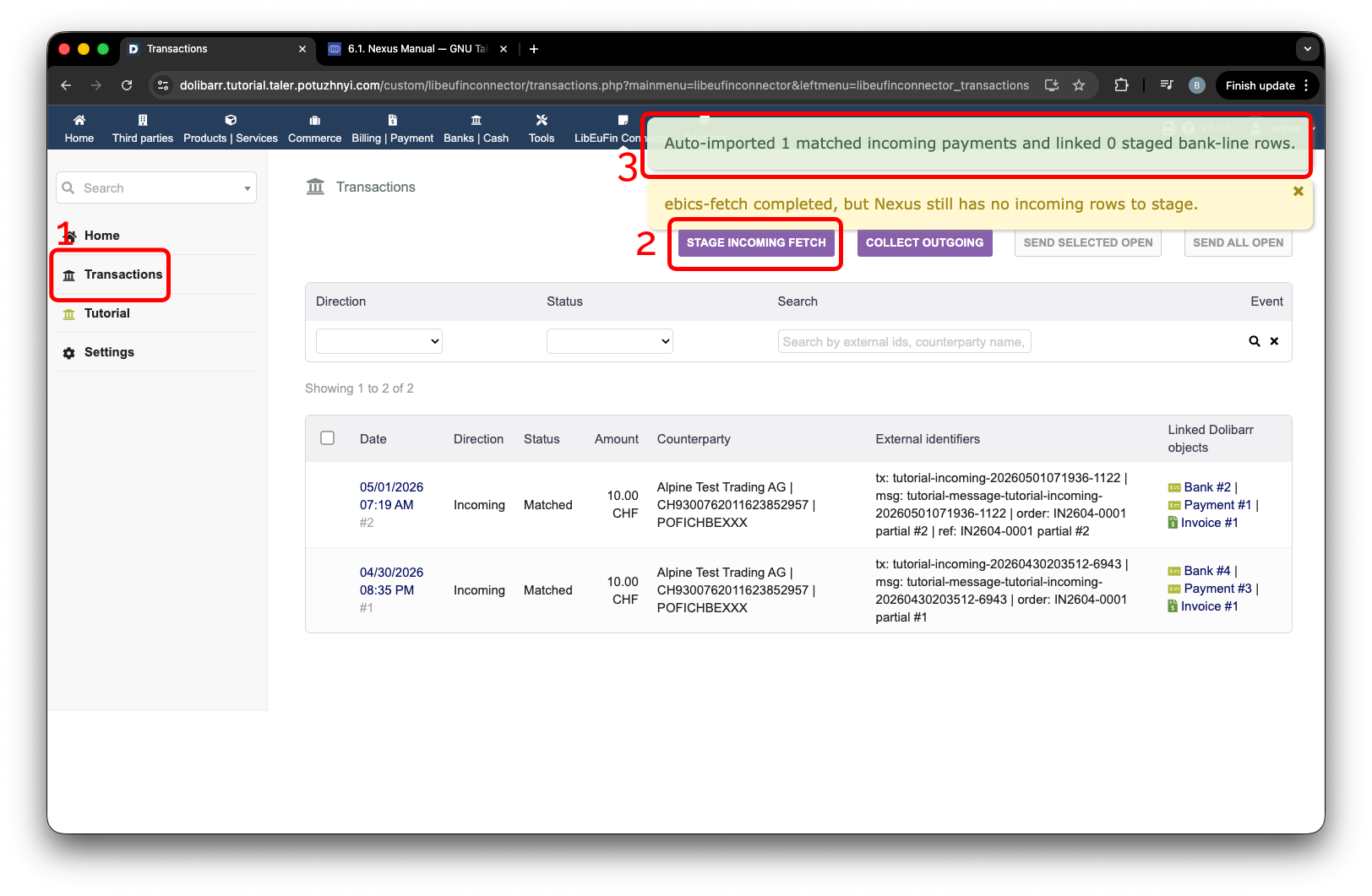
Načtení příchozích transakcí s automaticky spárovanými platbami.#
Nyní můžeme přejít k vytvoření platby, jejíž reference neobsahuje referenci faktury.
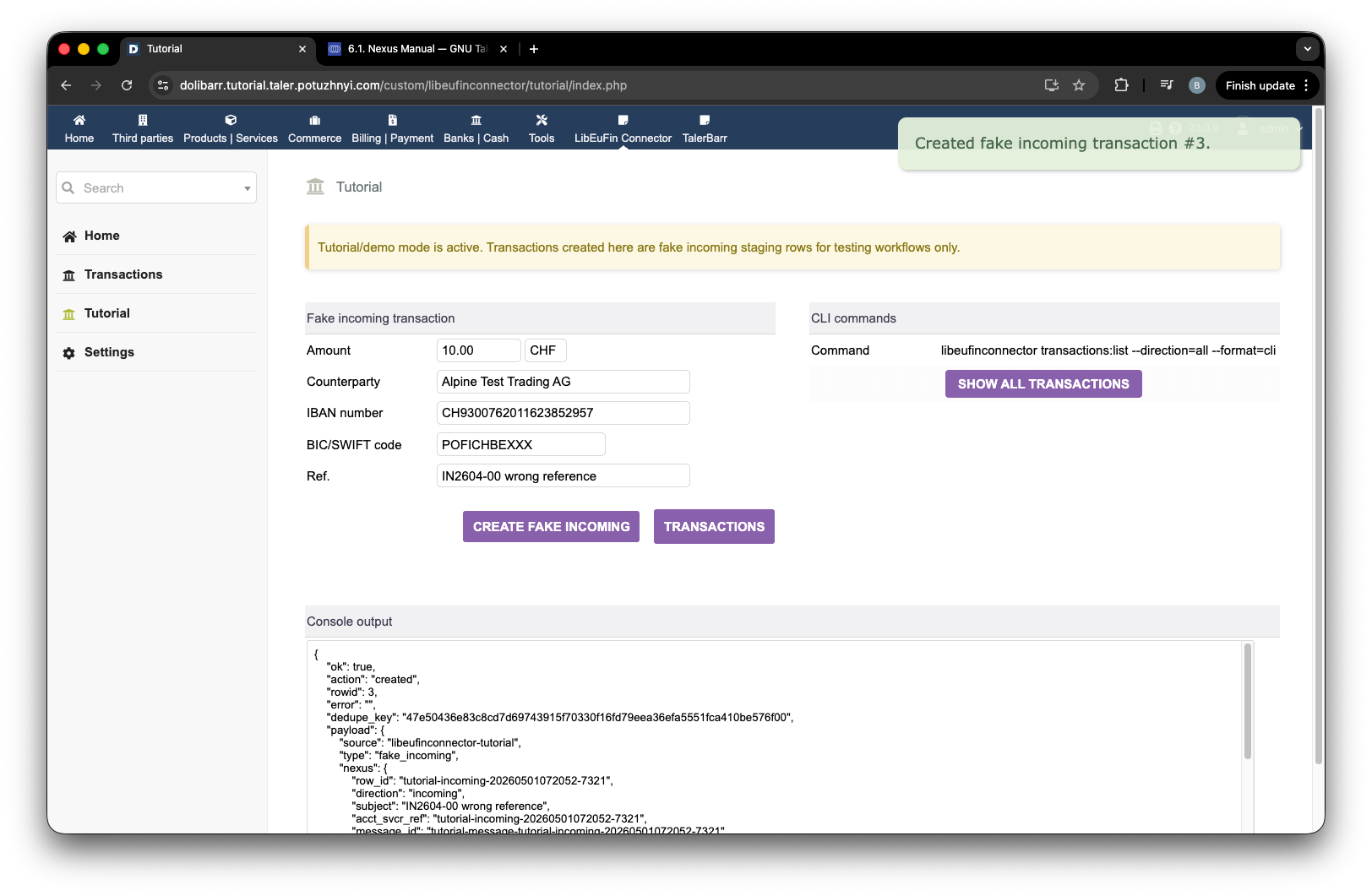
Vytváření falešné příchozí platby bez shodné reference faktury.#
Spusťte znovu Stage incoming fetch. Jakmile proběhne opětovné načtení, zobrazí se oznámení informující vás, že existují nespárované transakce. Za tímto účelem stiskněte odkaz u čísla 2 a otevře se stránka transakce.
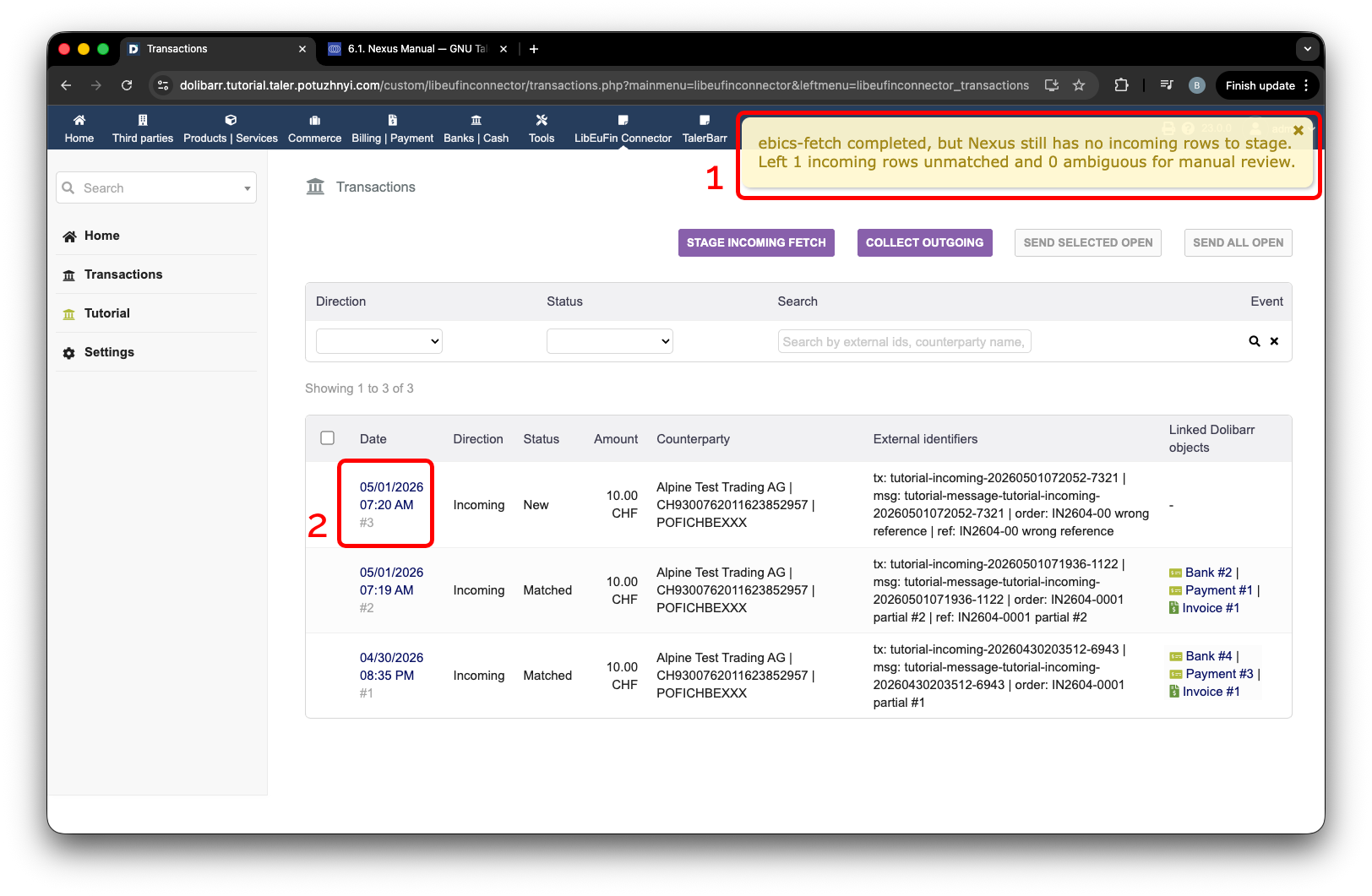
Oznámení o nespárovaných příchozích transakcích.#
Otevře se stránka podobná té následující. Chcete-li ji spárovat, sjeďte dolů k ručnímu propojení a vyberte objekt, se kterým chcete vytvořit vazbu:
Faktura/dobropis
Platba
Bankovní řádek
Nyní vyberu fakturu a stisknu tlačítko uložit, označené číslem 1 na dalším obrázku. Po stisknutí tohoto tlačítka se v oblasti označené číslem 2 zobrazí vazby.
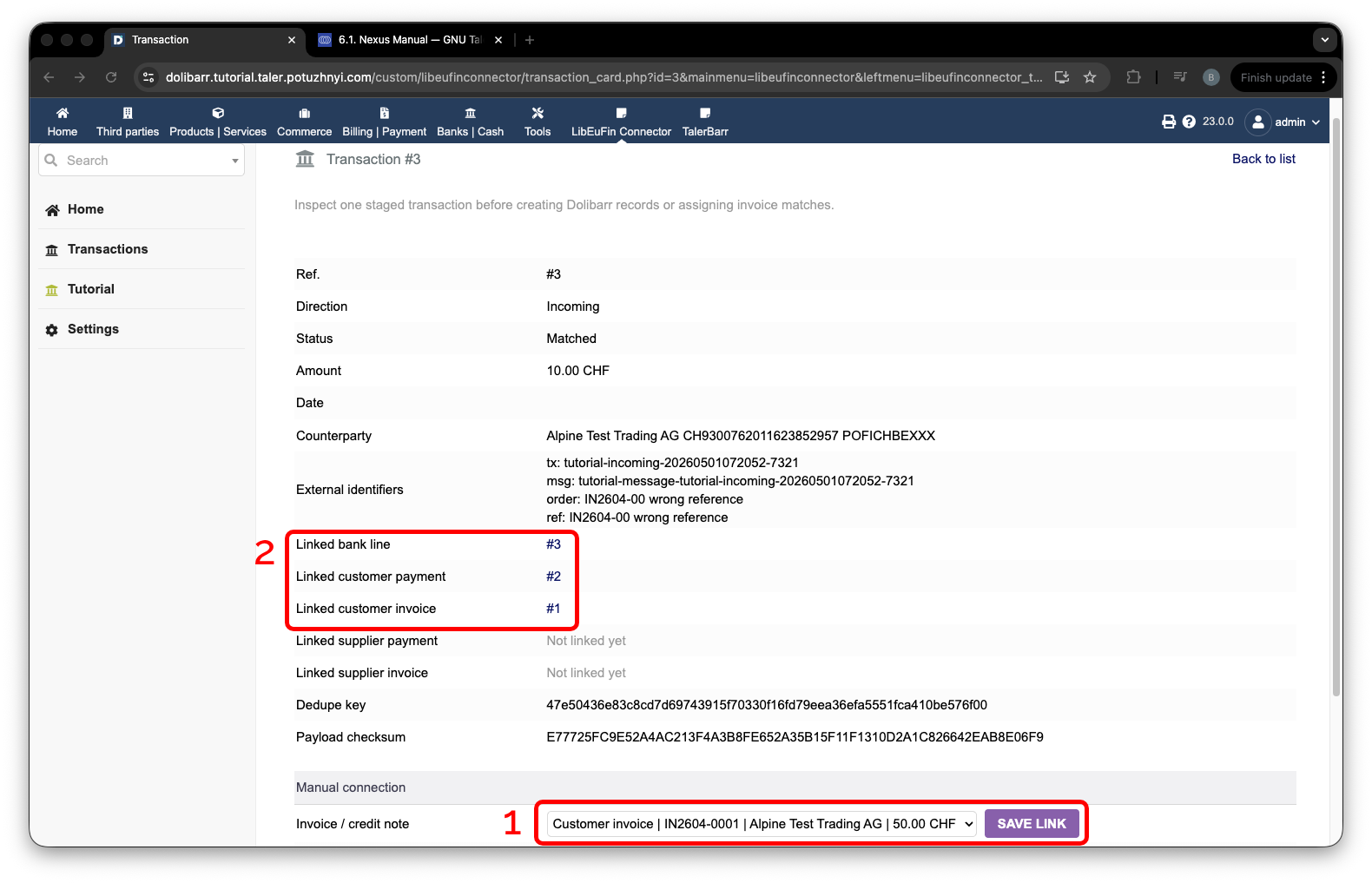
Ruční spárování příchozí transakce.#
Nyní chceme ověřit, že se tento objekt skutečně započítal do částky faktury. Za tímto účelem se vraťte na fakturu objednávky. Tam najdete platby, označené číslem 1 na dalším obrázku, které provedl zákazník, nebo v tomto případě my, vystupující jako falešný zákazník.
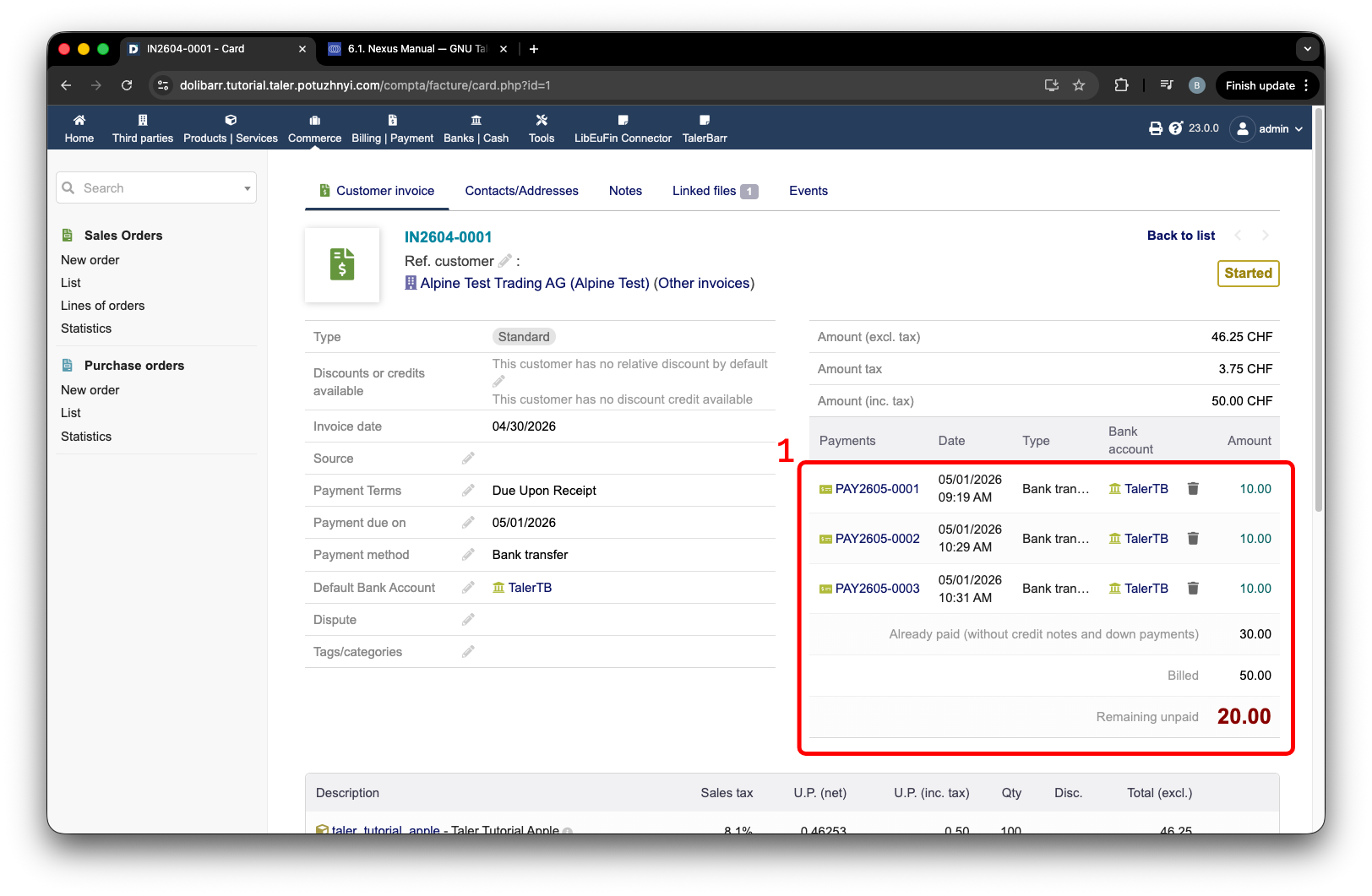
Zákaznická faktura se zobrazenými propojenými platbami.#
Můžeme to rovněž dokončit vytvořením závěrečné platby, v mém případě #4, a jejím načtením.
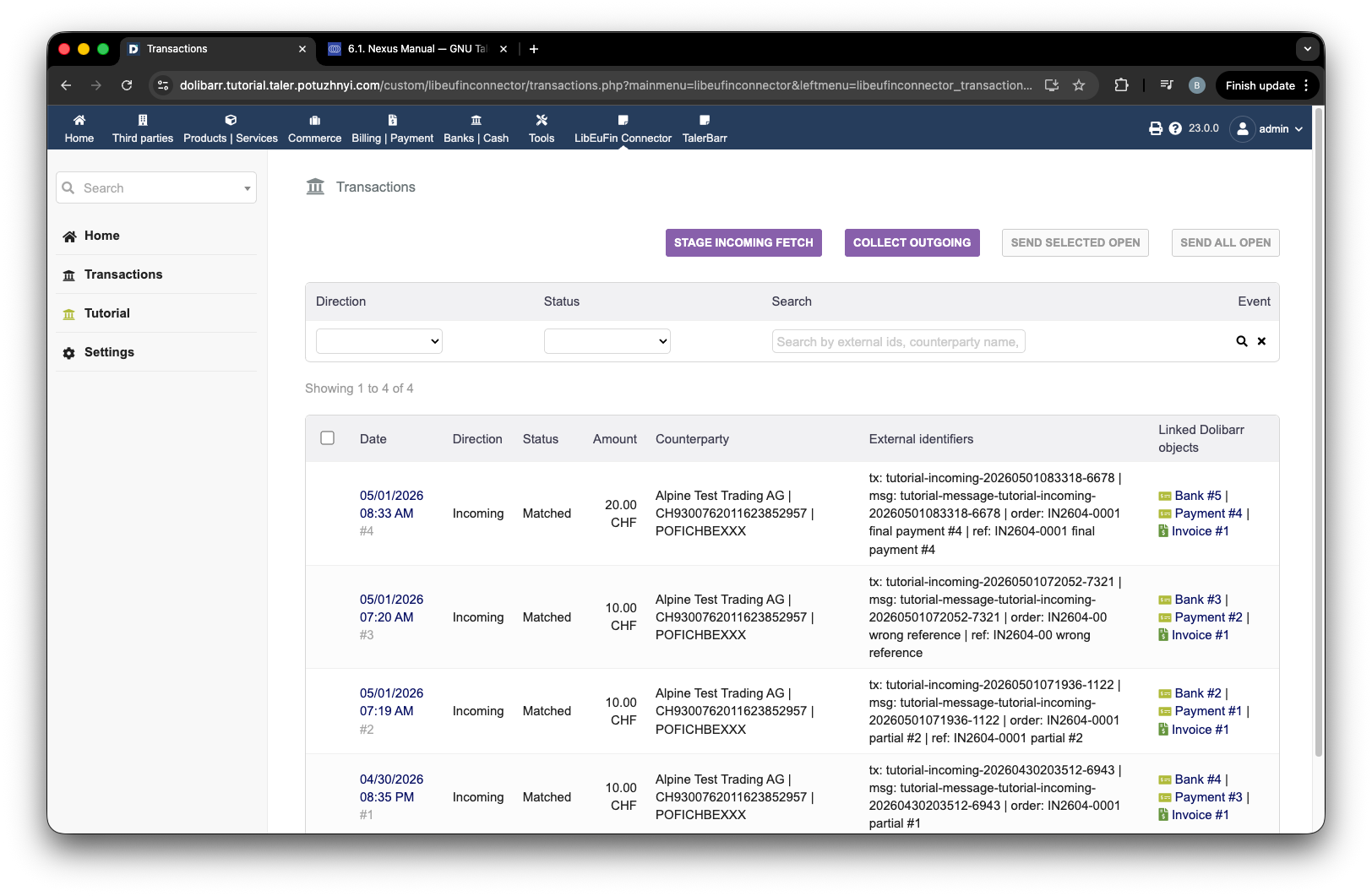
Vytváření závěrečné příchozí platby pro zákaznickou fakturu.#
Po aktualizaci zákaznické platby vidíme, že objednávka je uhrazena. Poté můžete postupovat podle svých interních obchodních postupů k ověření platby a dokončení objednávky.
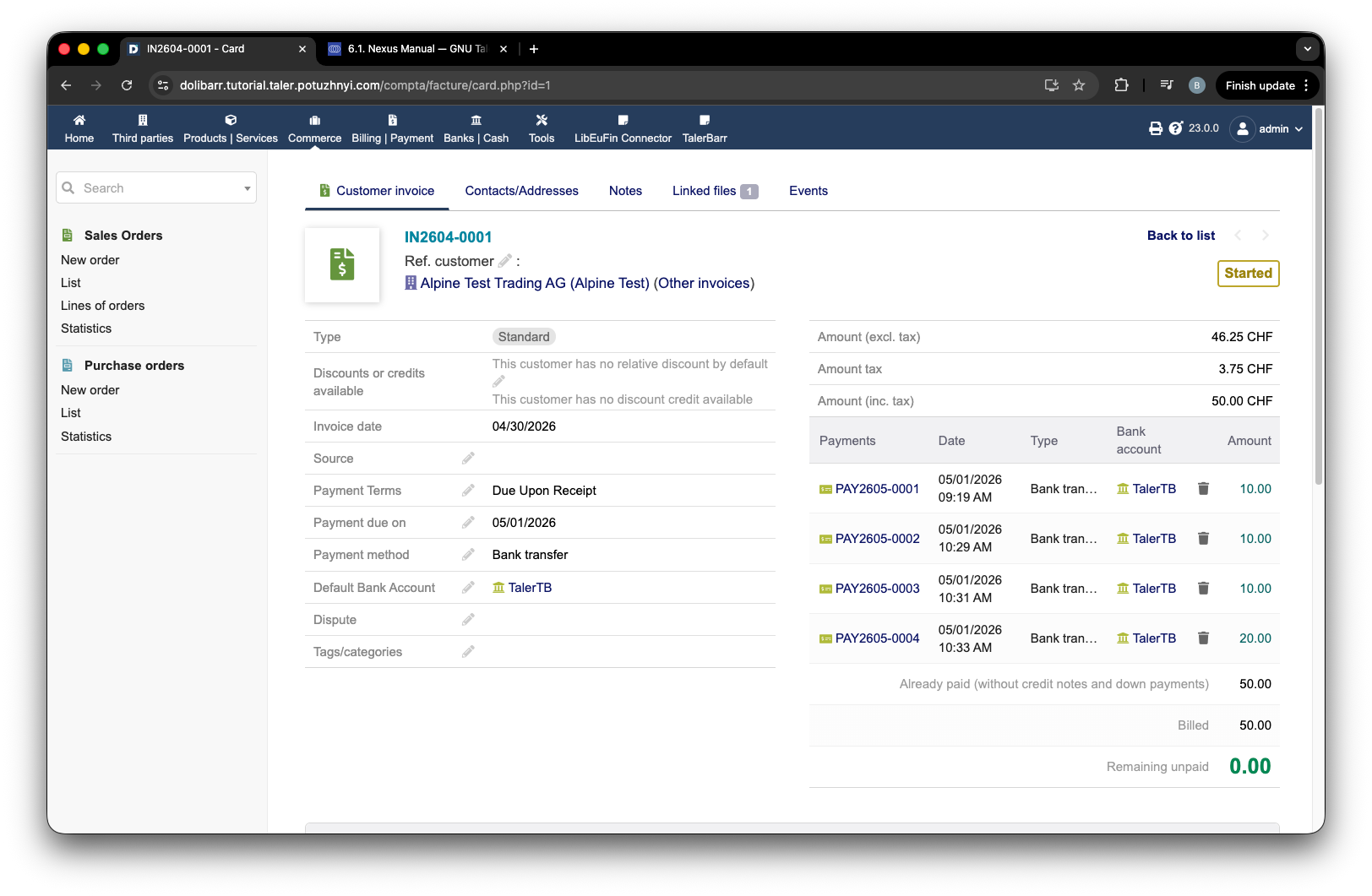
Zákaznická faktura označená jako uhrazená po příchozích transakcích.#
2.4.3.2. Dobropis dodavatelské objednávky#
Tato logika byla přidána pro podporu případů, kdy má firma, od které jste něco zakoupili, poslat vrácení peněz bankovním převodem. Pro tuto ukázku použijeme dodavatelskou objednávku z návodu Odchozí transakce.
Tato logika je velmi podobná faktuře zákaznické objednávky.
Nejprve musíte vytvořit dobropis k dodavatelské faktuře.
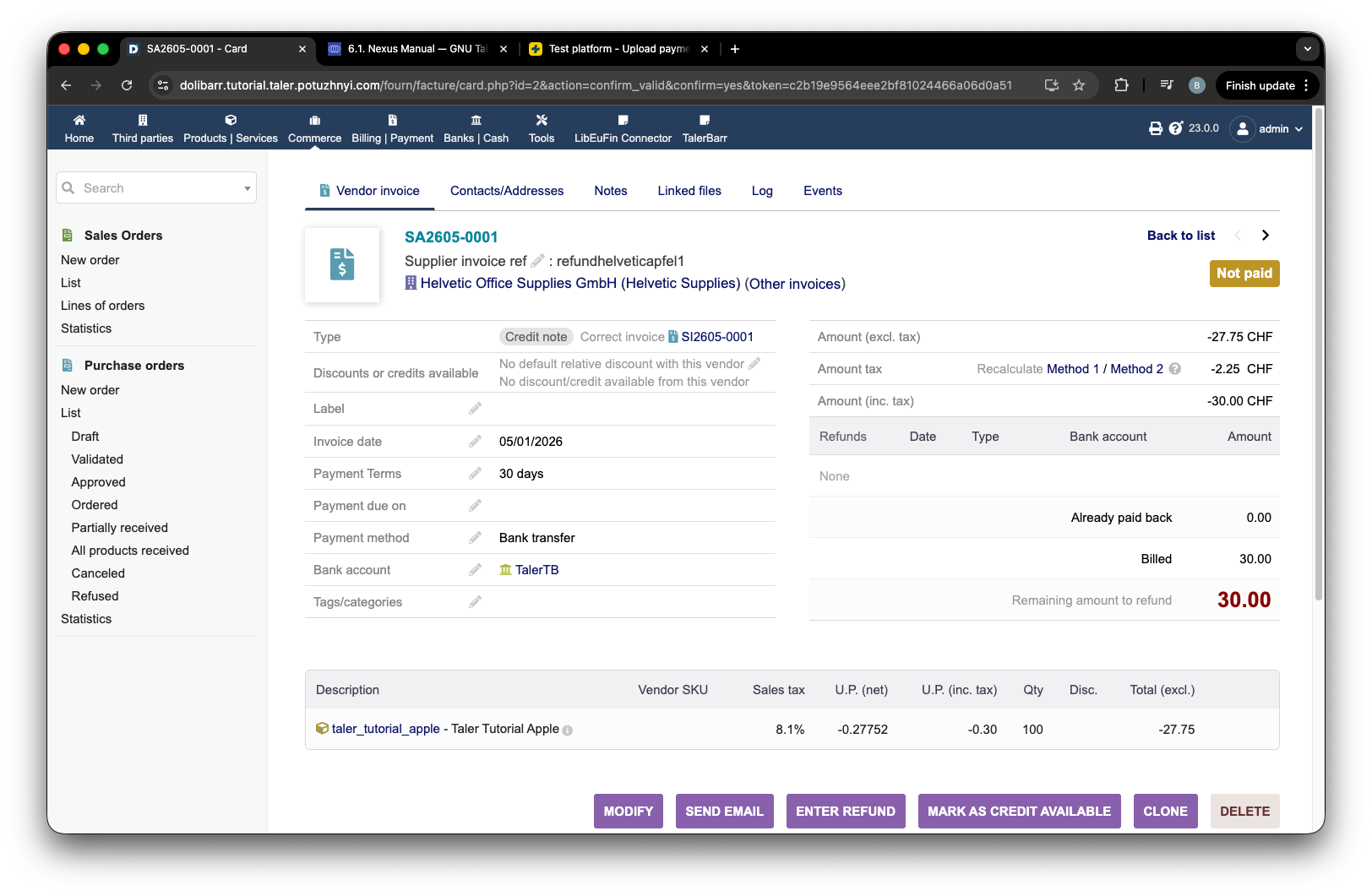
Dobropis dodavatelské faktury v Dolibarr.#
Poté, podobně jako u zákaznické faktury, přejděte na výukovou stránku a vytvořte platbu k tomuto dobropisu. Postup najdete na dalším obrázku.
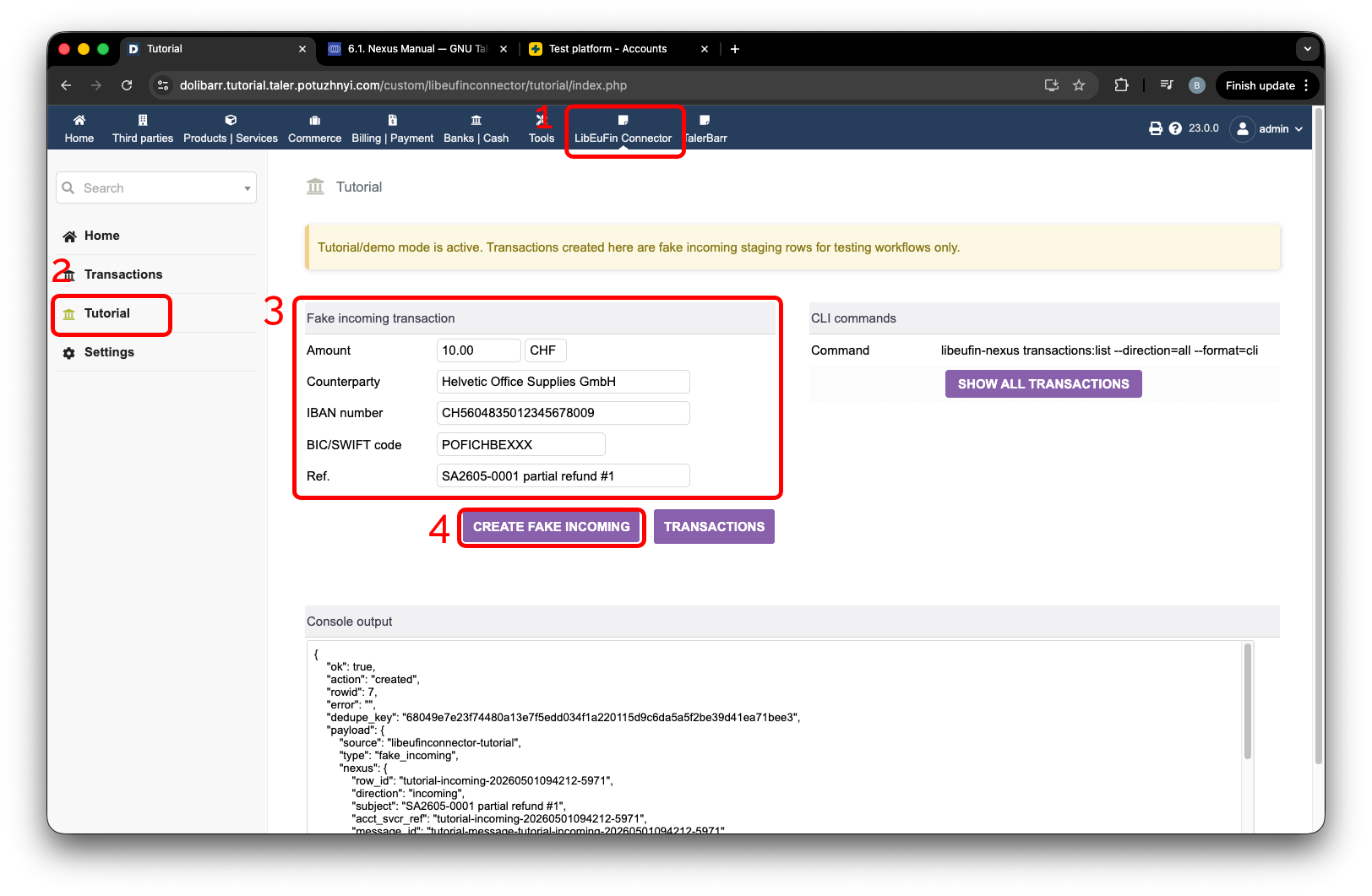
Vytváření falešné příchozí platby k dodavatelskému dobropisu.#
Přejděte na stránku Transactions, označenou číslem 1, a stiskněte tlačítko Stage incoming fetch, označené číslem 2. Po chvíli a opětovném načtení stránky se zobrazí poznámka informující vás, že příchozí transakce byla automaticky importována, označená číslem 3.
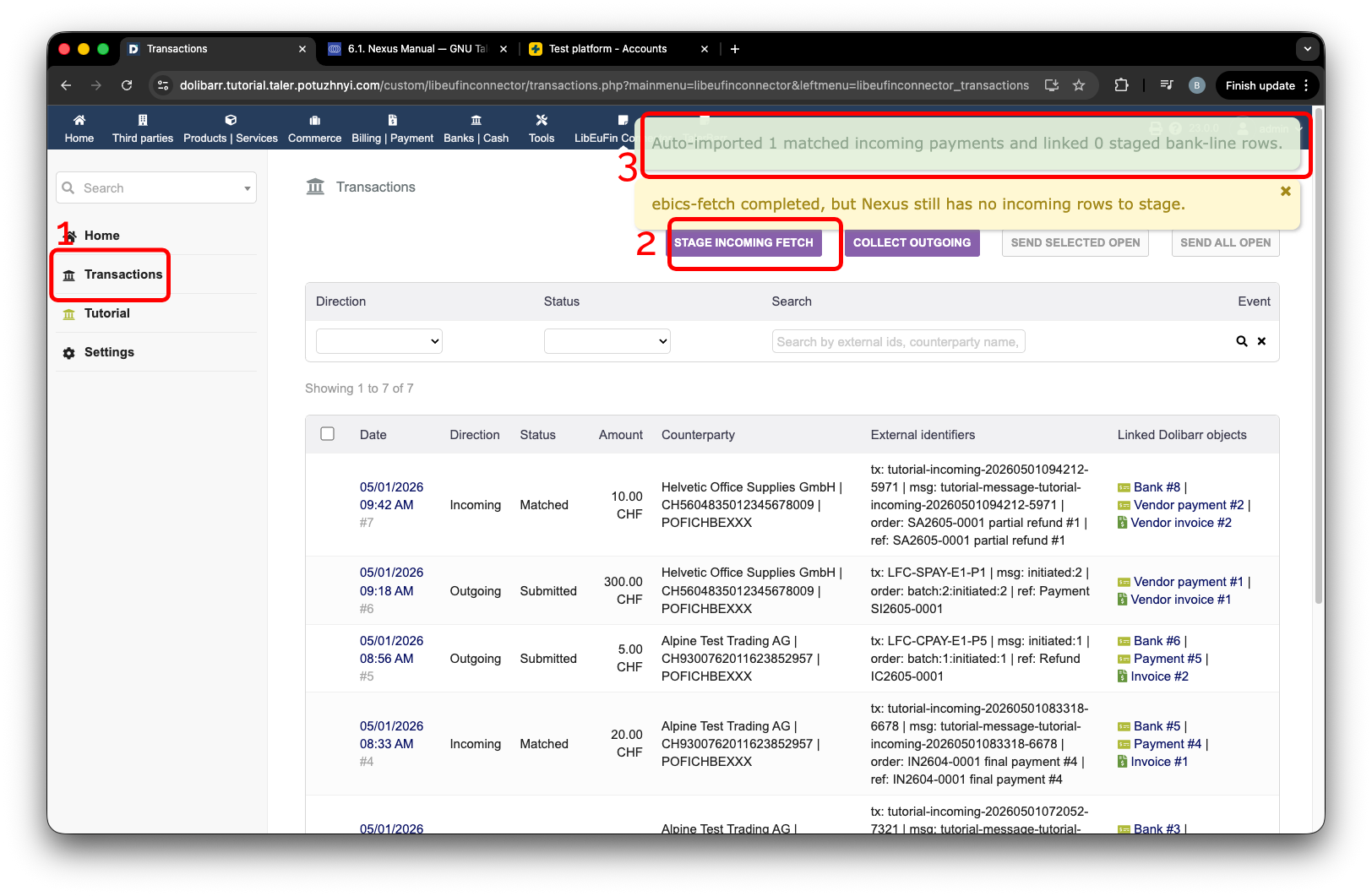
Automaticky importovaná příchozí transakce pro dodavatelský dobropis.#
Po přidání několika dalších příchozích plateb můžeme přejít na stránku dobropisu a ověřit, že byl vyplacen. Stejně jako dříve je na obchodních pravidlech, jak dál postupovat a provést úplné vyřešení. Stejně jako v předchozím uživatelském příkladu můžete provést ruční spárování s dobropisem, jak jsme to dříve udělali u zákaznické faktury.
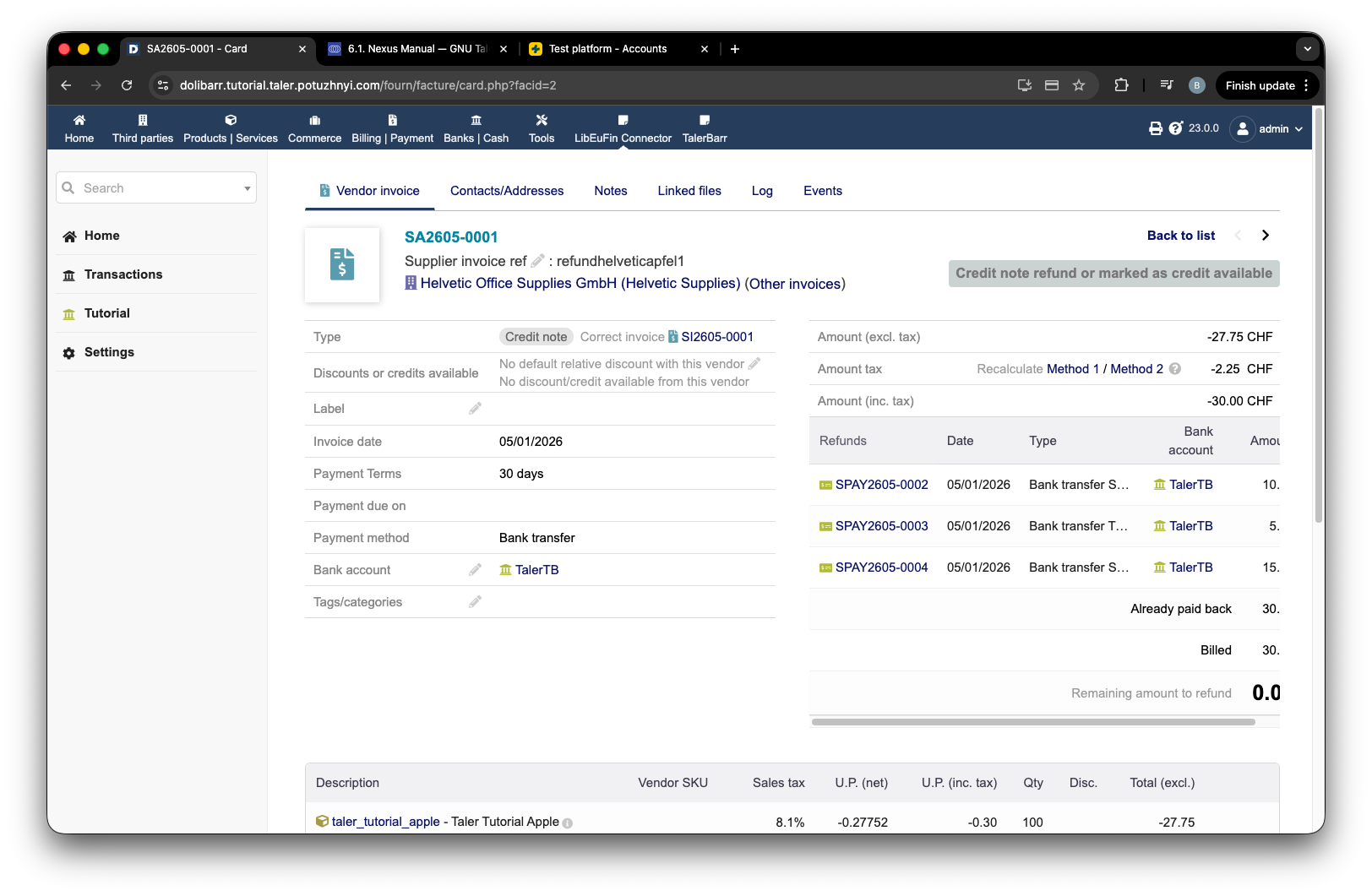
Dodavatelský dobropis po příchozích platbách.#
2.4.3.3. Další krok#
Nyní, když jste si prohlédli, jak fungují příchozí transakce, se srdečně zveme k prostudování návodu Odchozí transakce. Pokud jste modul ještě nenainstalovali, podívejte se na Instalace a konfigurace.
Podrobnosti o standardních objektech Dolibarr použitých zde najdete také v oficiální dokumentaci Dolibarr pro zákaznické faktury a dodavatelské faktury.