

2.3.6. Gestione dei rimborsi#
TalerBarr supporta il tracciamento e l’avvio dei rimborsi in entrambi i sistemi. I rimborsi sono legati a ordini Taler già pagati e vengono esposti tramite i record degli ordini TalerBarr.
Come nei tutorial precedenti, gli screenshot e gli esempi qui presentati servono a mostrare come funziona la gestione dei rimborsi specificamente con il modulo TalerBarr. Per il comportamento esatto dei sistemi sottostanti, è meglio consultare la documentazione originale, come la documentazione Dolibarr sulle fatture cliente e il tutorial sugli ordini Taler, che descrive anche gli stati degli ordini relativi ai rimborsi sul lato Taler.
2.3.6.1. Panoramica dei percorsi di rimborso#
In base alla progettazione del modulo e al rapporto di progetto della fase 3, sono supportati tre percorsi principali di rimborso:
Il rimborso può essere avviato direttamente da Taler SPAA.
Il rimborso può essere avviato da una fattura Dolibarr creando una nota di credito.
Il rimborso può essere avviato dalla scheda ordine TalerBarr utilizzando il pulsante Refund.
In particolare, il flusso di rimborso di Taler SPAA è rilevante quando la direzione di sincronizzazione è verso Dolibarr, mentre i percorsi della nota di credito Dolibarr e della scheda ordine TalerBarr sono opzioni valide quando la sincronizzazione è verso Taler.
2.3.6.2. Rimborso avviato da Taler SPAA#
Questo è il flusso di rimborso lato Taler più diretto. Il punto di partenza è un ordine pagato già visibile in TalerBarr.
Iniziamo con un ordine pagato, come mostrato di seguito.
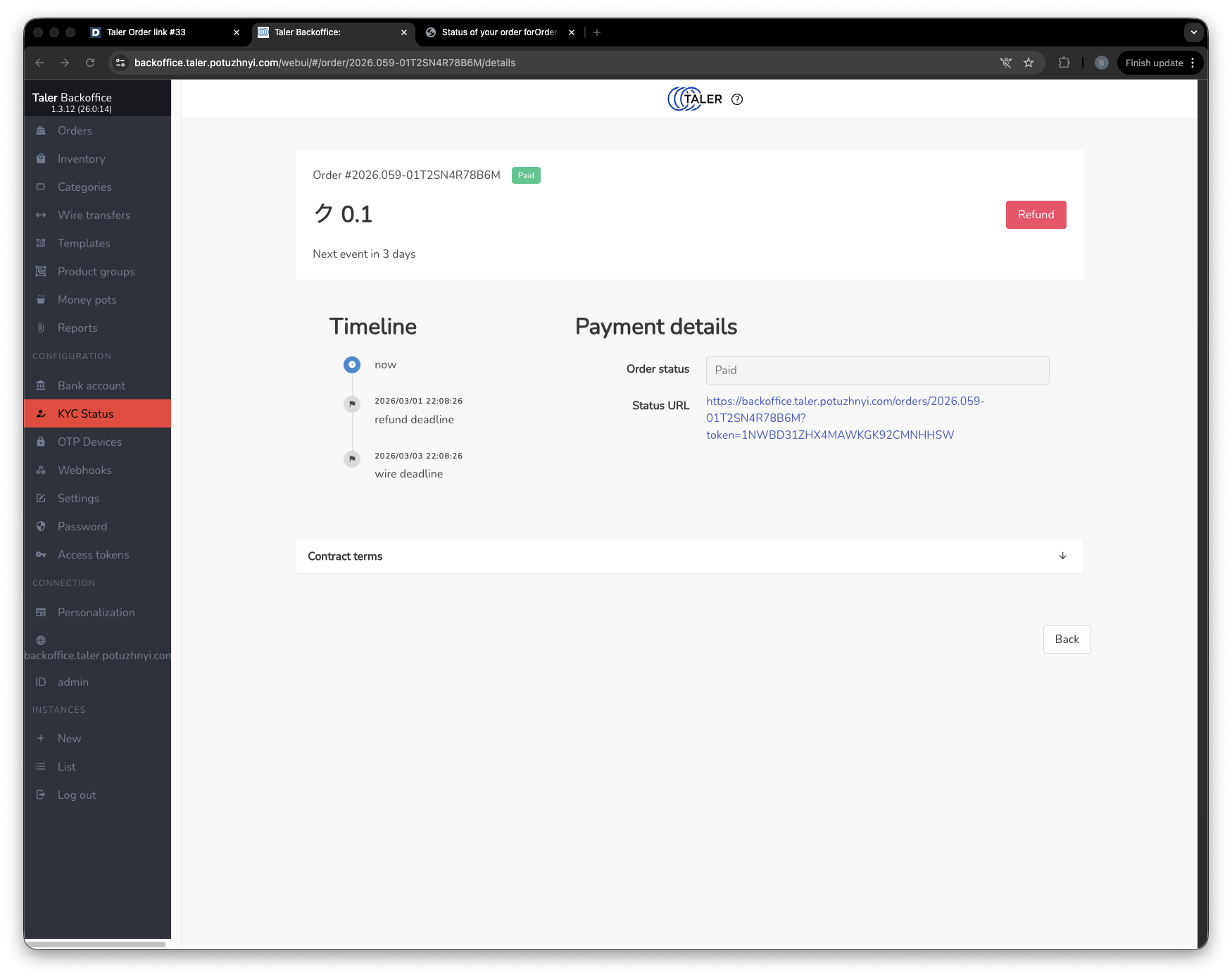
Ordine pagato prima di avviare il rimborso da Taler SPAA.#
Il rimborso viene quindi creato utilizzando il pulsante di rimborso in Taler SPAA.
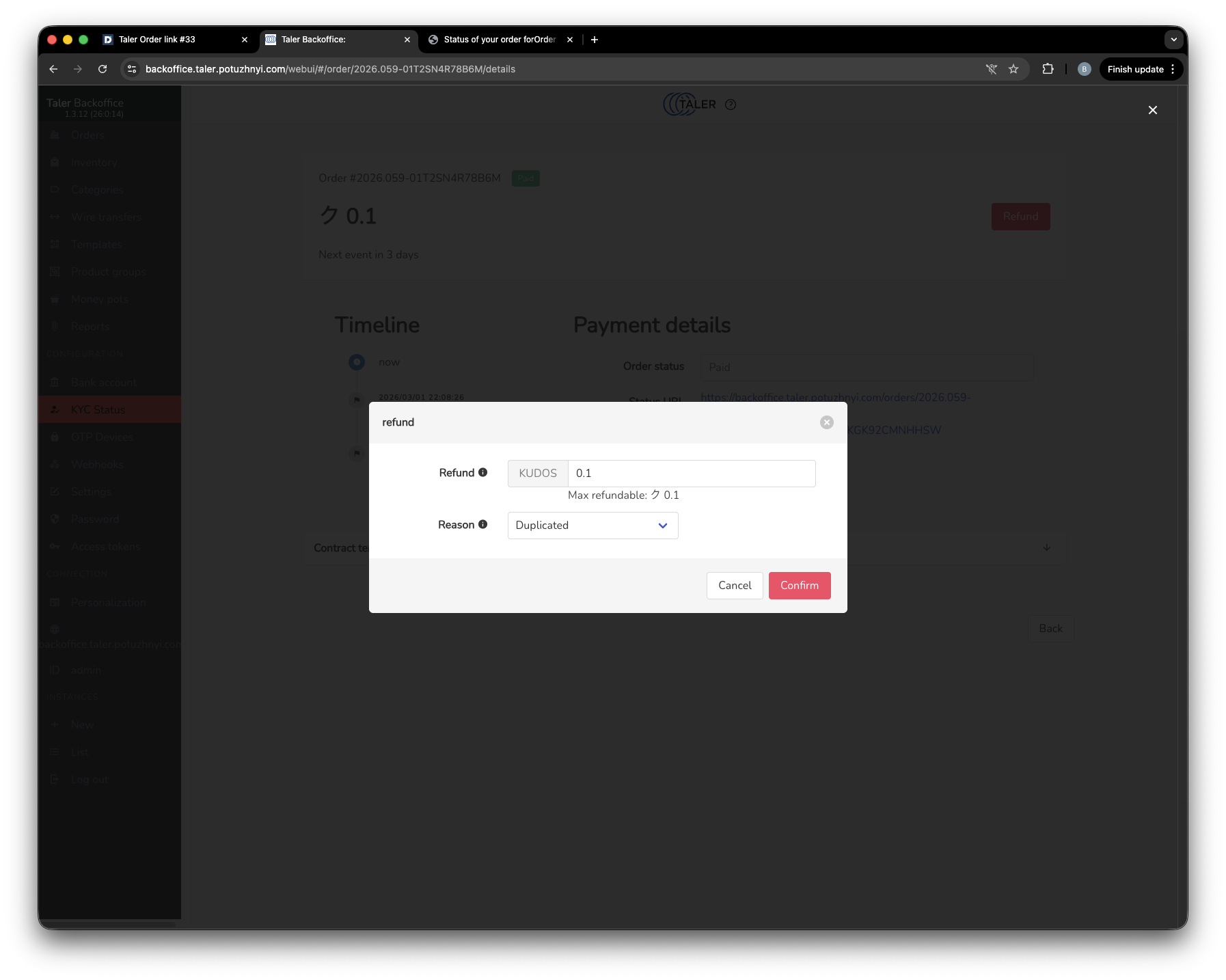
Creazione del rimborso in Taler SPAA.#
Dopo di che, puoi tornare a Dolibarr e vedere sulla scheda ordine TalerBarr che il rimborso è ora in corso.
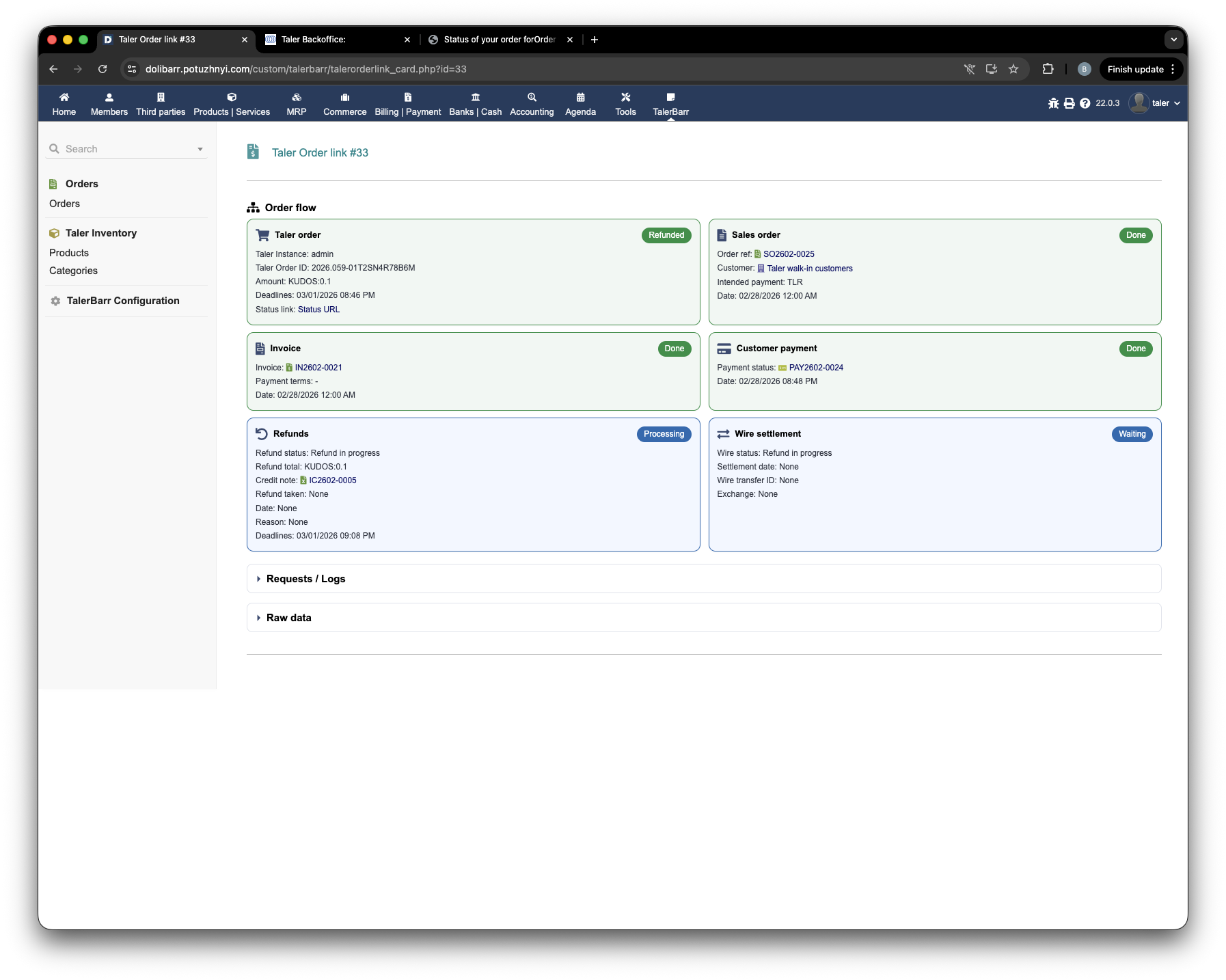
Scheda ordine TalerBarr con il rimborso in corso.#
Il cliente può quindi riscuotere il rimborso con un portafoglio Taler.
Rimborso riscosso con un portafoglio Taler.#
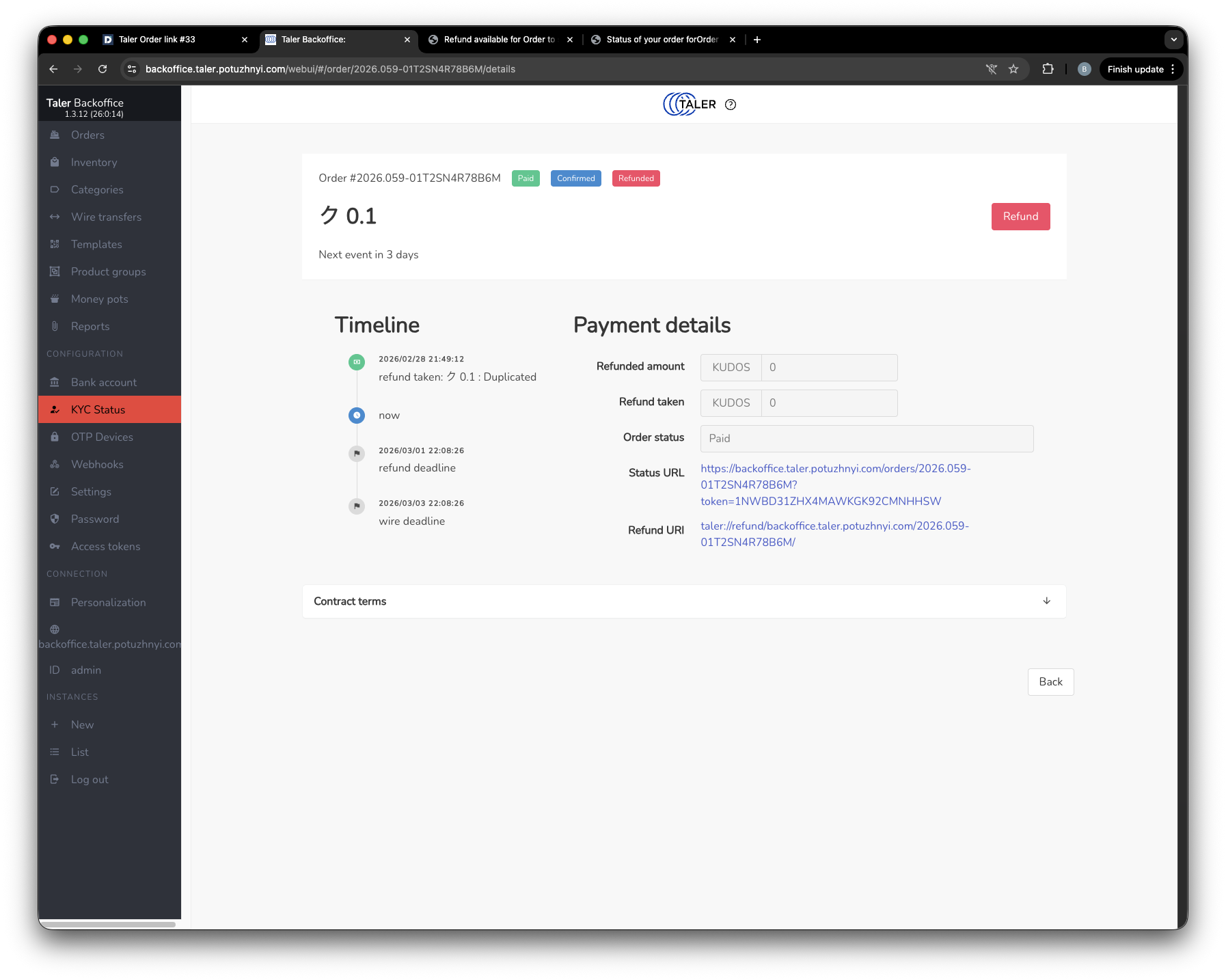
Una volta riscosso il rimborso, lo stato aggiornato è visibile anche sul lato Dolibarr nella scheda ordine TalerBarr.
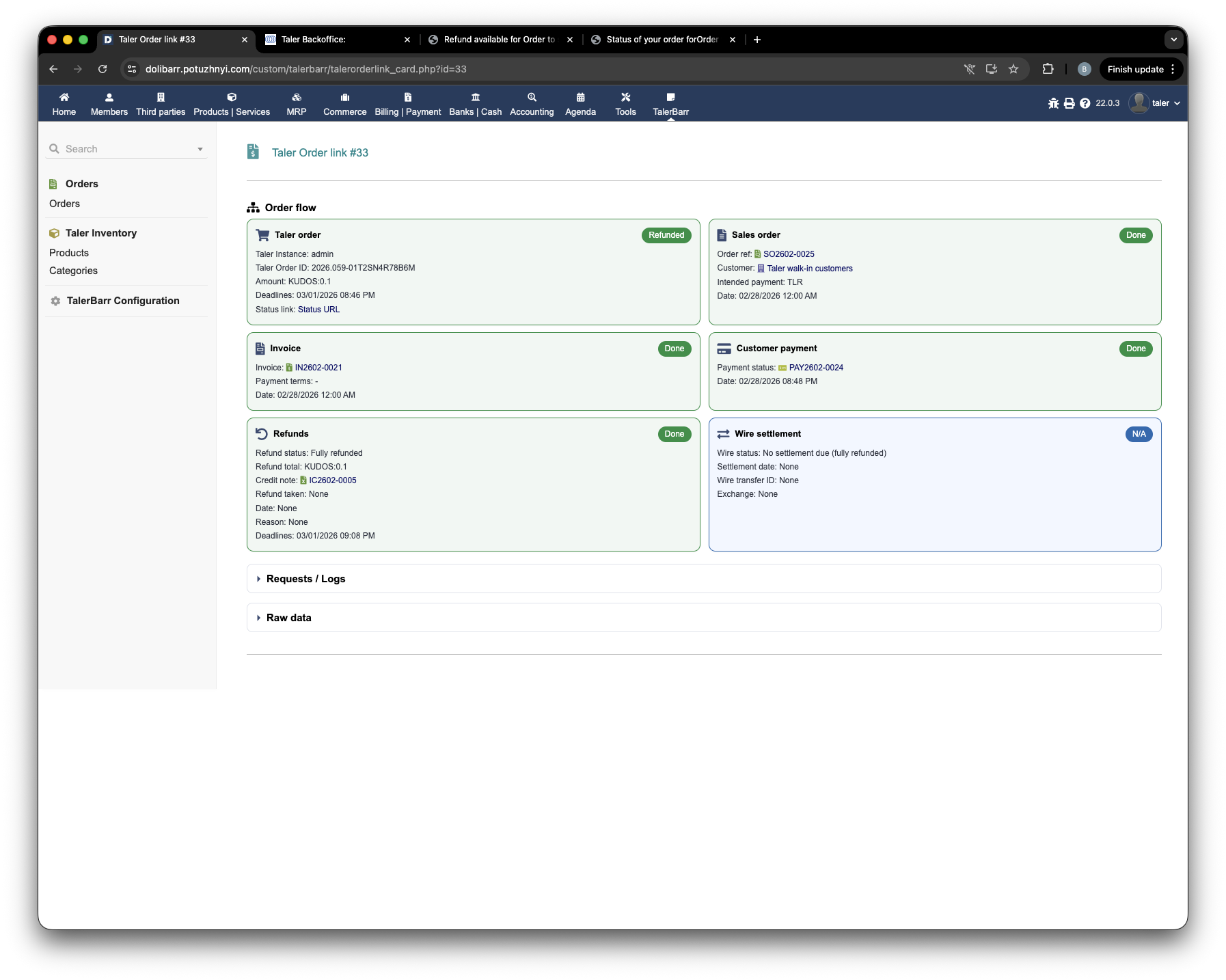
Scheda ordine TalerBarr dopo il completamento del rimborso lato Taler.#
2.3.6.3. Rimborso avviato da una fattura Dolibarr tramite nota di credito#
Questo percorso inizia dalla fattura Dolibarr collegata a un ordine pagato.
Iniziamo di nuovo con un ordine pagato pronto per essere rimborsato.
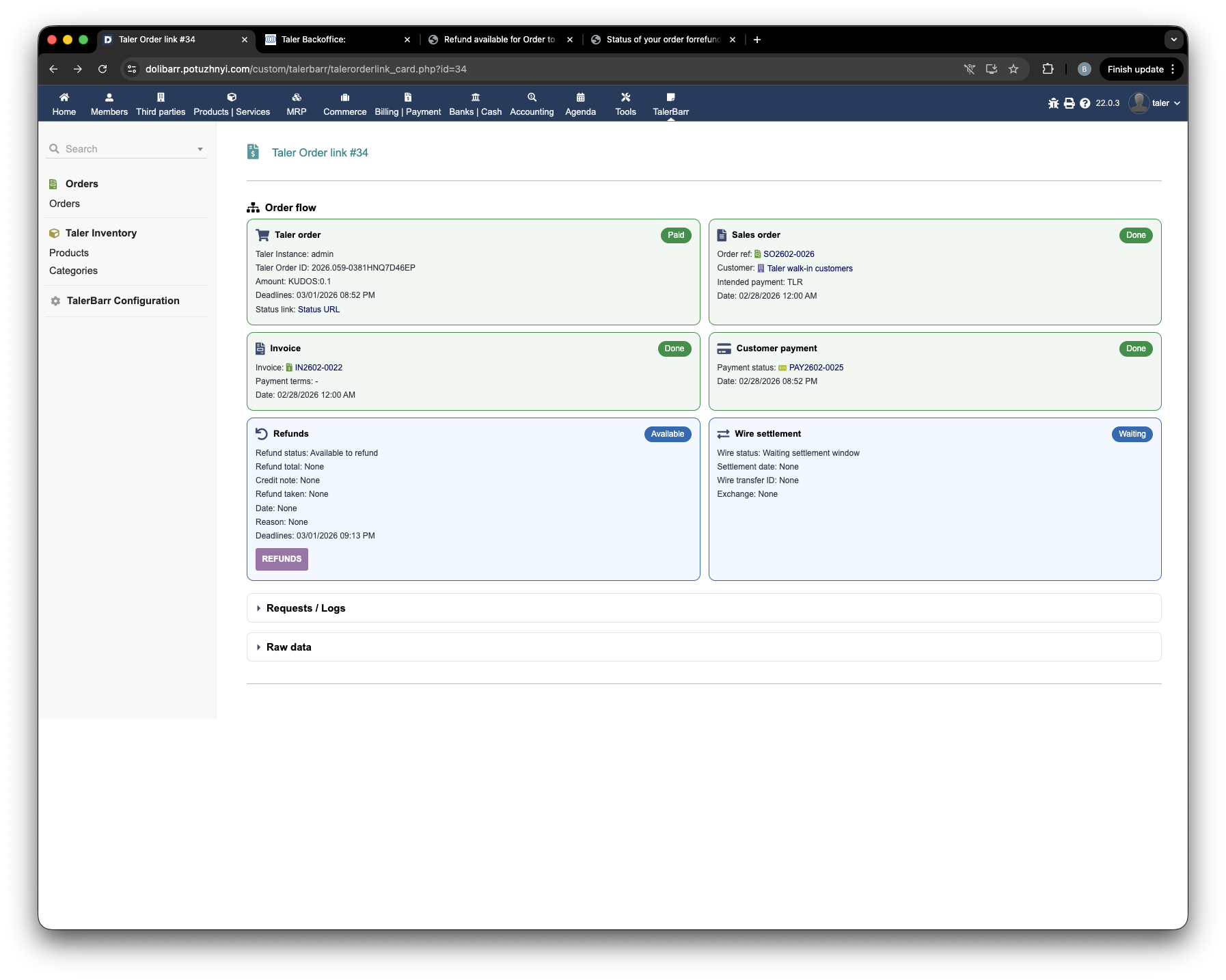
Ordine pagato prima della creazione della nota di credito Dolibarr.#
Dalla fattura collegata, seleziona Create credit note. Nella schermata successiva, imposta il metodo di pagamento su Taler, inserisci la data della fattura e salva il documento. Il metodo di pagamento è importante qui: senza di esso, il rimborso non verrebbe creato sul lato Taler.
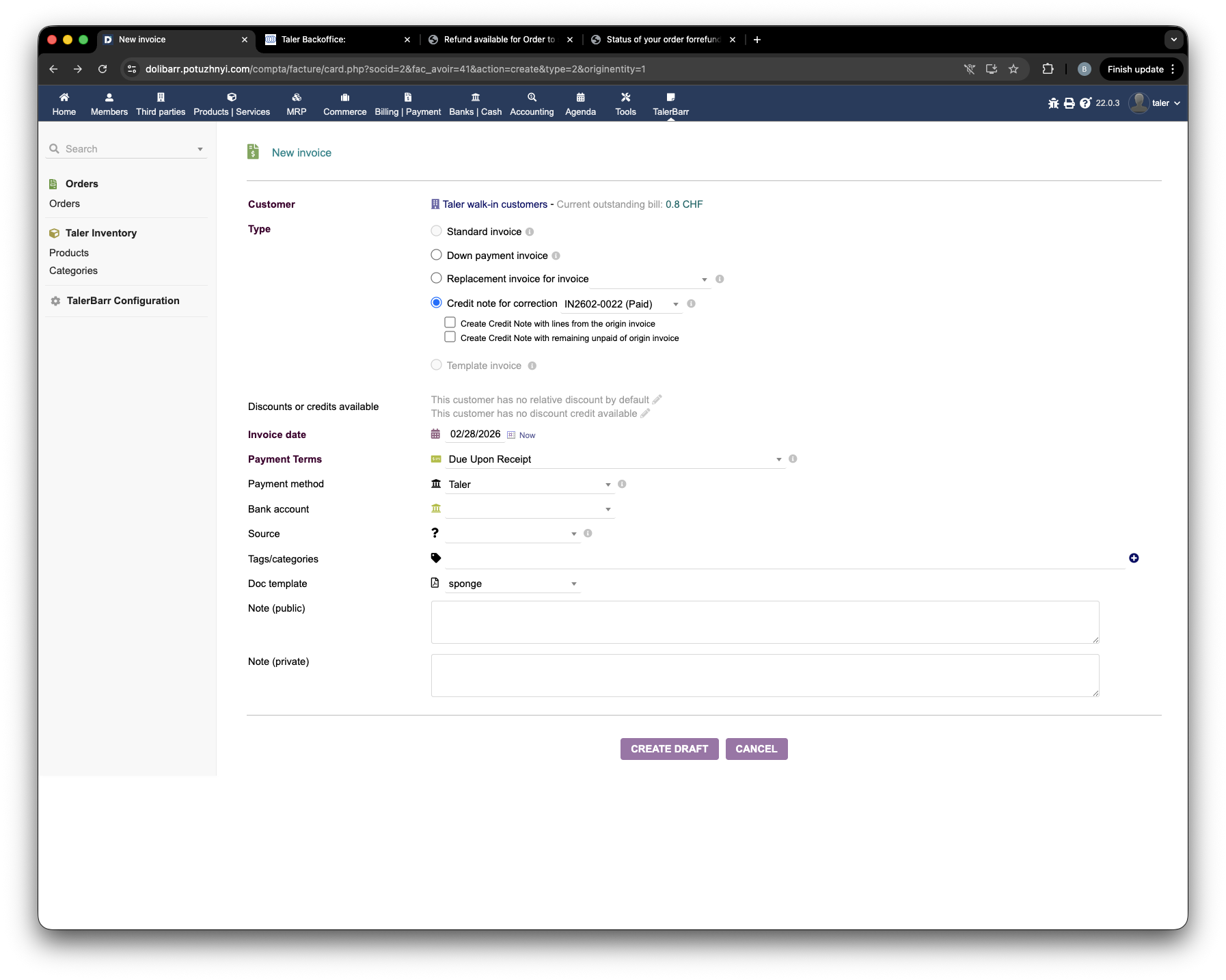
Creazione di una nota di credito Dolibarr con Taler come metodo di pagamento.#
Dopo il salvataggio, Dolibarr crea il documento provvisorio. Quindi seleziona gli articoli da rimborsare e convalida la nota di credito.
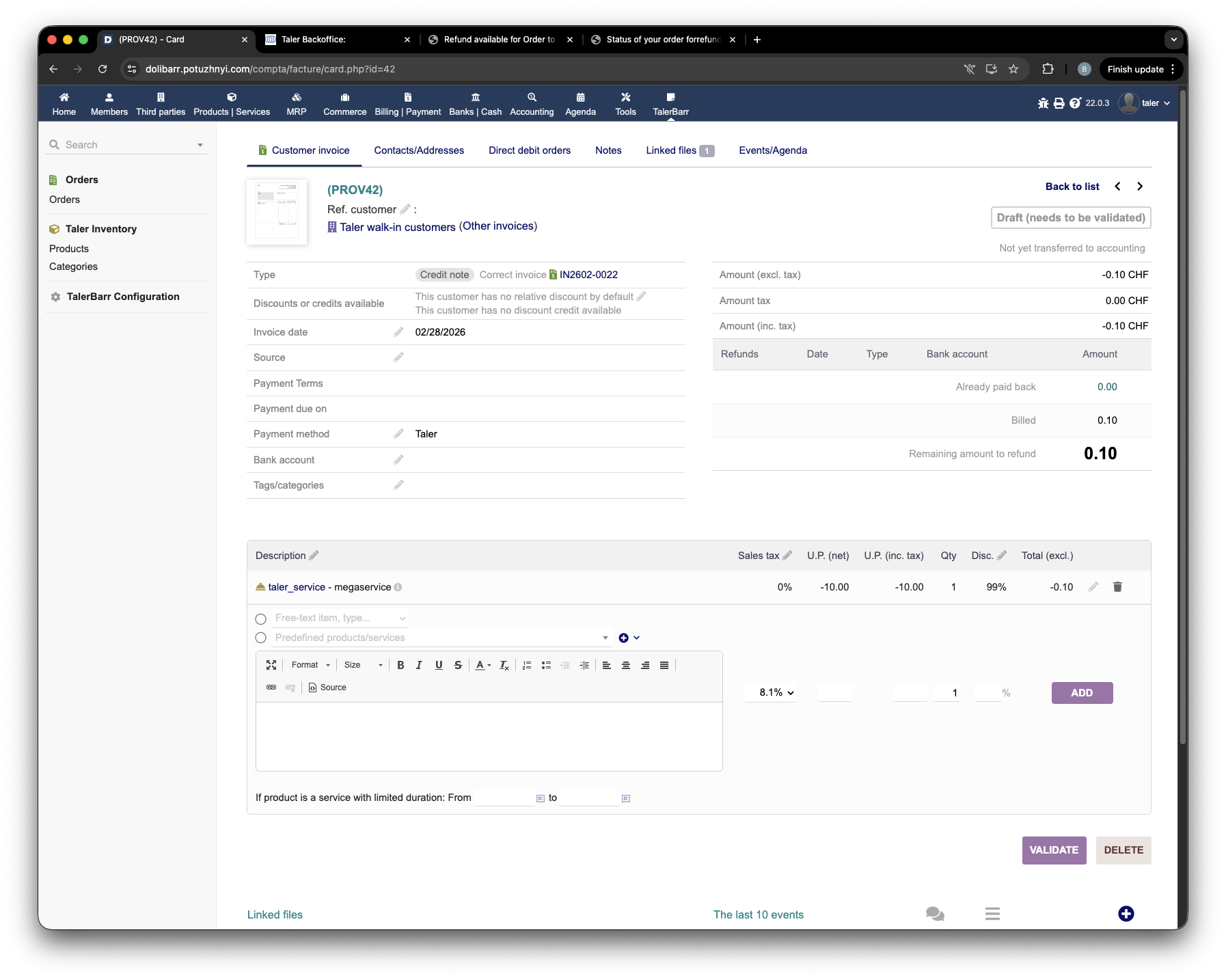
Nota di credito Dolibarr provvisoria prima della convalida.#
Dopo la convalida, TalerBarr verifica che le condizioni di rimborso siano ancora valide e crea il rimborso sul lato Taler. Viene quindi aggiunta una nota alla nota di credito, e anche la scheda ordine TalerBarr mostra che il rimborso è in corso.
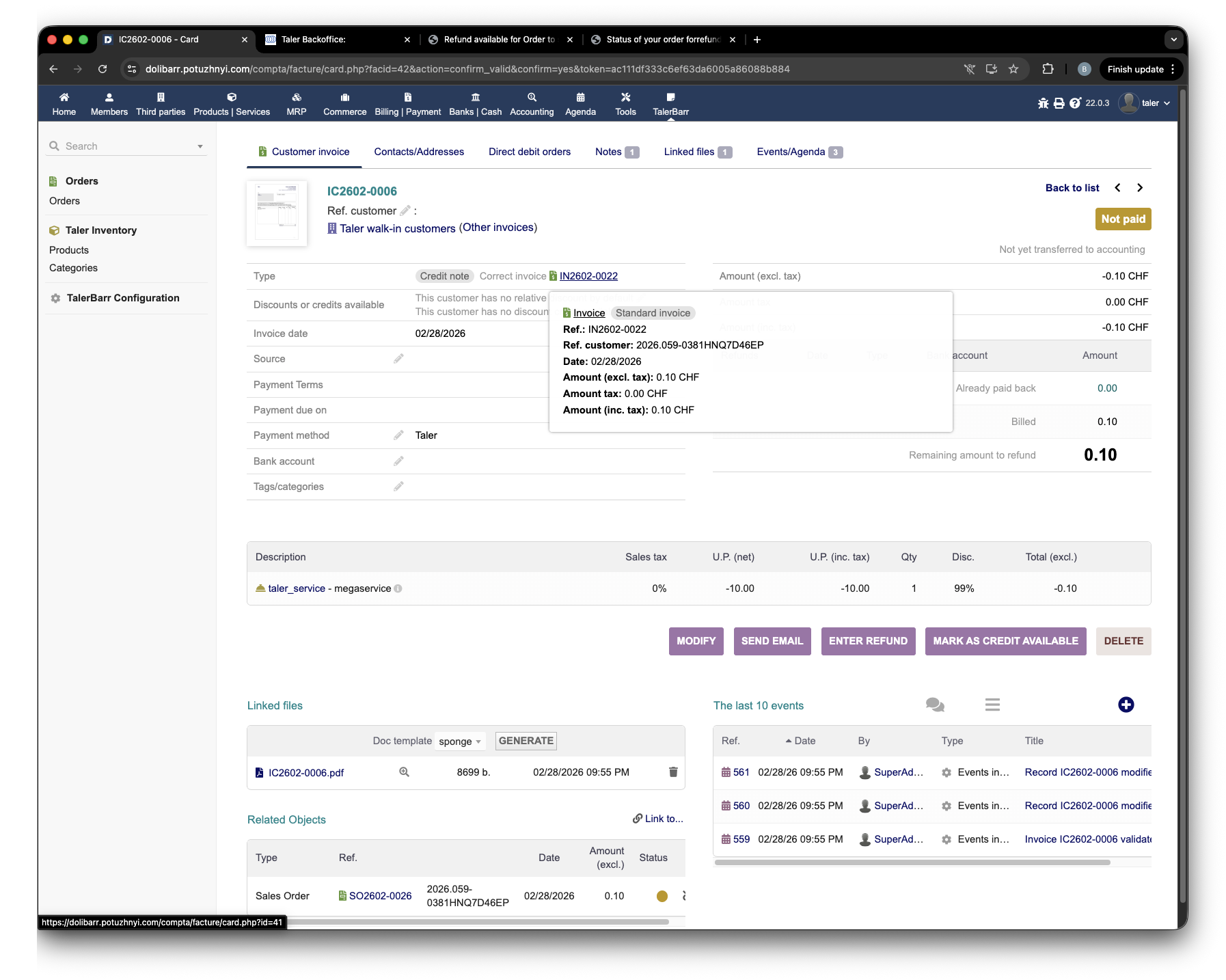
Nota di credito convalidata con informazioni sul rimborso.#
Da lì, il cliente può riscuotere il rimborso con un portafoglio, e lo stato finale viene aggiornato allo stesso modo del flusso Taler SPAA.
2.3.6.4. Rimborso avviato dalla scheda ordine TalerBarr#
Questo è il flusso di rimborso locale al modulo più breve. Consente al venditore di avviare il rimborso direttamente dalla scheda ordine TalerBarr senza uscire dal modulo.
Come al solito, partiamo da un ordine già pagato.
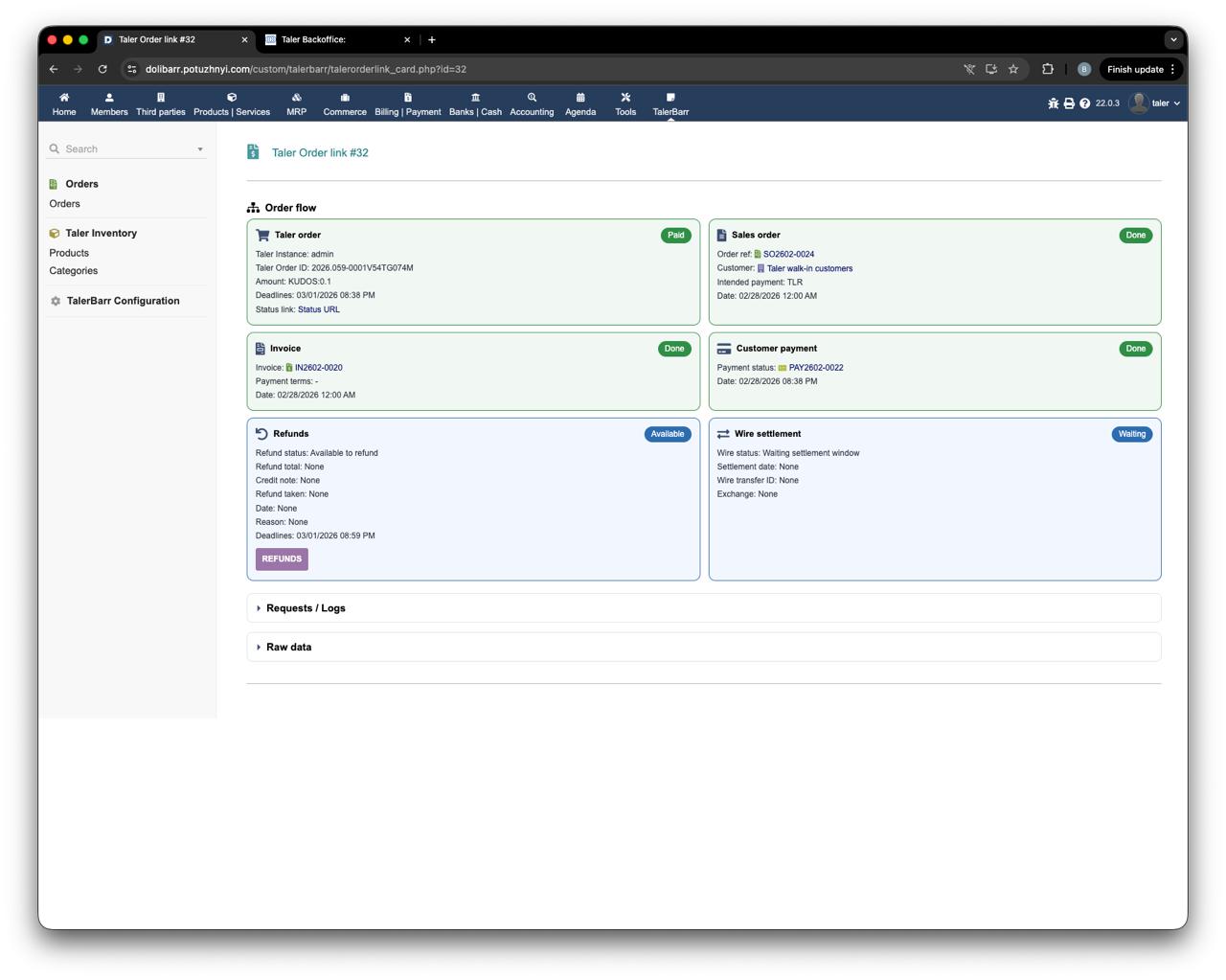
Ordine pagato sulla scheda ordine TalerBarr prima del rimborso.#
Premi il pulsante Refund. Appare il modulo di rimborso con un importo precompilato. L’importo può comunque essere modificato ed è necessario inserire un motivo del rimborso. Quindi premi Create Taler refund.
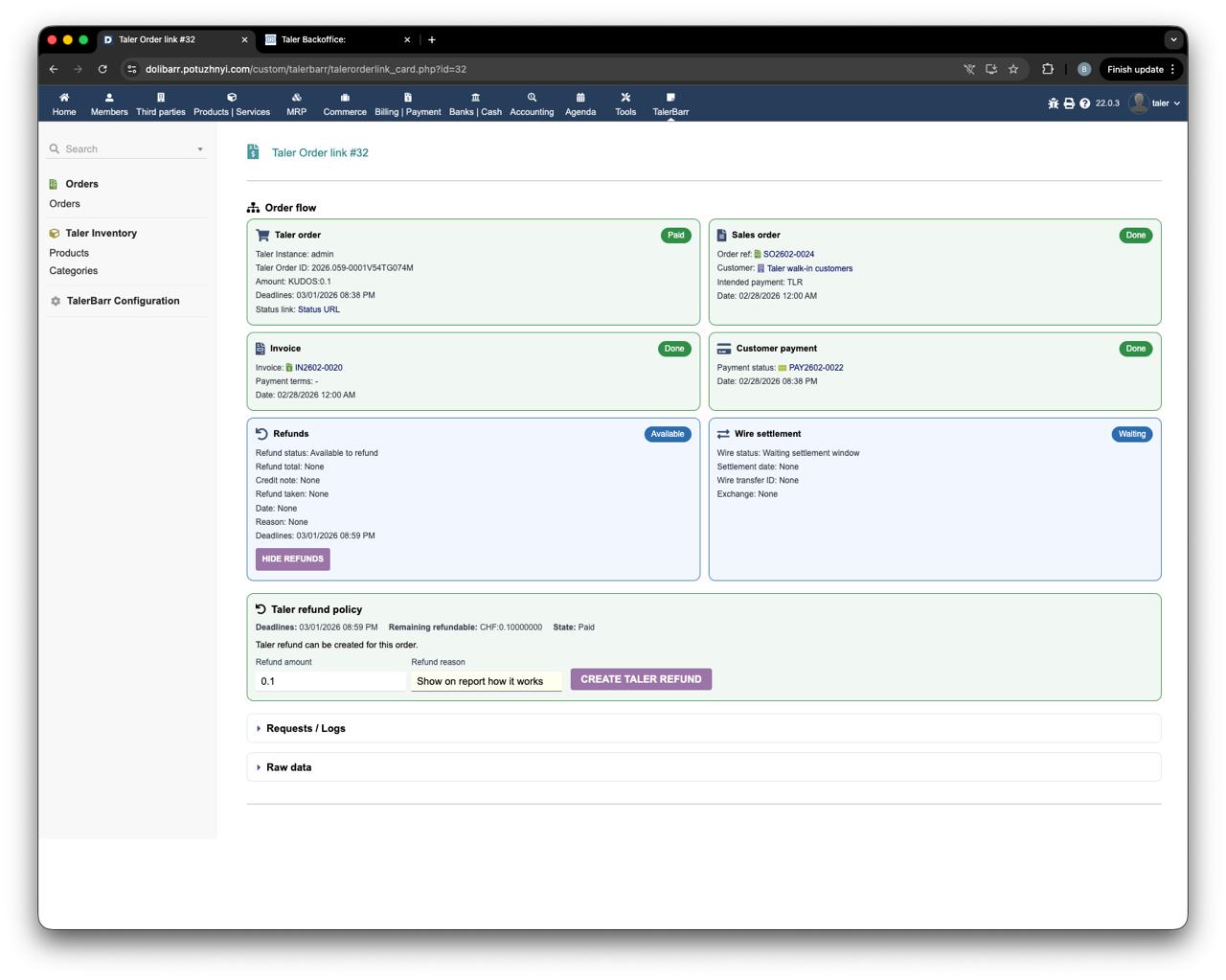
Modulo di rimborso sulla scheda ordine TalerBarr.#
Nella schermata successiva viene mostrata la conferma e il rimborso viene contrassegnato come in corso. Il venditore può utilizzare direttamente il link di stato oppure aprire la nota di credito collegata e trovare il link del rimborso nelle sue note.
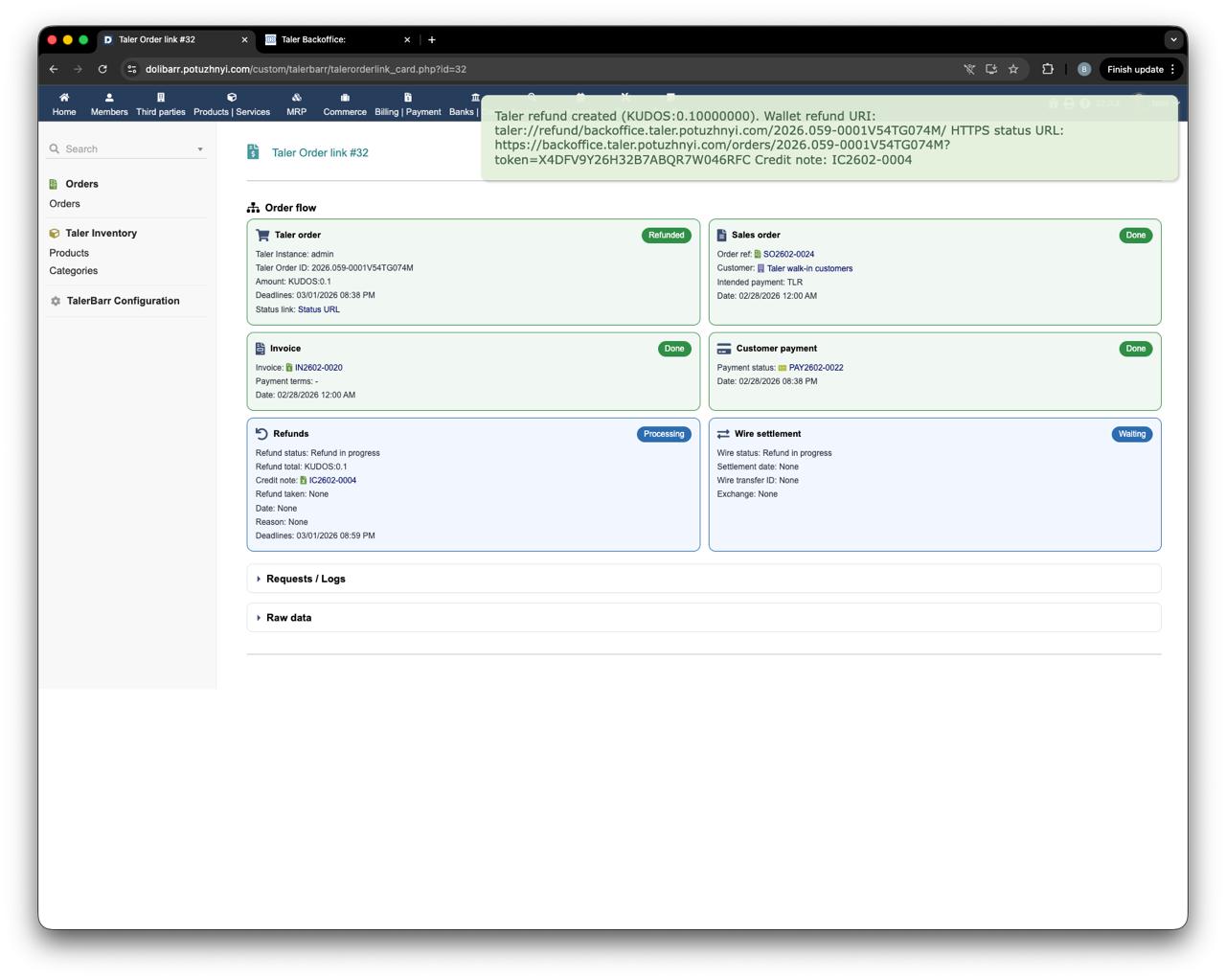
Rimborso creato dalla scheda ordine TalerBarr.#
La pagina di stato del rimborso mostra anche il codice QR che il portafoglio può utilizzare per riscuotere il rimborso. Questo passaggio di riscossione basato sul codice QR è rilevante anche per gli altri due flussi di rimborso.
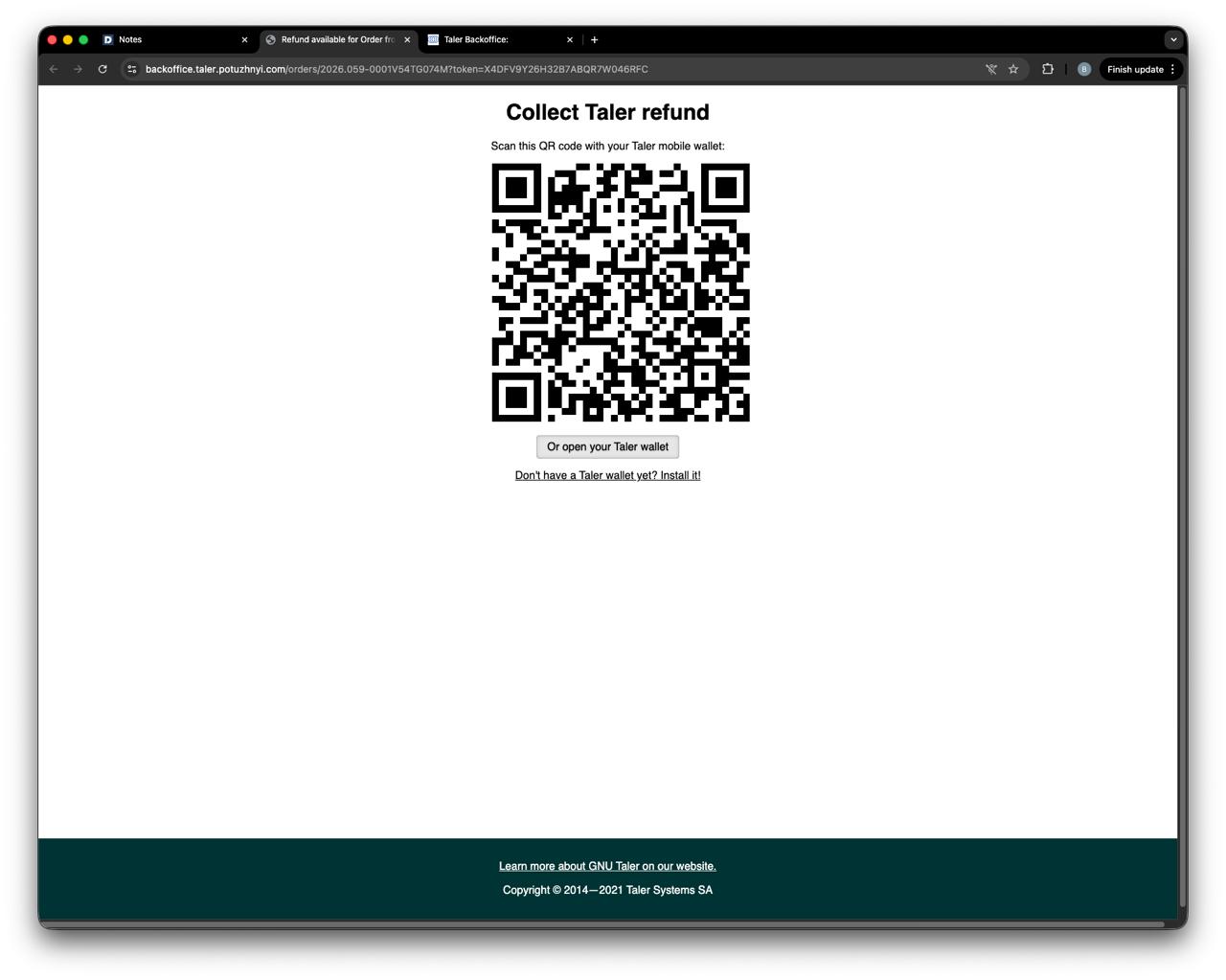
Pagina di stato del rimborso con codice QR.#
Dopo che il portafoglio ha riscosso il rimborso, lo stato viene aggiornato prima sul lato Taler e poi anche sul lato Dolibarr.
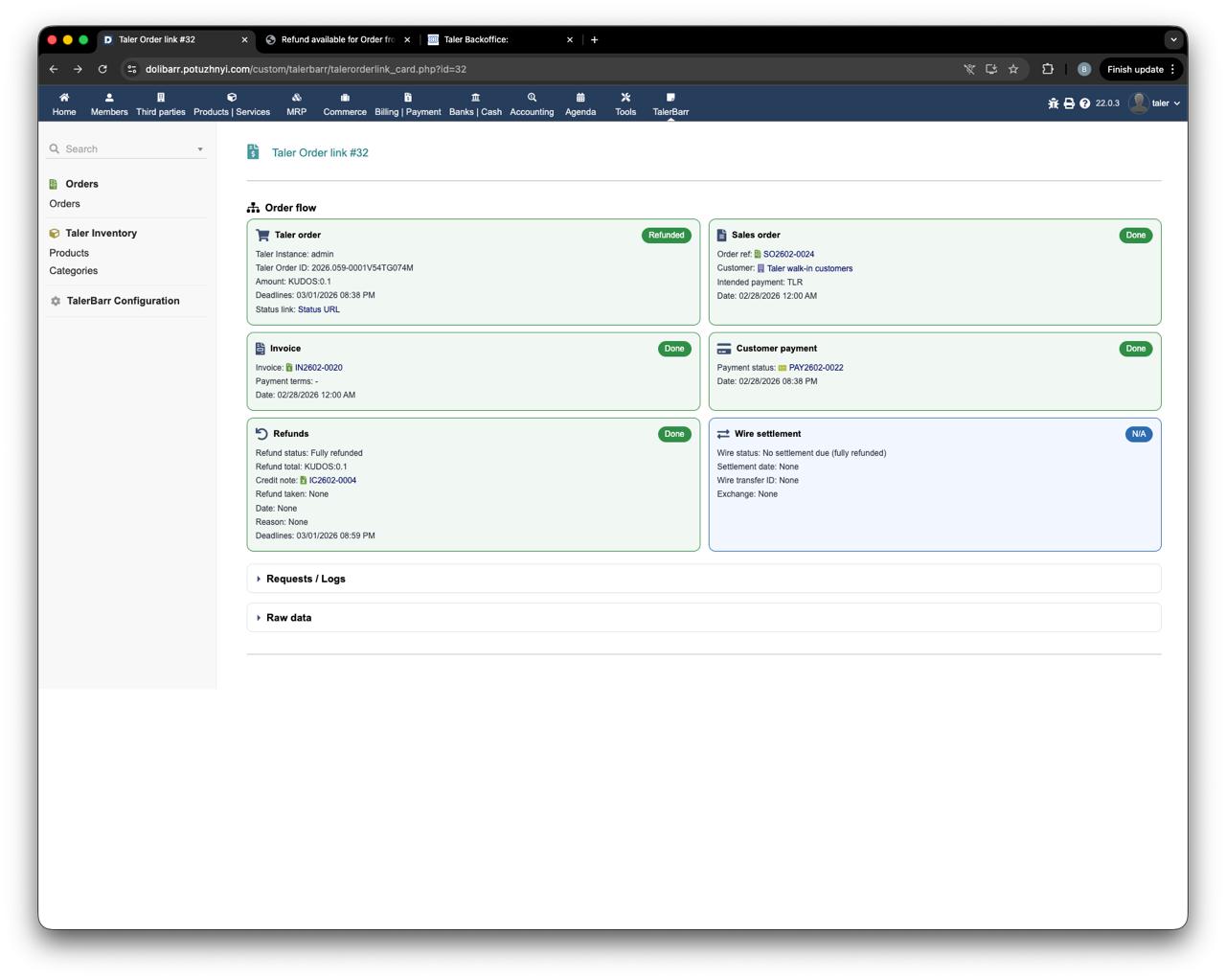
Rimborso completato mostrato sulla scheda ordine TalerBarr.#
2.3.6.5. Passaggio successivo#
Dopo aver convalidato i rimborsi, prosegui con Gestire i bonifici bancari per rivedere il passaggio finale di regolamento.